Your page is live, but Google Search Console says it’s “not indexed.” That label sounds like an emergency. Most of the time it isn’t, and this guide shows you how to tell the difference, reason by reason, using nothing but Google’s own documentation.
How Google Indexing Works in Plain English
Google indexing is the step where Google stores a page it has crawled so the page can appear in search results, and Google is clear that the step is never guaranteed. Its In-Depth Guide to How Google Search Works says it plainly: “Google doesn’t guarantee that it will crawl, index, or serve your page, even if your page follows the Google Search Essentials.” The place to see what happened to your own pages is the Page indexing report in Search Console.
Google describes three stages, and not every page makes it through all of them:
- Crawling. Google discovers a URL through a link, a sitemap or an earlier visit, and Googlebot downloads the page. During the crawl, Google renders the page and runs its JavaScript in a recent version of Chrome.
- Indexing. Google analyzes the text, images, title, alt attributes and other tags. It also groups similar pages together and picks one canonical, the version that may be shown in results.
- Serving. When someone searches, Google returns the indexed pages it judges most relevant.
Why does this matter for fixing errors? Because every message in the Page indexing report belongs to one of these stages. A robots.txt block or a server error stops a page at the crawl. A noindex tag or a duplicate stops it at indexing. And a page that is indexed but never shows up for your search has a serving problem, which no indexing fix will solve.

Key Takeaways
Most “not indexed” pages need no fix at all: Google says you “should not expect all URLs on your site to be indexed, only the canonical pages.” Fix only the reasons where the Source column says Website and the page actually matters, then click Validate fix, which “typically takes up to about two weeks,” according to Google’s Page indexing report help page.
Reading the Page Indexing Report
The Page indexing report shows the Google indexing status of every URL Google knows about in your property, split into Indexed and Not indexed, and its example lists stop at 1,000 URLs per issue, according to Search Console Help. Older tutorials, and a few lines in Google’s own help pages, still call it the coverage report. It’s the same place.
The summary page has three parts:
- A chart of indexed and non-indexed pages over time.
- Why pages aren’t indexed, a table of reasons that kept URLs out of the index. Click a row to see example URLs and the history of that issue.
- Improve page experience, a table of warnings for pages that were indexed but have a problem worth fixing.
Each reason row also has two columns that save you time. Source says whether the cause is on the Website or on Google’s side, and Google notes that, in general, you can only fix the issues whose source is Website. Validation shows whether you’ve asked Google to check a fix, and how that check is going.
Is the report worth your time on a small site? Maybe not. Google’s own non-expert guide says that if your site has fewer than 500 pages, “you probably don’t need to use this report.” A site: search for your homepage and key pages tells you most of what you need. Beyond that size, or when an important page goes missing, the report is the first stop.
The sitemap filter
The dropdown above the chart filters the whole report by sitemap: all known pages, all submitted pages, unsubmitted pages only, or one specific sitemap. We think this filter is the most underused part of the report. Filter to the sitemap that lists your money pages, and the noise from parameter URLs and old redirects drops away.
A note on report delays in 2026
The report itself can lag. In mid-2026, Search Engine Roundtable reported that the Page indexing report sat stuck at June 11, 2026 for about two weeks, with more stalls through July. When part of June later vanished from the chart, Google’s John Mueller replied: “We don’t back-fill indexing data.” If a chart looks flat or stale, check a few URLs one at a time before you assume something broke on your site.
Every Not-Indexed Reason, Explained
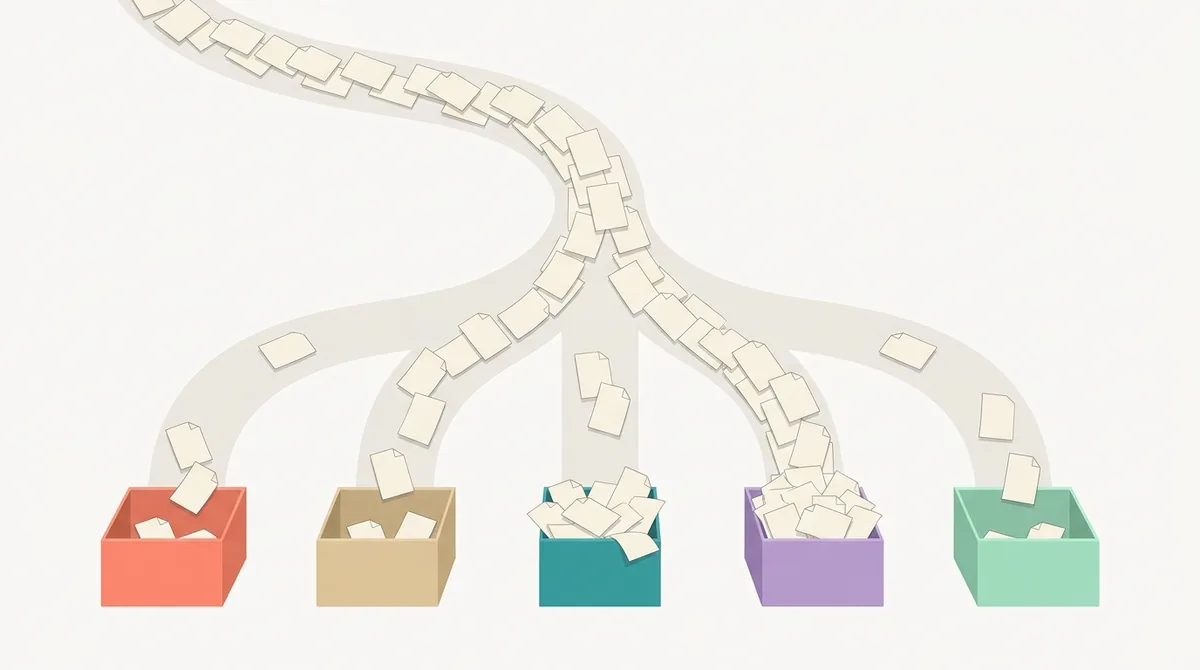
Google’s Page indexing report lists 15 reasons a URL can be left out of the index, plus 2 warnings for pages that were indexed with a problem, per the reason list on the Page indexing report help page. Which of them should actually worry you? The table below puts every one of them next to a plain verdict. “Usually fine” means Google expects many sites to have it; “fix” means the page probably should be indexed and something on your site is stopping it.
| Reason in the report | What Google says it means | Usually fine or fix? |
|---|---|---|
| Server error (5xx) | Your server returned a 500-level error when Google asked for the page | Fix: check hosting and server load |
| Redirect error | A redirect chain was too long, looped, grew past the max URL length or hit a bad URL | Fix: point the redirect at the final URL |
| URL blocked by robots.txt | A robots.txt rule stopped Google from crawling it | Fine if intended; otherwise change the rule |
| URL marked ‘noindex’ | Google found a noindex rule and dropped the page | Fine if intended; otherwise remove the tag or header |
| Soft 404 | The page shows a “not found” style message but returns a 200 code | Fix: return a real 404, or add real content |
| Blocked due to unauthorized request (401) | Googlebot hit a login or authorization request | Fine for private pages; otherwise remove the login |
| Not found (404) | The URL returned a 404 | Usually fine if the page is gone; redirect it if it moved |
| Blocked due to access forbidden (403) | The server refused Googlebot, which never sends credentials | Fix if the page should be public |
| URL blocked due to other 4xx issue | Another 4xx error not covered above | Fix: debug it with URL Inspection |
| Crawled - currently not indexed | Google crawled it but chose not to index it | Judge the page; see the section on crawled pages |
| Discovered - currently not indexed | Google knows the URL but postponed the crawl to avoid overloading the site | Usually time and internal links |
| Alternate page with proper canonical tag | An alternate version points correctly to an indexed canonical | Fine: nothing to do |
| Duplicate without user-selected canonical | Google picked another URL as canonical because you didn’t name one | Fine, unless Google picked the wrong page |
| Duplicate, Google chose different canonical than user | You named a canonical, but Google chose another URL | Check your canonical tags and content |
| Page with redirect | A non-canonical URL that redirects elsewhere | Fine: update internal links to the target |
| Indexed, though blocked by robots.txt (warning) | Indexed from links even though robots.txt blocks crawling | Use noindex instead, or unblock it |
| Page indexed without content (warning) | Indexed, but Google couldn’t read the content | Fix: check for cloaking or unreadable formats |
Notes on the reasons that confuse people most
Soft 404. Google’s crawling errors guide defines it as a URL that tells the user the page does not exist while returning a 200 (success) code. Empty internal search results, a broken database connection or a JavaScript file that fails to load can all trigger it. If the page is truly gone, return 404 or 410. If it’s a real page, run a live test in URL Inspection and look at the screenshot: a blank or nearly blank render usually means blocked or failing resources.
Not found (404). Google says 404s “are not necessarily a problem, if the page has been removed without any replacement.” Its advice is to fix “only 404 errors that you link to yourself or list in a sitemap.” Googlebot may keep trying an old URL for a while; there is no way to make it forget, but it will crawl the URL less and less often.
Duplicate, Google chose different canonical than user. This one means your canonical tag lost an argument. Inspect the URL and compare the user-declared canonical with the Google-selected canonical. Google’s rule is simple: if your declared canonical isn’t similar to the page, Google “won’t ever choose that URL as canonical.”
Page indexed without content. Google could index the URL but couldn’t read what’s on it. Google names two likely causes: the page may be cloaked to Google, or it may be in a format Google can’t index. It is not a robots.txt problem, so the URL Inspection coverage details are the place to start.
Which Not-Indexed Pages You Can Safely Ignore
You can safely ignore a not-indexed URL when Google left it out on purpose and you agree with the choice, and Google’s Page indexing help says “Most sites have at least a few unindexed pages, but all of your important pages should be indexed.” So how do you sort the harmless rows from the real problems? Ask one question per row: should this exact URL appear in Google?
These rows are usually fine as they are:
- Alternate page with proper canonical tag and Duplicate without user-selected canonical. Google calls a page marked duplicate or alternate “usually a good thing,” because it means Google found the canonical and indexed it.
- Page with redirect. Old URLs that 301 to a new home are supposed to drop out. Google indexes the target instead.
- Not found (404) for pages you deleted on purpose, with no replacement and no links from your own site.
- URL marked ‘noindex’ and URL blocked by robots.txt when you added the rule yourself, for example on thank-you pages, cart pages or internal search.
- Filtered and sorted URLs. Google lists parameter URLs such as
type=dress,color=greenorsort=priceas a common source of large duplicate groups. Those “probably shouldn’t be indexed.”
And these deserve attention, every time:
- Your homepage or a key page in any not-indexed row.
- A sudden drop in indexed pages with no matching rise in errors. Google says this often means you’re “blocking access to your existing pages via robots.txt, ‘noindex’ or a required login.”
- An error spike right after a template change or a new sitemap.
Our rule of thumb: sort the reasons by Source, skip everything marked Google, and only open the Website rows that contain URLs you would link to from your own navigation. Everything else is housekeeping.
Fixing Crawled and Discovered but Not Indexed Pages
“Crawled - currently not indexed” means Google fetched the page and decided not to index it for now, and Google’s Page indexing help says it “may or may not be indexed in the future; no need to resubmit this URL for crawling.” “Discovered - currently not indexed” is earlier in the pipeline: Google knows the URL but rescheduled the crawl because it expected to overload the site, which is why the last crawl date is empty.
These two are the most searched indexing problems, and neither has a button that fixes it. Requesting indexing again won’t help either: Google’s recrawl guide warns that “requesting a recrawl multiple times for the same URL won’t get it crawled any faster.”
For crawled but not indexed pages
Google’s How Search works guide lists low-quality content as a common indexing issue, so treat this status as a quality signal. Open the page and ask the questions from Google’s helpful content guide, starting with “Does the content provide original information, reporting, research, or analysis?” Then work through these checks:
- Is it a near copy of another page on your site? Merge the two and 301 the weaker URL.
- Is it thin? Tag pages, empty category pages and short placeholder posts often land here. Add real content or noindex them.
- Does anything link to it? A page that only exists in a sitemap looks unimportant. Link to it from related pages with descriptive anchor text.
- Does it render? Run a live test in URL Inspection and check that the main content shows up in the screenshot.
Checking a few pages by hand works. For hundreds of URLs, a site audit crawler can flag pages with a low word count, broken links and redirects in one pass, and our test of three site audit crawlers on one site shows how many pages each one crawled.
For discovered but not indexed pages
Google’s crawl budget guide names “Sites with a large portion of their total URLs classified by Search Console as Discovered - currently not indexed” as one of the cases that guide was written for. The main lever Google points to is “perceived inventory”: if many known URLs are duplicates, removed or unimportant, crawling time gets wasted on them. Consolidate duplicates, block infinite filter and sort URLs with robots.txt, and keep your server fast enough that Google doesn’t need to slow down.
Internal links matter here too. Google’s link best practices say Google can generally only crawl a link if it’s an <a> HTML element with an href attribute, so menus built from script events can hide pages. What about a brand-new site? Google says it “can take a week or so” to start crawling and indexing a new page or site, so patience is part of the fix.
Redirects, Canonicals and Site Moves
Redirects and canonical tags tell Google which URL to keep, and Google’s redirects guide explains that a permanent redirect makes Google show the new target in results, while a temporary one keeps the source page. That single difference explains most “Page with redirect” rows: they’re the old side of a permanent redirect, doing exactly what they should.
| Signal | How Google treats it | Use it when |
|---|---|---|
| 301 or 308 redirect | Permanent; a strong signal the target should be canonical | A page has moved for good |
| 302, 303 or 307 redirect | Temporary; the source page stays in results | A page is unavailable for a short time |
| rel=“canonical” link | A strong signal for the URL you name | Duplicates must stay live, such as tracking parameters |
| Sitemap inclusion | A weak signal | Backing up the other two |
Those signal strengths come from Google’s canonicalization guide, which adds that the methods stack: using two of them together raises the chance your preferred URL wins. It also lists what not to do. Don’t use robots.txt for canonicalization, and don’t use the URL removal tool for it, because “It hides all versions of a URL from Search.”
Keep redirect chains short
Google’s HTTP status code guide says Google’s crawlers follow up to 10 redirect hops by default. Its site move guide still advises redirecting straight to the final destination, or keeping chains “ideally no more than 3 and fewer than 5.” It also warns against sending many old URLs to one irrelevant page such as the homepage, which “might be treated as a soft 404 error.”
Moving to a new domain with Change of Address
The Change of Address tool is for one job: moving a whole site from one domain or subdomain to another, such as example.com to example.org. Google says not to use it for an http to https move, for moving pages within one site, or for switching between www and non-www.
Before you click anything, check the requirements:
- 301 redirect the old homepage to the new homepage, and ideally every canonical page to its new URL.
- Verify both the old and new sites as properties, owned by the same Google account.
- Run the tool from the old domain-level property and pass its pre-move checks.
After that, Google emphasizes crawling the new site and forwards signals to it for 180 days. Keep the redirects for at least 180 days; Google’s general site move advice is “at least 1 year.” How long does the traffic take to move? Google says a small to medium-sized website “can take a few weeks for most pages to move,” and larger sites take longer.
Using URL Inspection and Request Indexing
URL Inspection shows what Google knows about one URL, and Google’s URL Inspection help page says indexing after a request “typically takes only a day or so, but can take much longer in some cases.” Paste any URL from your property into the bar at the top of Search Console to open it.
The first screen is the indexed version, and Google spells it out: “This is not a live test.” It shows how Google discovered the URL, when it was last crawled, whether crawling and indexing are allowed, the canonical you declared and the canonical Google selected. When you’ve just fixed something, click Test live URL to fetch the page as it is now, then Request indexing if the live test looks clean.
Know the limits before you rely on it:
- There is a daily limit on inspection requests and on live tests for each property.
- You must be an owner or full user of the property to request indexing.
- A request “does not guarantee that the page will appear in the Google Index.”
- The live test can’t check several reasons at all, including Crawled - currently not indexed, Discovered - currently not indexed, every canonical and duplicate reason, and Page indexed without content. Google decides those at indexing time.
- For a redirecting URL, the live test quietly tests the redirect target, while the indexed result reports on the URL you typed.
Got 200 new pages? Don’t request each one. Google’s advice for many new or updated pages is to submit a sitemap with the changed pages marked by <lastmod>. That date only helps if it’s honest: Google’s sitemap guide says it uses <lastmod> when the value is “consistently and verifiably” accurate.
Validate Fix: What Happens and How Long It Takes
Validate fix asks Google to recheck every URL with a specific issue after you’ve fixed it, and Google’s Page indexing help page says validation “typically takes up to about two weeks, but in some cases can take much longer.” Do you have to use it? No. Google updates issue counts whenever it recrawls an affected page, so fixes count even if you never click the button. Validation adds email updates and a log of every checked URL.
Here’s the flow, step by step:
- Fix every instance first. Validation stops when Google finds a single remaining instance of the issue.
- Open the issue’s details page and click Validate fix. Search Console immediately checks a few pages. If the problem is still there, validation ends.
- Google works through the affected URLs. Only URLs with known instances of the issue are queued, not the whole site.
- Watch the state change. Don’t click Validate fix again until it has succeeded or failed.
| Validation state | What it means |
|---|---|
| Not started | Some instances have never been part of a validation request |
| Started | Validation is running and no remaining instances have turned up yet |
| Looking good | Every instance checked so far is fixed |
| Passed | All known instances are gone; this needs a click on Validate fix |
| N/A | Google found the issue fixed everywhere without a validation request |
| Failed | Enough pages still have the issue; fix them and start a new validation |
Two details help. First, an issue disappears from the table only after 90 days with no new instances; if it returns within that window, the original “first detected” date stays. Second, Google’s own pro tip: submit a sitemap with only your most important pages, filter the report by it, and validate against that subset, which “can complete faster” than a site-wide request. In our view this is the single best trick on the page, because a large site rarely gets every URL fixed at once.
Sitemaps, Removals and Crawl Stats as Indexing Tools
Three other Search Console tools feed the Page indexing report, and each solves a different problem: sitemaps help Google find URLs, Removals hides URLs fast, and Crawl Stats explains server-side failures. Google’s Sitemaps report help says even a successful sitemap brings no promise, since “it is possible that not all URLs in a sitemap will be crawled.”
Sitemaps
The Sitemaps report shows each submitted sitemap with a status of Success, Has errors or Couldn’t fetch. Common reasons for Couldn’t fetch include a robots.txt block, a wrong URL that returns 404, an unresolved manual action and low crawl demand. Google’s sitemap guide caps a single sitemap at 50MB uncompressed or 50,000 URLs, so bigger sites split them under a sitemap index. One surprise for many site owners: deleting a sitemap from the report doesn’t make Google forget it or its URLs. To stop Google visiting them, use robots.txt, delete the file, or add noindex.
Removals
The Removals tool temporarily blocks a URL on your property from Google results for about six months. It’s the emergency brake for sensitive content, not a cleanup tool. Google says you don’t need it for old pages that return 404, because they “will naturally drop out of our search results.” For a permanent removal, pair it with a 404 or 410, a login, or a noindex rule.
Crawl Stats and the robots.txt report
The Crawl Stats report shows how many requests Googlebot made, the responses your server returned, and a host status for robots.txt fetching, DNS and server connectivity over the past 90 days. Google aims it at advanced users: sites with “fewer than a thousand pages” shouldn’t need it. It’s the first place to look when Server error (5xx) rows climb. Next to it sits the robots.txt report, which shows the robots.txt files Google found for your top 20 hosts and lets you request a recrawl after an urgent fix.
How do server errors affect pages already in Google? According to Google’s HTTP status code guide, 5xx errors make Google slow down, and indexed URLs “are preserved in the index, but eventually dropped.” A 4xx response is harsher: already indexed URLs that return one “are removed from the index.” If your host is the problem, a buyer’s guide to choosing a web host by plan type can help you pick something sturdier.
Video Indexing and Other Special Reports
The Video indexing report shows how many indexed pages on your site have a video Google could index, and Google’s Video indexing report help notes that “Google indexes only one video per page.” It covers only pages that are already indexed, so a page missing from the Page indexing report won’t show up here either.
The most common reason in the report surprises bloggers. “Video isn’t on a watch page” means the video supports the text instead of being the main point of the page. Google lists a blog post where the video complements the text, a product page with a video and a category page of equal videos as pages that are not watch pages. Is that a problem? Only if you want the video itself to appear in video results.
Other reasons are technical and fixable:
- Cannot determine video position and size. The player only loads after a click on a placeholder image.
- No thumbnail URL provided, Invalid thumbnail size or Thumbnail blocked by robots.txt. Give Google a reachable, supported thumbnail through structured data or a sitemap.
- Video not processed yet. Check back in a few days.
To check a single page, open URL Inspection: a Video indexing section appears only when Google detected a video there.
A Simple Indexing Routine That Catches Real Problems
The fastest way to stay on top of Google Search Console indexing is a short monthly check, and Google’s Page indexing help sets the goal as “a gradually increasing count of indexed pages as your site grows.” Here is the routine we recommend, built only from the reports in this guide:
| Check | Where | What to do if something looks off |
|---|---|---|
| Indexed count trend | Page indexing chart | Look for a matching rise in noindex, robots.txt or login rows |
| Key pages | URL Inspection | Live test, fix, then Request indexing |
| Website-source reasons | Why pages aren’t indexed table | Fix the ones that hit important URLs, then Validate fix |
| Sitemap health | Sitemaps report | Fix Couldn’t fetch and Has errors, then resubmit |
| Server health | Crawl Stats host status | Talk to your host about 5xx spikes |
If you’re new to the tool, start with our beginner’s guide to the reports in Google Search Console, which covers Performance, experience and security reports alongside indexing. Haven’t verified a property yet? Read how to add and verify your site in Search Console first, because none of these reports show data until you do. Once your pages are indexed, the next question is how they rank, and our guide to reading query and position data in Search Console picks up from there. Blog owners can pair this routine with our SEO checklist for getting blog posts found.
References
- Search Central: In-Depth Guide to How Google Search Works
- Search Console Help: Page indexing report
- Search Engine Roundtable: Google Search Console Page Indexing Report Delayed Two Weeks
- Search Engine Roundtable: Google Search Console Indexing Report Missing Old June 2026 Data
- Search Central: Troubleshoot Google Search crawling errors
- Search Central: Ask Google to recrawl your URLs
- Search Central: Creating helpful, reliable, people-first content
- Google Crawling Infrastructure: Crawl budget management
- Search Central: Link best practices for Google
- Search Central: Redirects and Google Search
- Search Central: How to specify a canonical with rel=“canonical” and other methods
- Google Crawling Infrastructure: How HTTP status codes affect Google’s crawlers
- Search Central: Site moves with URL changes
- Search Console Help: Change of Address tool
- Search Console Help: URL Inspection tool
- Search Console Help: Sitemaps report
- Search Central: Build and submit a sitemap
- Search Console Help: Removals and SafeSearch reports tool
- Search Console Help: Crawl Stats report
- Search Console Help: robots.txt report
- Search Console Help: Video indexing report