Most lists of SEO tools for YouTube start with a paid browser extension. YouTube’s own answer starts somewhere else: a free tab inside YouTube Studio that shows what your audience is already searching for. This guide puts the free official tools first, then explains what vidIQ and TubeBuddy add, using only each company’s official documentation.
Quick Answer: Which YouTube SEO Tool to Start With
Start with the free tools YouTube already gives you, and add a paid extension only when you want keyword scores inside YouTube itself. YouTube says creators upload over 500 hours of video every minute, according to its How YouTube search works page, so the job of any SEO tool is to help one video match what viewers type.
Here is the short version, based on the official pages we read on October 24, 2026:
| Tool | Cost | What it does for YouTube SEO |
|---|---|---|
| YouTube Studio, Trends tab | Free | Top searches from your audience, breakout videos and content gaps for Shorts |
| YouTube Analytics, Reach tab | Free | The exact search terms that brought viewers to each video |
| Google Trends | Free | Search interest on YouTube over time and by region, plus related searches |
| vidIQ | Free plan with 150 AI credits a month; Boost $19/month; MAX $49/month (US list prices) | Keyword volume and competition scores, AI title and tag suggestions, a Chrome extension |
| TubeBuddy | Free plan plus paid Pro, Legend and Enterprise licenses | Keyword Explorer, SEO Studio, tag tools, bulk editing, A/B tests |
Which one should a new channel open first? YouTube Studio. It costs nothing, the data comes from YouTube, and the Reach tab tells you which searches already work for you. The third-party tools estimate search volume from their own data; YouTube Studio reports what happened on your channel.
A note on method: Indie Stack Lab has no test record for YouTube Studio, vidIQ or TubeBuddy. Every feature, limit and price below comes from the official help pages and plan pages linked in each section, read on October 24, 2026. Where a page could change by country, we say so.

If you also do SEO for a website, YouTube keyword work is a separate job: the search box, the data and the ranking signals are YouTube’s own. For website keywords, see how general keyword tools disagree on the same search.
Key Takeaways
YouTube says creators upload over 500 hours of video every minute and ranks search results on three elements, relevance, engagement and quality, according to YouTube Help. Free tools in YouTube Studio show what your audience searches for and which terms already bring views. vidIQ and TubeBuddy add keyword scores and editing shortcuts on top, and both offer free plans.
How YouTube Search Ranks Videos, According to YouTube
YouTube ranks search results on relevance, engagement and quality, and it personalizes them with each viewer’s history. Its How YouTube search works page explains each element:
- Relevance: YouTube looks at “how well the title, tags, description, and video content match your search query.”
- Engagement: signals such as the watch time of a video for a particular query.
- Quality: signals that show which channels demonstrate expertise, authoritativeness and trustworthiness on a topic.
The page adds that “the importance of these elements may vary by search type.” Results can also differ between viewers, because the system “may also consider your search and watch history” when that history is turned on.
Can you pay for a better spot? No. YouTube states that it “doesn’t accept payment for better placement within organic search results.”
YouTube’s performance FAQ adds two points that every YouTube SEO tool should be read against. First: “Search results are not a list of the most-viewed videos for a given search.” A small channel with a closely matching video can outrank a famous one. Second, on tags, the FAQ’s full answer to “How important are Tags?” begins with two words: “Not important.”
What does that mean for tool choice? A tool earns its place when it helps you match a real search with your title, description and the video itself, and then helps you keep viewers watching. Tag generators, on their own, work on the weakest of the signals YouTube names.
The same FAQ answers two questions that tools often turn into features. Publish time “is not known to impact a video’s long-term performance,” though it matters for Live and Premiere videos. And on changing a title or thumbnail, YouTube says any re-ranking comes from how viewers interact with the new version, “rather than the act of changing the video title or thumbnail.”
YouTube Studio’s Trends Tab: Searches From Your Audience
The Trends tab in YouTube Studio is YouTube’s free keyword research tool: it shows what your audience and viewers across YouTube are searching for. YouTube’s help article Explore trends on YouTube says the insights “can help you think of your next video ideas,” and most cards cover the last 28 days.
If you have read older guides, you may know this tool as the Research tab. YouTube’s own video description tips still use that name. The help page now calls it the Trends tab and notes that “starting July 2026,” YouTube is “gradually rolling out an updated YouTube Studio experience,” so your screen may look different.
How do you open it? Sign in to YouTube Studio, select Analytics in the left menu, then click the Trends tab at the top. You can browse the trending page or type a topic into the search bar and click Save to keep it.
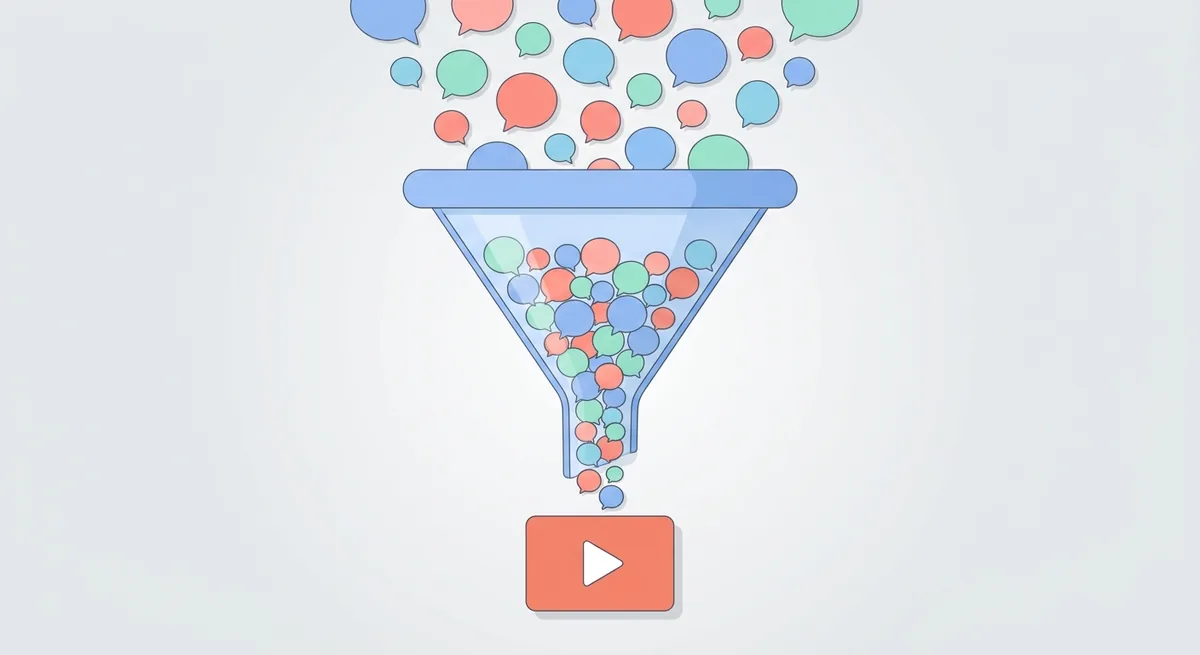
The cards on the Trends tab
| Card | What it shows, per YouTube Help |
|---|---|
| Top searches | Top searches based on your audience and your saves over the last 28 days |
| Breakout videos | Well-performing videos from other creators similar to your channel |
| Recent videos | Videos related to topics your audience watched over the last 28 days and your saved searches |
| Content gaps for Shorts | Search terms for Shorts related to topics your audience watched |
When you search inside the tab, you also see an audience interest level for each search and idea, ranging from very low to very high. The Trends tab help page says this is based on videos watched over 1,000 times per week over the last 28 days. Two more cards appear on search results: Watched on YouTube (popular videos across YouTube for the topic) and Searched on YouTube. From there, Show more Content gaps lists topics where viewers “may be looking for more relevant or higher-quality Shorts.”
Limits to know
The Trends tab is free, but it is not a search volume tool. It shows interest levels, not monthly search counts. YouTube also warns that “some of the insights are limited to certain countries, languages, and devices,” and that some sections may not appear when there are no relevant videos.
So who should rely on it most? Channels with an existing audience. Because Top searches and Recent videos are built from your viewers’ activity, a brand-new channel will see less. A new channel can still use the search bar and the Watched on YouTube card to judge how crowded a topic is.
YouTube Analytics: Finding the Searches That Bring Views
The Reach tab in YouTube Analytics shows the exact search terms viewers typed before they found each video. YouTube’s article Understand your YouTube video reach calls the Reach tab “your key to understanding how viewers find your content”.
To open it, sign in to YouTube Studio, select Content, choose a video, select Analytics, then Reach. Which reports matter for SEO? Three of them:
- How viewers find this video: the traffic source types report, covering sources inside YouTube and external ones.
- YouTube search terms: the report that “shows you what terms viewers searched when they found your content.”
- Impressions and how they led to watch time: how often your thumbnail was shown, and how those impressions became views.
The traffic source called “YouTube search” is defined as “traffic from YouTube search results,” and YouTube points you to the “Traffic source: YouTube Search” card for the specific terms. Other sources in the same report include Browse features, Suggested videos, Shorts, Playlists, Channel pages and external sources. Signed-out viewers fall under “Direct or unknown sources.”
How to use the search terms report
This report is the most useful free YouTube SEO tool for an existing channel, because it shows demand you already meet. Look for three patterns:
- A search term that brings views but is missing from the title or the first lines of the description. YouTube’s description tips suggest adding those words.
- Several videos competing for the same term. Pick one to own it and point the others to it with a playlist or a link.
- Terms close to your topic that bring few views. Those are ideas for a new, more focused video.
Two metrics help you judge the result. Thumbnail impressions count how many times your thumbnails were shown, and thumbnail impressions click-through rate shows “how often viewers watched a video after seeing a thumbnail.” If a video gets search impressions but a weak click-through rate, the title and thumbnail are the first things to test.
What about tracking your position for one search over time? YouTube Analytics does not give a rank number. Paid add-ons fill that gap, and TubeBuddy lists Search Rank Tracking on its plan table. For Google rankings of a website, the rank trackers that follow Google positions work differently, and how Search Console reports Google search clicks is the closest Google-side match to the Reach tab.
Google Trends and Autocomplete for Video Topics
Google Trends shows how search interest in a topic changes over time on YouTube, not only on Google Search. Google added the YouTube option on November 27, 2017; its announcement says you can now see search interest “through more lenses: News, Shopping, Images and YouTube” (Google blog).
After you search a term, switch the search type from web search to YouTube search. Google’s example in that post: YouTube searches for a singer spiked around video of her late-night TV performance, while Google Images showed a spike for a different show. People search differently on each platform, which is why the YouTube view matters for video ideas.
What does Trends do well? Google’s Trends Help pages describe four useful features:
- Comparisons: you can compare up to 8 groups of terms at once, with up to 50 terms in each group. Trends does not merge misspellings, synonyms or plural forms, so compare the exact phrases you might use in a title.
- Related searches: the related searches section lists top searches and rising searches. “Breakout” means a term “grew by more than 5000%.”
- Relative numbers: the Trends data FAQ says results are normalized and scaled from 0 to 100, so 100 is peak interest, not a search count.
- Low volume shows as zero: search terms with low volume appear as “0,” which is common for niche video topics.
Autocomplete is a hint, not a ranking
Typing a topic into the YouTube search box and reading the suggestions is the oldest free YouTube keyword trick. Treat it with care. Google’s Trends FAQ says this about Google Search autocomplete: it is filtered under removal policies, so it “should not be taken as always reflecting the most popular search terms related to a topic.” We read YouTube’s search suggestions the same way: a list of real phrasing, not a popularity ranking.
A practical combination: collect phrases from the search box and the Trends tab, compare the three strongest ones in Google Trends with the YouTube search type, then check the Watched on YouTube card to see what already ranks. For keyword tools aimed at Google rather than YouTube, see the daily caps on free keyword tools for Google search.
vidIQ: Features and Plans From the Official Pages
vidIQ is a YouTube growth tool with a free plan, a web app and a Chrome extension that adds keyword and SEO scores to YouTube pages. Its plans page states “One-channel US list prices: Boost $19/month or $199/year; MAX $49/month or $468/year,” and adds that “local pricing may vary”.
| Plan | Price (US list, one channel) | What the plans page lists |
|---|---|---|
| Free | $0 | 150 AI credits every month, niche trends, content ideas, personalized growth tips from AI Coach, vidIQ MCP |
| Boost | $19/month or $199/year | 2,000 AI credits monthly, unlimited trends research, optimization, unlimited subscriber insights, AI Coach with deep thinking, masterclasses |
| MAX | $49/month or $468/year | 6,000 AI credits monthly, everything in Boost, more AI Coach conversations and clipping time |
| Enterprise | Contact sales | For brands, agencies and networks; roles and permissions; cross-channel reporting |
The FAQ on the same page says vidIQ offers enterprise plans “if you’re managing more than 3 channels.” It also says Boost includes “over 30+ advanced tools,” with personalized keyword ideas, optimization suggestions and competitive intel as examples.
vidIQ’s YouTube keyword tools
vidIQ’s keyword tools page describes two tools. The first lets you enter any topic and see related YouTube keywords “complete with search volume, competition score, and related suggestions.” The second, the Keyword Inspector, appears inside YouTube through the browser extension and shows search volume, competition and related queries while you browse. The same page lists competitor insights: “See what tags your competitors are using directly in YouTube search results.”
The vidIQ extension
The vidIQ extension page lists four YouTube features: real-time SEO scores on every video page, AI title, description and tag recommendations, competitor and keyword research overlays, and a Studio upload optimizer with best-time-to-post suggestions. The extension now works on Instagram too.
How should you weigh those features against YouTube’s own guidance? Search volume and competition scores help you choose between phrases, which matches YouTube’s relevance signal. Tag suggestions and best-time-to-post help less, given YouTube’s own statements that tags are “not important” and publish time “is not known to impact a video’s long-term performance.” Our suggestion: try the free plan’s 150 credits on title and topic research first.
TubeBuddy: Features and Plans From the Official Pages
TubeBuddy is a browser extension and web toolkit for YouTube channel management, with a free plan and paid Pro, Legend and Enterprise licenses. Its pricing page FAQ says that when you cancel, “the channel is downgraded to the free plan,” which confirms a free tier exists alongside the paid licenses.
What does each tier unlock? The pricing page groups tools into five areas:
| Area | Tools listed on the pricing page |
|---|---|
| SEO Studio | Search Insights, Tag Rankings, Tag Sorter, View and Copy Tags, Keyword Explorer, Search Explorer, Tag Lists, Insta-Suggest, Search Positions, Best Practice Audit, Opportunity Finder, Tag Translator, Search Rank Tracking |
| Content strategy | Best Time to Publish, Channelytics, Health Report, Topical Analysis, Retention Analyzer, A/B Testing, Competitor Scorecard |
| Video and thumbnail | Suggested Shorts, Thumbnail Generator, Thumbnail Analyzer, End Screen Templates, Card Templates, Title Generator |
| Productivity | Quick Links Menu, Default Upload Profiles, Bulk End Screen Editor, Bulk Cards Editor, Chapter Editor, Scheduled Publish |
| Bulk tools | Bulk Find, Replace and Append, Bulk Thumbnail Overlays, Export Comments |
Several tools carry a “Limited” label in that plan table, so check the plan table for the tool you care about before you pay.
Keyword Explorer
TubeBuddy’s Keyword Explorer page says the tool gives “an overall keyword score calculated by search volume, competition, strength and other important metrics,” and then shows related keywords and searches for your titles, tags and descriptions. The page lists it as available on Free, Pro and Legend, with a note that the asterisk “denotes limited access” on Free.
Who the creator licenses are for
TubeBuddy’s pricing page says Pro, Star and Legend are “Creator License Packages available to Individual Creators only.” A business can be excluded if it has, for example, multiple YouTube channels on TubeBuddy, 50,000 or more subscribers, 3 or more channel managers, or 50 or more employees. Agencies and brands go to the Enterprise plan.
What about the price? The pricing page shows plan prices that change with billing period, and it says prices shown in a local currency are estimates while charges are made in US dollars. Open the page from the country where you will pay and read the total at checkout.
Titles, Descriptions, Tags and Chapters: What YouTube Says Matters
For YouTube video SEO tools to help, they have to improve the four fields YouTube reads: the title, the description, tags and chapters. YouTube’s upload help page sets the hard limits: “Video titles have a character limit of 100 characters,” and descriptions have “a character limit of 5,000 characters”.
| Field | YouTube’s rule or advice | Where it comes from |
|---|---|---|
| Title | Up to 100 characters; use compelling titles that accurately represent the content; avoid ALL CAPS or !!!!! | Upload help page, performance FAQ |
| Description | Up to 5,000 characters; put the most important info in the first few lines; make each description unique | Upload help page, description tips |
| Main words | Identify 1 to 2 main words and feature them in both the description and the title | Description tips |
| Tags | Useful for commonly misspelled topics; otherwise “a minimal role” in discovery | Tags help page |
| Hashtags | Up to three appear by the title; more than 60 and YouTube ignores all of them | Hashtags help page |
| Chapters | First timestamp 00:00, at least three timestamps, each chapter at least 10 seconds | Video chapters help page |
Titles and descriptions
YouTube’s description tips say it plainly: “Writing descriptions with keywords can help viewers find your videos more easily through search.” The page splits a description into two parts: what viewers see before clicking “Show more,” and the rest. Put what the video is about in the first part.
What should the second part hold? Channel details, links to related playlists, credits for collaborators, and chapters. YouTube also suggests a default description so basic channel info fills in on every upload.
The description tips also include a practical test: “Pretend you’re searching for your video, what would you type into the search bar?” If those words are missing from your description, add them.
Tags and hashtags
YouTube’s tags help page is blunt: the title, thumbnail and description “are more important pieces of metadata,” and tags “can be useful if the content of your video is commonly misspelled.” It also warns that adding excessive tags to a description is against its spam policies.
Hashtags work differently. According to YouTube’s hashtags page, hashtags in a title or description link to a results page of videos with the same hashtag, and up to three of the most engaging ones appear by the title. Use a few relevant ones; misleading or unrelated hashtags can get a video removed.
Chapters
Video chapters split a video into sections, each with its own preview. You add them by typing timestamps and titles into the description. The first must be 00:00, you need at least three in ascending order, and each chapter must be at least 10 seconds. YouTube can also add automatic chapters, which you can turn off per video.
Chapter titles are another place to use the words viewers search for. They also help viewers jump to the part they need, which supports the watch-time signal.
YouTube Shorts and Channel-Level SEO
SEO tools for YouTube Shorts work on the same fields as long videos, because YouTube says viewers find Shorts in search results too. Its Shorts getting-started page lists search “across YouTube, including on most smart TVs, game consoles, and other streaming devices” among the places Shorts appear.
What YouTube says about Shorts
- Length and shape: Shorts can be up to 3 minutes, in a square or vertical aspect ratio, per the Shorts upload page.
- Title: when you create a Short in the app, the title field allows a maximum of 100 characters, the same limit as long videos.
- Where viewers find them: the Shorts feed, search results, the YouTube homepage, your channel homepage, subscriptions and notifications.
- How views count: since March 31, 2025, a Shorts view counts each time a Short starts to play or replay, and the older metric is now called “Engaged views.”
- Related video: with advanced features, you can link a Short to a video from your channel, so Shorts viewers can move to your longer content.
Which tool helps most with Shorts? The Content gaps for Shorts card in the Trends tab. YouTube built it for this job: it lists Shorts search terms related to what your audience watched, and the expanded view shows topics where viewers may want better Shorts. In Analytics, the content performance report also shows how viewers found your Shorts, including YouTube search.
Channel-level SEO
YouTube channel SEO tools start with your channel settings. In YouTube Studio, go to Settings, then Channel, then Basic info. YouTube’s channel settings page says of the Keywords field: “You can add keywords related to your channel with this setting.” Use a short list of the topics your channel actually covers.
The channel description lives under Customization, then Profile, and YouTube says it “is accessible in the channel header,” per its channel profile page. The same page says you can showcase up to 14 links on your channel and change your channel name twice within a 14-day period. You can also add translations of your channel name and description to reach viewers in other languages.
Do channel keywords matter as much as video titles? YouTube’s ranking page names the title, tags, description and video content as relevance signals; it does not list channel keywords there. Fill the field in once, then spend your time on each video’s title and description.
A Simple Weekly YouTube SEO Routine With Free Tools
You can run a basic YouTube SEO routine in under an hour a week with only free tools. YouTube’s own performance FAQ says growth in views “is not correlated with time between uploads,” so the routine below assumes one video a week or fewer. It is our suggestion, built from the official features covered in this guide.
| Day | Tool | What to do |
|---|---|---|
| Monday | YouTube Analytics, Reach tab | Open the YouTube search terms report for your last three videos; note terms missing from titles and descriptions |
| Tuesday | YouTube Studio, Trends tab | Check Top searches and Content gaps for Shorts; save two or three searches |
| Wednesday | Google Trends | Compare the strongest phrases with the YouTube search type; check rising searches |
| Thursday | YouTube search box | Type the chosen phrase; read the suggestions and the top results |
| Friday | YouTube Studio, upload page | Write the title, the first lines of the description, chapters and a few hashtags |
| Weekend | Optional: vidIQ or TubeBuddy free plan | Check the keyword score of the final phrase before publishing |
Why this order? The Reach tab and Trends tab tell you what your audience wants. Google Trends and the search box tell you how the wider YouTube audience phrases it. The paid tools come last, as a second opinion on a phrase you already like.
Two habits make the routine stick. First, write down the top five search terms from the Reach tab each month, so you can see which topics grow. Second, change one thing at a time when you update an old video, such as the title or the thumbnail, and compare the next 28 days. YouTube’s FAQ advises: “don’t change what’s working.”
Once the topic and title are set, the video itself still has to hold viewers. For the editing side, see our editing software picks for YouTube channels.
Picking Your YouTube SEO Stack in 2026
The best SEO tools for YouTube in 2026 are the ones that help you match real searches and keep viewers watching, and the free ones cover most of that. YouTube Studio’s Trends tab and Reach tab come from YouTube’s own data. Google Trends adds a long view and regional interest. vidIQ and TubeBuddy add keyword scores, extension overlays and bulk editing, and both start free.
Which setup fits your channel? A simple decision path:
- New channel, no budget: Trends tab, Google Trends, the search box. Spend the time on titles, the first lines of descriptions and chapters.
- Existing channel: add the Reach tab’s search terms report every week. That is where your next video ideas are.
- Want keyword scores inside YouTube: install the free plan of vidIQ or TubeBuddy and compare them on the same phrase before you pay.
- Managing many channels or a team: look at the Enterprise plans of both tools, since TubeBuddy’s creator licenses exclude many businesses and vidIQ points teams with more than 3 channels to Enterprise.
If you also publish written posts, the same search-first habit applies to Google; our guide to getting written posts found on Google covers that side, and reading SEO tool numbers without fooling yourself helps with any tool’s estimates.
References
- YouTube Help: How YouTube search works
- YouTube Help: YouTube performance FAQ and troubleshooting
- YouTube Help: Explore trends on YouTube
- YouTube Help: Understand your YouTube video reach
- YouTube Help: Understand your YouTube content performance
- YouTube Help: Tips for video descriptions
- YouTube Help: Upload YouTube videos
- YouTube Help: Add tags to your YouTube videos
- YouTube Help: Find playlists and videos using hashtags
- YouTube Help: Video chapters
- YouTube Help: Get started creating YouTube Shorts
- YouTube Help: Upload YouTube Shorts
- YouTube Help: Manage channel settings
- YouTube Help: Manage your YouTube channel’s profile
- Google blog: More realtime data on Google Trends
- Trends Help: Compare Trends search terms
- Trends Help: Find related searches
- Trends Help: FAQ about Google Trends data
- vidIQ: Pricing and plans
- vidIQ: YouTube keyword research tools
- vidIQ: Chrome extension
- TubeBuddy: Pricing
- TubeBuddy: Keyword Explorer