Movavi Video Editor let us download it, skip the account, and cut a short video in a few minutes. Then every export started with an upgrade screen. The file we saved for free came out at full HD size, with a small “movavi” logo stamped in the corner.
Why We Reviewed Movavi Video Editor on Its Free Version
Most Movavi reviews describe the paid program. This one starts where most people start: the free download. On October 21, 2026, we installed the free Mac version, built a 15-second video from our standard test material, and exported it to see what the free version really gives you.
Movavi is a software company that, by its own account, has made video tools since 2004 and has “70M+” users in “190+” countries (Movavi: About). Its main product, Movavi Video Editor, is a desktop editor for Windows and Mac. You can get the official download from the Movavi Video Editor for Mac page or the Movavi Video Editor product page, and the paid licenses are listed on the Movavi store page.
So what does the free version let you do before you pay? That is the question this review answers, using the same short script we use for every video tool on this site. If you are new to desktop editors in general, our guide to what video editing software is and what it costs explains the basics first.
Here’s the short version: the free version is a real editor, not a demo with the timeline locked. The catch sits at the end of the workflow, in the export.
Key Takeaways
Movavi’s free version caps exports at 60 seconds and adds a watermark, according to Movavi’s own download page (Movavi Video Editor for Mac). In our test on October 21, 2026, a 15-second project exported as a 1920x1080 MP4 of 846 KB with a “movavi” logo in the lower-left corner. You can edit and save for free; a clean, longer export needs a paid license.
Quick Verdict: Is Movavi Video Editor Worth It in 2026?
Movavi Video Editor is worth a look if you want a simple desktop editor and plan to buy a license, because the free version showed us the full editing workflow and then stamped a watermark on a 15-second export. If you need a clean video for free, the free version is not enough.
Here is what happened on each of our five test tasks:
| Task | Result on the free Mac version |
|---|---|
| Get the app | Worked; a small signed web installer, no account or sign-in asked for |
| Open the editor | Worked; a 3-step tutorial overlay, and crown badges on two paid tools |
| Make a short video | Worked; image and voiceover on the timeline, project length 00:15 |
| Export | Worked after an upgrade screen; we chose “Save with Limitations” |
| Check the exported file | MP4, 1920x1080, 846 KB, “movavi” logo in the lower-left corner |
Is that a bad deal? Not really. The free version works as a long, honest trial: you learn the whole program, and you see the watermark before you spend anything. What you can’t do is publish that free export without the logo.
Want the official links in one place? Download the free version from the Mac download page, and check current prices on the Movavi store page before you buy.
How We Tested Movavi Video Editor
We tested Movavi Video Editor on October 21, 2026, on a Mac, using the free version with no account and no purchase. We used the five tasks from our standard video test, written down before we started:
- Get the app.
- Open the editor.
- Make a short video from the same material.
- Export it.
- Check the exported file.
The material is the same for every video tool we review: a title card image and a voiceover of our 20-second script, made with the text-to-speech voice built into macOS. We copied what each screen said word for word and kept masked screenshots of every step. When this review quotes a screen, that text comes from our test log.
What did we not test? We did not buy a license, we did not start the Movavi Effects trial, and we did not try templates, auto subtitles or screen recording. We also did not export anything longer than 60 seconds, because our test clip was 15 seconds. We did not run the Windows version. Where this review talks about those parts, it uses Movavi’s own pages and says so.
A note on money: Indie Stack Lab may add affiliate links to some tools later. When a link is an affiliate link, it is labeled, and our disclosure page explains how that works. It did not change what we tested or what we wrote down.
Download and Install: A Signed Web Installer, No Account Needed
Movavi’s free Mac download was a small web installer signed by “Developer ID Application: Movavi Emea LLC” and notarized by Apple, and it never asked us to sign in, in our test on October 21, 2026. That matters if you’ve seen “is Movavi safe” questions: the installer we ran was signed and checked by Apple before it opened.
We started on the Mac download page and pressed “Download for Free.” Before the button, the page carries a footnote that is easy to miss. It reads: “The free version of Movavi Video Editor may have the following restrictions depending on the build: watermark on exported clips, 60-second video or 1/2 audio length limit, and/or some advanced features unavailable when exporting videos” (Movavi Video Editor for Mac).
Why does “depending on the build” matter? Because it means the exact limits can change from one version to the next. Read that footnote on the day you download, not in a review from last year.
The installer itself is small, because it downloads the app during installation. On a slow connection, expect the install step to take longer than the download did. No sign-in screen, no email form and no card form appeared at any point.
Movavi’s system requirements page lists the current Mac version, Movavi Video Editor 2027 for Mac, as version 27.1.0, and asks for macOS 12.0 or higher, a 64-bit Intel processor or Apple M1 or higher, 4 GB of RAM, and 400 MB of disk space to install (Movavi system requirements). We did not record the version number of our own install, so treat 27.1.0 as the current listing, not as the build we tested.
First Launch: A Tutorial Overlay and Paid-Feature Badges
Movavi Video Editor opened with a 3-step tutorial overlay, and two of the five quick tools on the start screen carried a crown badge for paid features, in our test on October 21, 2026. The window title read “Movavi Video Editor – Free version – New project,” so you always know which version you’re in.
The first tutorial step pointed at the import area and said: “Add videos or images you’d like to use in your edit.” The last step pointed at the Export button. It’s a short tour: the first step is about adding files, and the third is about exporting.
What does the start screen look like? A left sidebar lists Import, Audio, Text, Transitions, Templates, Effects, Elements, Packs and Tools. Above the import area are tabs for File import, Project files, Sample videos, Backgrounds and Intro videos. Below it sit five quick tools:
- Try New Templates, marked “NEW”
- Record Video, with a crown badge
- Capture Screencast
- Record Audio, with a crown badge
- Auto subtitles
The crown is Movavi’s sign for a paid feature. In our session, Record Video and Record Audio had it; Capture Screencast and Auto subtitles did not show a badge on that screen. We didn’t open those tools, so we can’t say what happens when a free user tries them.
Honestly, the layout is friendly. Every main tool has a labeled icon, and the timeline at the bottom shows separate tracks for video and audio. If you have used iMovie or a similar beginner editor, nothing here will surprise you.
Editing a Short Video: Timeline, Voiceover and Promo Pop-Ups
Editing a short video on the free version worked without any locked steps: we imported one image and one voiceover, and the project length read “00:15” in our test on October 21, 2026. The friction came from promotions, not from the editor.
We imported our title card image and the voiceover file. Movavi placed the image on the video track twice, as two clips of about 8 seconds in total, and the voiceover went onto the audio track. The status bar showed “Project length: 00:15.”
Why did the image land twice? We don’t know, and the app gave no message about it. If you import a still image, check the video track before you export; you may need to stretch a clip so the picture covers the whole voiceover.
What surprised us was the number of promotions. In one short session, four promo pop-ups appeared, with titles such as “Fresh ideas for your videos,” “All-new video templates are here” and “Tried the new Templates yet?” One of them opened in place of the export window.
These pop-ups promote templates; they are not error messages. If you are teaching a beginner, tell them that up front.
Exporting on the Free Version: The Upgrade Screen Comes First
Every export on the free version started with an upgrade screen titled “Remove the watermark and get all the tools,” and the free path was a plain “Save with Limitations” button, in our test on October 21, 2026. After that button, the normal export window opened and the export finished.
The upgrade screen had three columns. The left one, “Limited version,” listed four limits word for word:
- Watermark on saved videos
- 60-second export limit on videos
- Low-quality saved videos
- Key features locked
The middle column offered “Video Editor – Full version” as a monthly plan, and the right column offered “Video Editor Plus – Full version” with “1 year” and “Lifetime” tags. Both paid columns listed “No watermark on saved videos,” “No 60-second export limit,” “High-quality video export,” “All Video Editor tools” and “Video templates and other new features.” The Plus column added “3 effects packs.”
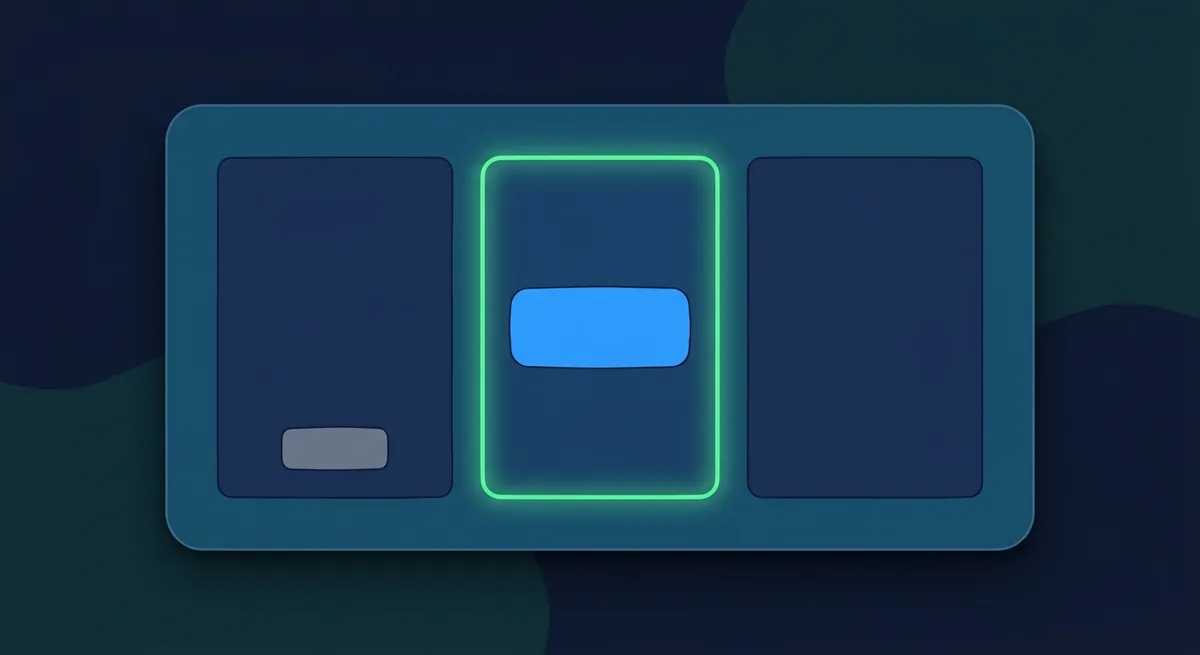
Which detail on that screen matters most? A small checkbox. Both paid columns had a checkbox reading “Get full access to Movavi Effects free for 7 days.” Movavi’s store page says this trial auto-renews at the end of the 7 days at $44.95/month unless you cancel (Movavi store). If you only want the editor, leave that box unchecked.
Prices on this screen appeared in our local currency, because Movavi prices by region. That’s why this review quotes the US-dollar store page instead of the in-app numbers.
After “Save with Limitations,” the export window opened on “Save to computer.” It showed MP4 as the format, 1920x1080 as the resolution, 00:15 as the duration, three quality choices (Draft, Good, High) with Good selected, and an estimated file size of “6.8 MB - 25.2 MB.” The default folder was Movavi Library inside the Movies folder. The side of the window also had icons for saving audio and for YouTube, Google Drive, TikTok and Vimeo; we only used Save to computer. We pressed Start, and the export finished.
What the Free Export Looks Like: Watermark, Resolution and Bitrate
Our free export was a 1920x1080 H.264 MP4 of 846 KB with a video bitrate of about 108 kbps and a “movavi” logo in the lower-left corner, in our test on October 21, 2026. The file was named “New project.mp4,” ran 15.5 seconds and carried AAC audio.

What does that tell you? Three things, and one thing it can’t tell you.
- The watermark is real and visible. The “movavi” logo sits in the lower-left corner of the frame. It is not huge, but it is clearly there, so the free export is not something you can publish as your own clean video.
- The resolution was not cut down. The free version kept 1920x1080, the same size the export window showed.
- The file was far smaller than the estimate. The export window predicted 6.8 MB to 25.2 MB at Good quality; the actual file was 846 KB. Our video was a still image under a voiceover, and a still image compresses very well, so the small file mostly reflects our material.
What it can’t tell you is how “Low-quality saved videos,” one of the four listed limits, affects moving footage. Our test clip had no motion, so we could not judge it by eye. If picture quality matters to you, export 10 seconds of your own real footage on the free version and look at it full screen before you buy.
One more difference is worth noting. Movavi’s trial limitations page says a “Trial” watermark is added to output videos on the Windows version (Movavi trial limitations). Our Mac export carried the “movavi” logo instead. Either way, the free export is marked.
How does that compare with other free video tools we have tried? Movavi at least produced a usable file. On InVideo AI’s free plan, our credits ran out before any video was made, as described in our InVideo AI review.
Free Version vs Paid License: What You Unlock
A paid Movavi license removes the watermark and the 60-second export limit; Movavi’s US-dollar store page listed Video Editor at $19.95 for a 1-month subscription, down from $23.95, on October 23, 2026 (Movavi store). Each paid plan on that page also listed “No cap on video or audio length” and “Free minor and major updates throughout the subscription period.”
Here is how the free version we tested compares with the paid plans, based on our test and the store page:
| Free version (our test) | Video Editor (paid) | Video Editor Plus | Video Suite Plus | |
|---|---|---|---|---|
| Price on the store page, October 23, 2026 | $0 | $19.95 for the first month ($23.95 struck through) | $69.95, with “1 year” and “Lifetime” options | $94.95 for a 1-year subscription |
| Watermark | “movavi” logo on our export | No watermark | No watermark | No watermark |
| Export length | 60-second limit | No cap | No cap | No cap |
| Movavi Effects | 7-day trial offered | Full access listed | Full access listed | Full access listed |
| Extra effects packs | None | None | 3 packs | 3 packs |
| Money-back guarantee | Not applicable | 14 days | 14 days | 14 days |
A few notes, because the store page leaves gaps:
- Video Editor Plus showed one price, $69.95, next to a “1 year” and a “Lifetime” option. Check which option is selected at checkout before you pay; the price can differ between the two.
- The three Plus packs are named on the store page as “Enticing gradients,” “Cinematic effects and dramatic LUTs” and “Vintage VHS effects.”
- The store page lists the same editor features and effects packs for Video Suite Plus as for Video Editor Plus, and offers an “I need a business license” option under it. Movavi’s Video Suite page adds file conversion, screen recording, a disc burner and a media player.
- The store page says payments go through the 2Checkout payment gateway, and the 14-day guarantee covers “technical or other problems that cannot be solved.”
How do you remove the watermark legally? Movavi’s trial limitations page gives the official path: buy an activation key, then “Activate the program using that key (you don’t need to re-install the program)” (Movavi trial limitations). We did not activate a key, so we can’t confirm the step from our own test. We also did not try any third-party “watermark remover” tool, and we don’t recommend using one on a program you haven’t paid for.
For every plan, the renewal terms and the lifetime option in one place, see our Movavi pricing guide.
Editions and Platforms: Video Editor, Plus, Video Suite, Unlimited, Windows and Mac
Movavi sells its editor in several bundles, and Movavi Video Editor 2027 is listed for both Windows and Mac at version 27.1.0 on its system requirements page (Movavi system requirements). Which one do you need? For most people, the choice is between the plain editor and a bundle that adds other tools.
Here is how the editions line up on Movavi’s own pages:
- Video Editor: the editor on its own, with Movavi Effects access when you pay.
- Video Editor Plus: the same editor plus three effects packs.
- Video Suite: Movavi describes it as “Handy video editing, file conversion, and screen recording,” with “a powerful CD/DVD/Blu-ray burner, simple media player, and lots of stock content” (Movavi Video Suite).
- Movavi Unlimited: a 1-year bundle that lists Video Editor, Video Converter, Screen Recorder, Photo Editor, Slideshow Maker, VHS Capture, Media Player and ChiliBurner, with ChiliBurner for Windows only (Movavi Unlimited).
The product menu also lists a Video Editor Lite and browser-based Online Video Editor tools. We didn’t look at those in this review.
The system requirements for the editor itself are modest:
| Requirement | Windows (Video Editor 2027) | Mac (Video Editor 2027 for Mac) |
|---|---|---|
| Version listed | 27.1.0 | 27.1.0 |
| Operating system | Windows 10/11, 64-bit | macOS 12.0 or higher |
| Processor | Dual-core, 1.5 GHz | 64-bit Intel, Apple M1 or higher |
| RAM | 4 GB | 4 GB |
| Disk space | 400 MB to install, 600 MB for ongoing operations | 400 MB to install, 600 MB for ongoing operations |
| Display | 1280 × 768 | 1280 × 800 |
Both versions need administrator permissions to install, per the same page. If your PC runs Windows 7 or 8, the current version is not listed for your system.
We only tested the Mac version. Movavi’s product pages describe one feature set for both systems, but menus and limits can differ between builds, as the download page footnote warns.
What Movavi Says the Paid Version Adds: AI Tools, Templates and Effects
Movavi’s Video Editor product page advertises “Over 10,000 creative effects,” “1,500 music tracks” and a group of AI tools, none of which we tested (Movavi Video Editor). Why include features we didn’t try? Because they are what you would be paying for, so here is what Movavi’s own pages say.
AI tools
The store page groups these as “One-click AI tools”:
- “Automatic subtitles in almost any language”
- “Quick background removal”
- “Powerful noise reduction”
- “Precise motion tracking”
The same page lists newer additions: auto-tracked cropping that “follows your main subject” for turning horizontal clips into vertical ones, word-by-word subtitle highlighting, a “Quick video denoise” tool for grainy footage, and pre-timeline trimming, which lets you cut a clip before it lands on the timeline. The product page also lists “Auto-silence removal to cut awkward pauses automatically” and “AI background removal (without a green screen).”
These read well on paper. Auto subtitles and auto-reframing in particular would save time for anyone making short social videos. We can’t vouch for how accurate the subtitles are, because subtitles were not part of our task list.
Templates
Movavi’s store page says templates are built from “Blocks you can rearrange, add, and customize,” that “A few templates are included in Video Editor,” and that “The full collection is available with a separate Movavi Templates subscription” (Movavi store). In other words, buying the editor does not unlock every template. We saw several template promotions in the free version, but we did not open them.
Effects
The Movavi Effects library covers “stickers, transitions, titles, frames, overlays, intros, sound effects, and music tracks,” per the store page. Paid plans list “Movavi Effects full access.” On the free version, the 7-day Effects trial is the checkbox on the upgrade screen, with the auto-renewal described earlier in this review.
Basic editing tools listed on every paid plan include cutting, cropping, rotating, color adjustments, video speed, audio recording, beat detection and synchronization, plus media conversion and screen recording.
Pros and Cons From Our Test
Our pros and cons come only from what we saw on the free Mac version on October 21, 2026: five tasks, one 15-second project, one export. Is that enough to judge the whole program? No, but it is enough to judge the free version, which is where every buyer starts.
What worked well:
- No account, no email and no card were needed to download, edit and export.
- The installer was signed by Movavi Emea LLC and notarized by Apple.
- The 3-step tutorial and the labeled sidebar made the editor easy to learn.
- Import, timeline and voiceover worked without any locked step in the free version.
- The free export kept the full 1920x1080 resolution.
- The export window showed format, resolution, duration and an estimated file size before saving.
What got in the way:
- Every export opened with an upgrade screen before the free “Save with Limitations” option.
- The free export carried a “movavi” logo in the lower-left corner.
- Free exports are capped at 60 seconds, per the upgrade screen and the download page.
- Four promo pop-ups appeared in one short session, one in place of the export window.
- A still image landed on the timeline as two clips without any message explaining why.
- The upgrade screen offers a 7-day Effects trial that the store page says renews at $44.95/month.
Who Should Buy Movavi, and Who Should Pick Something Else
Based on our test, Movavi Video Editor suits beginners who want a straightforward desktop editor and are ready to pay at least the $19.95 first month listed on the store page on October 23, 2026 (Movavi store). This part is our judgment, drawn from the free version, not from a test of the paid license.
Movavi looks like a fit if you:
- want a classic timeline editor with labeled tools, not an AI agent that builds the video for you
- edit short videos on one computer and prefer an installed app over a browser tool
- like trying the full workflow before paying, and don’t mind a watermark while you learn
- care about features such as auto subtitles, background removal and auto-reframing, and are willing to check them in the paid version
Pick something else, or stay on a free tool for now, if you:
- need a clean, watermark-free export without paying anything
- regularly export videos longer than 60 seconds and want to stay free
- dislike promotions inside the app while you work
Where should you look instead? Our roundup of the best video editing software compares editors by budget, and our list of the best free video editing software compares free plans and their limits. Mac users can compare Movavi with Apple’s own options in our best video editing software for Mac guide, and PC users can start with the best video editing software for Windows. If your videos are mainly for YouTube or social media, see our best video editing software for YouTube picks. If you have never edited a video before, our best video editing software for beginners list puts ease of learning first.
What would change our verdict? A paid test that exports a longer clip of real moving footage, so we could judge quality, subtitles and templates directly. Until then, we rate the free version and the path to buying, not the full program.
Before You Pay for Movavi: Your Next Step
Before paying for Movavi Video Editor, use the free version for one job: export 10 to 15 seconds of your own footage and look at it full screen. In our case, the free export showed us the watermark, the resolution and the file size in a few minutes, which told us more than any feature list.

A short checklist to take with you:
- Did you read the free-version footnote on the download page on the day you downloaded?
- Did you export a short clip of real footage and check the corner for the logo?
- Is your typical video longer than 60 seconds? If so, the free version won’t export it.
- On the upgrade screen, is the “Movavi Effects free for 7 days” box unchecked, unless you want that trial?
- Did you compare the 1-month, 1-year and lifetime options on the store page in your own currency?
If the answers point to a paid plan, the 14-day money-back guarantee on the store page gives you a short window to change your mind. If they don’t, a free editor that exports without a watermark is the better first step.
References
- Movavi: Video Editor for Mac (download page)
- Movavi: Video Editor (product page)
- Movavi: Get Movavi Video Editor (store page)
- Movavi: Trial Version Limitations in Movavi Software
- Movavi: Products System Requirements
- Movavi: Video Suite
- Movavi: Unlimited
- Movavi: About
- Blackmagic Design: DaVinci Resolve