Most people shop for video editing software by brand name, then discover they picked the wrong kind of tool. A browser editor, a phone app and a pro desktop suite all “edit video,” but they do it in very different ways and charge in very different ways. Learn the types, the features and the pricing models first, and the brand choice gets much easier.
What Video Editing Software Does, in Plain English
Video editing software is a program that lets you bring in clips, photos and audio, arrange them on a timeline, cut out the parts you don’t want, add sound and text, and export the result as one finished video file. That is the whole job. Everything else, from color grading to AI captions, is a faster or fancier way to do one of those steps.
So what is video editing software used for in practice? Nearly anything with a camera behind it: YouTube videos, short social clips, school projects, wedding films, product demos, training videos, real estate walkthroughs and presentations. The same basic workflow applies to all of them:
- Import your footage, images, music and voiceover.
- Arrange them in order on a timeline.
- Trim and split clips so only the good parts stay.
- Add transitions, titles, captions, music and effects.
- Export a single file sized for where it will play.
How does video editing software work under the hood? It doesn’t change your original files. It keeps a project, which is a list of instructions: use this clip from second 4 to second 9, then this photo for three seconds, with this song underneath. Only at export does the software render those instructions into a new video file. That is why you can undo almost anything while you edit.
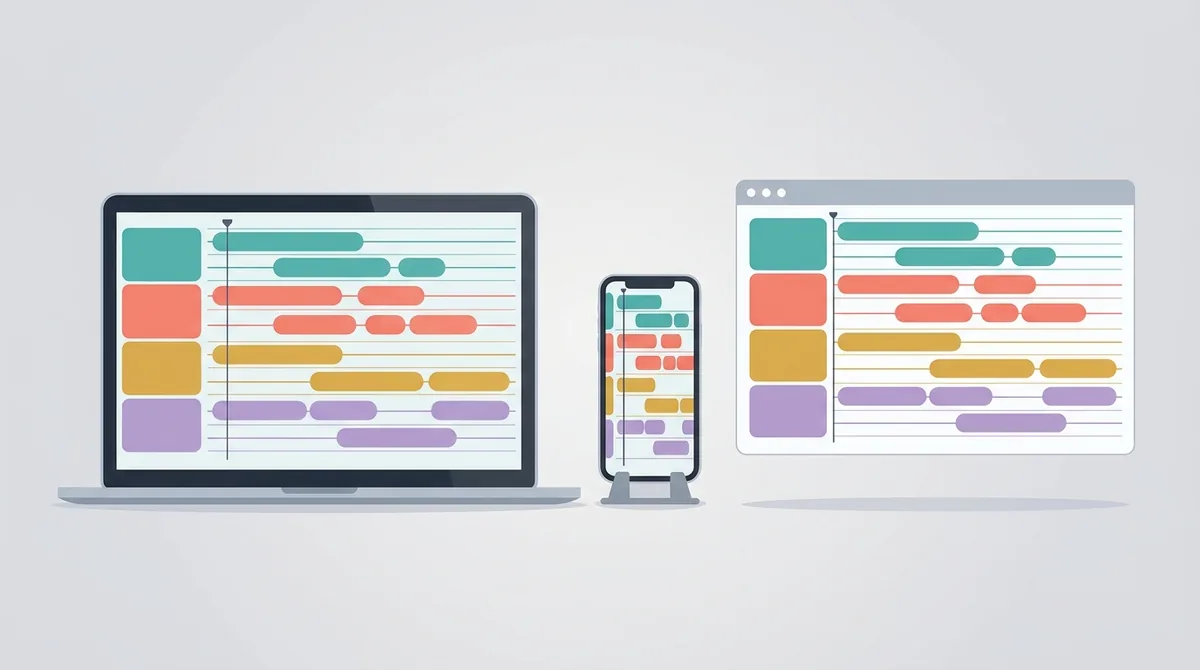
This guide explains the categories, not a ranking. If you already know the kind of editor you want and just need names, our ranked picks for every budget and skill level is the faster read.
Key Takeaways
Video editing is a big, steady market: Mordor Intelligence values it at USD 3.75 billion in 2026 (Mordor Intelligence). Inside it, editors come in four types (desktop, online, mobile and AI-assisted), they all share the same timeline-based core, and they charge in three ways: free, subscription or one-time license. The free versions differ most in what they hold back at export, so always test an export before you commit.
The Main Types: Desktop, Online, Mobile and AI-Assisted Editors
The four main types of video editing software are desktop editors, online (browser) editors, mobile apps and AI-assisted editors, and installed software still leads: on-premise software held a 50.22% share of the video editing market in 2026, while cloud-based software is the fastest-growing segment with an 8.36% CAGR forecast for 2027–2032, according to Mordor Intelligence. Which type fits you depends mostly on how long your videos are and where you edit them.
Desktop editors
Desktop editors install on a Mac, Windows PC or Linux machine and do the heavy lifting on your own hardware. This is where the professional tools live: DaVinci Resolve, Adobe Premiere Pro and Final Cut Pro, plus simpler paid editors such as Movavi Video Editor. They handle long projects, many tracks and high resolutions, and they work as offline video editing software, with no internet needed once installed.
The tradeoff is setup. You download a large program, keep it updated, and need a computer that can keep up. DaVinci Resolve, for example, splits its work into separate pages for editing, visual effects, color, audio and delivery, which is powerful but takes time to learn (Blackmagic Design).
Online (browser) editors
Online editors run in a web browser, so there is nothing big to install. Microsoft Clipchamp and Adobe Express are two common examples. Adobe says “anyone can use Adobe Express to create videos for free,” and that it “runs in your favorite web browser” (Adobe Express). Clipchamp’s support page recommends the latest desktop version of Microsoft Edge or Google Chrome, and says the desktop video editor isn’t supported in Android or iOS mobile browsers (Microsoft Support).
Browser editors suit short videos, templates and quick social posts. They are less suited to an hour of 4K footage, because your files still have to travel through the browser and your computer’s memory.
Mobile apps
Mobile editors run on a phone or tablet, right where the footage was shot. Apple’s iMovie for iPhone and iPad is free and saves videos in resolutions up to 4K at 60 frames per second, according to its App Store listing. CapCut offers a mobile editor next to its desktop and online versions, and Final Cut Pro now has an iPad version as part of Apple’s subscription.
Do phone editors count as “real” video editing software? Yes. They use the same timeline idea, just with fewer tracks and touch controls. They shine for vertical clips and quick turnarounds, and they struggle with long, multi-camera projects.
AI-assisted editors
AI-assisted editors are regular editors with AI features built in, such as automatic transcripts, captions, masking and noise reduction. Adobe says Premiere’s Text-Based Editing can “automatically transcribe your video on import,” and that Generative Extend can lengthen clips and “generate missing ambient sound” (Adobe Premiere). On the DaVinci side, Blackmagic reserves its DaVinci AI Neural Engine and text-based editing for the paid Studio version.
Here’s the catch: an AI-assisted editor is not the same as an AI video generator. An editor works on footage you supply. A generator writes and assembles a video from a text prompt. If that second job is what you want, start with our explainer on how AI video generators differ from editors and how they charge, then see the AI video generator picks sorted by the kind of video you need. Prefer video editing software with no AI at all? Most editors let you simply ignore these features; the core timeline works without them.
Linear vs Non-Linear Editing: Why Every Modern Editor Uses a Timeline
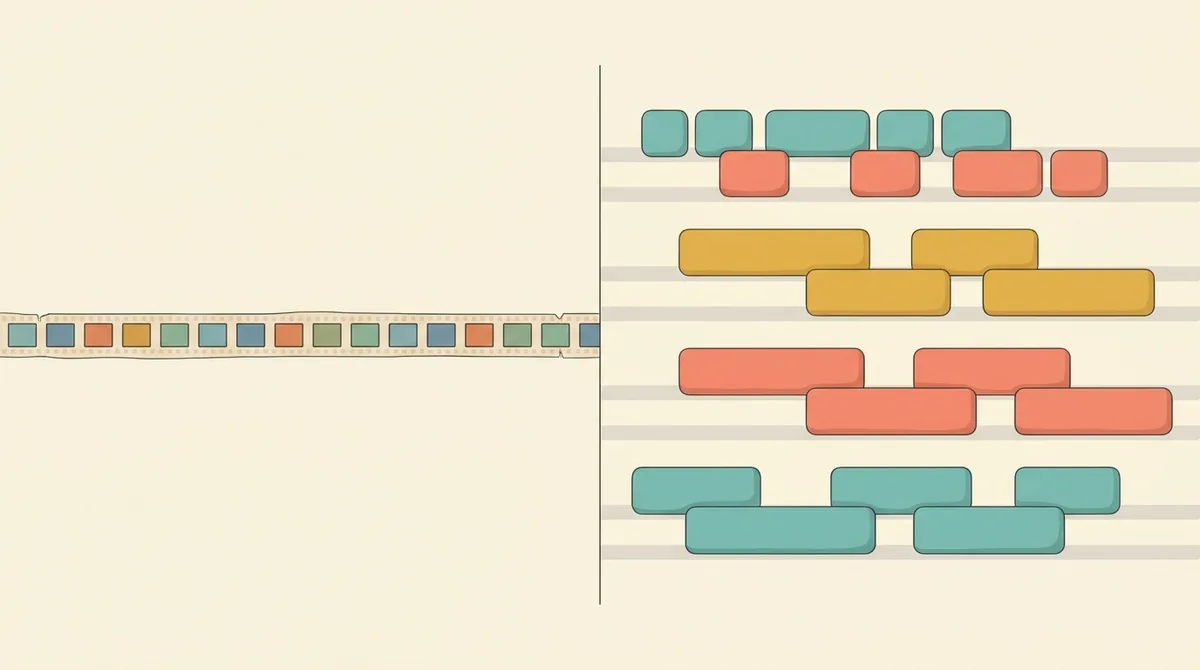
Every modern editor is a non-linear editor (NLE), which means you can jump to any point in a project and change it without redoing everything after it; Blackmagic Design calls DaVinci Resolve’s edit page “the world’s most advanced professional non-linear editor” (Blackmagic Design). The word “non-linear” only makes sense next to what came before it.
Linear editing: the tape era
Linear editing meant copying shots from one tape to another, in order. If you wanted to shorten the second shot after building the whole sequence, you had to rebuild everything that came after it. Some broadcast and live work still uses linear ideas, but no consumer or creator tool works that way today.
Non-linear editing: clips on a timeline
Non-linear editing stores your footage as files and shows them as blocks on a timeline. Move one block and the rest follow. Stack a title on a track above the video, music on a track below, and adjust each one on its own. Apple gives Final Cut Pro its own version, the “Magnetic Timeline,” which it pitches as “fast, flexible editing” (Apple Final Cut Pro).
Why does this matter when you’re choosing? Because “NLE” is not a feature you have to look for. Free editors, phone apps and $300 suites all work this way. The real differences sit in how many tracks you get, how precise the trimming is and what each track can hold.
Core Features: Trimming, Transitions, Titles and Audio Tracks
The core features every video editor shares are trimming and splitting clips, transitions between them, titles and captions, and separate audio tracks; even free iMovie on the iPhone adds “picture in picture, green screen, and split screen effects,” per its App Store listing. If a tool can’t do these, it is a trimmer or a converter, not an editor.
- Trimming and splitting: cutting the start or end off a clip, or splitting one clip into two so you can remove the middle. This is the feature you will use most.
- Transitions: what happens between two clips, from a plain cut to a fade or a wipe. Plain cuts are still the most common choice; fancy transitions date a video fast.
- Titles and captions: text on screen, from an opening title card to word-for-word subtitles. Video editing software with auto captions can generate those subtitles from the audio. Adobe, for example, says Premiere can “quickly translate captions in 18 languages” (Adobe Premiere).
- Audio tracks: music, voiceover and sound effects on their own tracks below the video, each with its own volume. This is what separates an editor from a slideshow maker.
What a basic timeline looked like in our Movavi test
When we tested the free Mac version of Movavi Video Editor on October 21, 2026, we built a short video from one title-card image and a voiceover of a 20-second script. The editor placed the image on the video track as two clips, eight seconds in total, and the voiceover on the audio track below it. The project length read “Project length: 00:15.”
That small test shows the core features at work. The image became clips you could trim, the voiceover sat on its own track, and the whole thing fit on one timeline. What we did not expect was the interruptions: promo pop-ups appeared four times in one short session, with titles such as “Fresh ideas for your videos” and “Tried the new Templates yet?” None of them blocked editing, but they slowed us down. Our full walkthrough of the Movavi free version, screen by screen covers the rest of that session.
How long does it take to learn video editing at this level? For trimming, a music track and a title, most people get there in their first session. The advanced features below are where the learning curve really starts.
Advanced Features: Color Grading, Green Screen, Motion Tracking and Multicam
Advanced features are the tools that separate pro editors from basic ones: color grading, green screen (chroma key), motion tracking and multicam editing; Apple, for example, describes Final Cut Pro’s Object Tracker as a tool that “maps the movement of people, objects, or faces” (Apple Final Cut Pro). You may never need them. If you do, they decide which editor you buy.
Color grading
Color correction fixes problems such as a blue cast or a dark shot. Color grading goes further and gives the whole video a look. DaVinci Resolve built its reputation here and gives color its own page in the app. Premiere offers “professional color wheels and curve controls” and built-in video scopes, per Adobe’s product page. If you shoot weddings, short films or anything with mixed lighting, video editing software for color grading is worth learning.
Green screen (chroma key)
Green screen editing removes a solid background color so you can place your subject over a different image or video. Final Cut Pro lets you “create an accurate chroma key with the drag-and-drop Keying filter,” according to Apple. iMovie includes a basic green screen effect for free. DaVinci Resolve handles keying on its Fusion page, which Blackmagic describes as having “rotoscope and keying tools for creating photorealistic composites.”
Motion tracking
Motion tracking follows a moving object so a title, a blur or an effect can stick to it. It is how you blur a face or a license plate that moves through the frame. Premiere’s Object Mask lets you “hover over your subject, click, and watch as AI accurately masks and tracks it,” per Adobe. Resolve’s Fusion page offers point, planar and 3D camera tracking. Do you need this for a talking-head video? Probably not. For sports highlights or privacy blurs, yes.
Multicam editing
Multicam editing syncs footage from several cameras that recorded the same moment, then lets you switch between angles as the video plays. Interviews, concerts, podcasts and weddings use it constantly. Blackmagic says Resolve’s “sync bin and source overwrite tools let you quickly edit multicam programs.” Apple lists Live Multicam for Final Cut Pro on iPad, which connects up to four iPhone or iPad devices and syncs their footage.
The green screen topic gets its own guide on this site soon, with step-by-step keying in each editor.
Export Settings Explained: Resolution, Bitrate and File Size
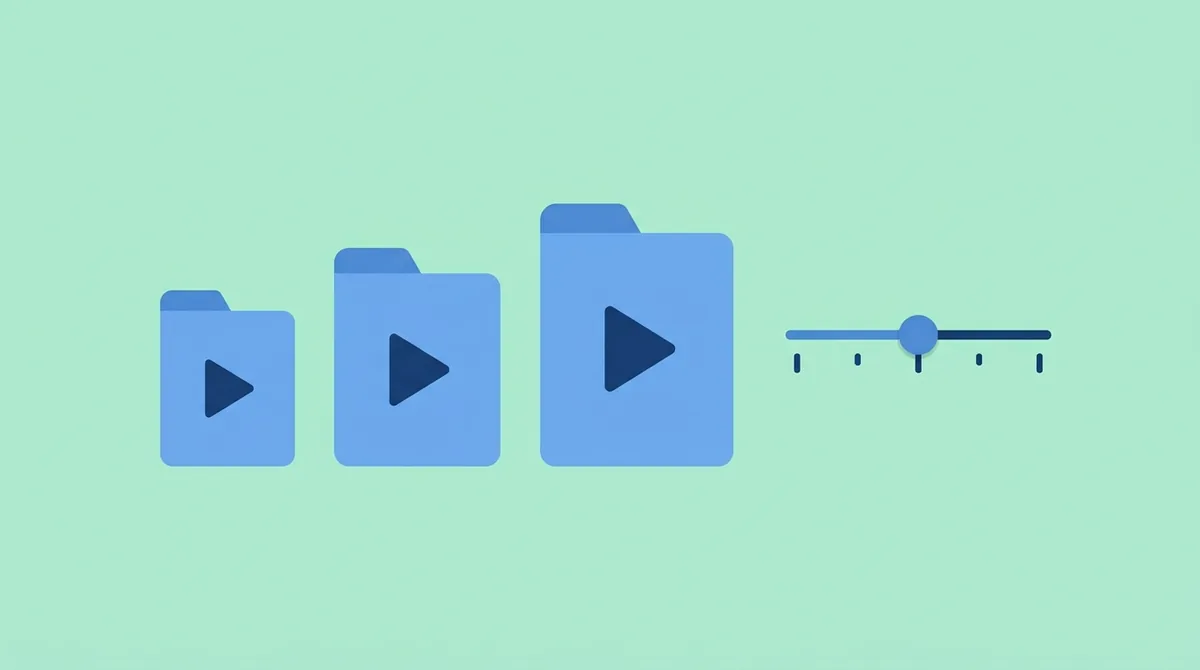
Export settings decide how your finished video looks and how big the file is, and the setting that matters most after resolution is bitrate: YouTube recommends 8 Mbps for a standard-frame-rate 1080p upload and 35–45 Mbps for 4K (YouTube Help). Resolution is the size of the picture. Bitrate is how much data describes each second of it.
The four settings you’ll see
| Setting | What it controls | A sensible default |
|---|---|---|
| Format and codec | The file type and the way the video is compressed | MP4 with H.264 video and AAC audio, which YouTube lists as its recommended container and codecs |
| Resolution | The picture size, such as 1920x1080 (1080p) or 3840x2160 (4K) | Match your footage; 1080p for most web video |
| Frame rate | Frames per second, such as 24, 30 or 60 | Match your footage; don’t convert 30 to 60 |
| Quality or bitrate | How much data each second gets | Around 8 Mbps for 1080p at standard frame rates, per YouTube |
Our Movavi export: the label said full HD, the bitrate said otherwise
Our own export shows why bitrate matters. In the Movavi free version, the export dialog offered MP4 at 1920x1080, with quality set to Good (the choices were Draft, Good and High), and estimated a file of 6.8 MB to 25.2 MB for our 15-second project. The saved file was 846 KB. When we probed it, the video was H.264 at 1920x1080, but the video bitrate was only about 108 kbps.
Here’s what that means in plain numbers. YouTube’s 1080p recommendation of 8 Mbps is 8,000 kbps, more than 70 times what our free export got. The resolution label said full HD; the bitrate made it look like far less. That matches the “Low-quality saved videos” line on Movavi’s own upgrade screen.
A quick file size formula
You can estimate a file’s size before you export: bitrate × length ÷ 8 = size. A one-minute 1080p video at 8 Mbps works out to about 8 × 60 ÷ 8 = 60 MB. If an export comes out far smaller than that formula predicts, the editor has cut the bitrate, and you will see it as blocky detail in motion and dark scenes. Is a smaller file ever the right call? Yes, for a quick preview to a client or a draft sent over chat. Just don’t upload the draft as the final.
What Video Editing Software Costs: Free, Subscription and One-Time Licenses
Video editing software costs anywhere from $0 to $299.99 up front: DaVinci Resolve, iMovie and Clipchamp have free versions, Adobe lists the Premiere plan at US$22.99/mo, and Apple sells Final Cut Pro as a one-time purchase for $299.99 (Adobe Premiere, Apple Final Cut Pro). How much does video editing software cost over time, though? That depends on which of three payment models you pick.
| Pricing model | Examples (official US prices, checked October 24, 2026) | Good for | Watch out for |
|---|---|---|---|
| Free | DaVinci Resolve (free version), iMovie, Clipchamp free plan, Adobe Express | Learning, hobby projects, short social videos | Export caps, watermarks on some free versions, paid features mixed into the menus |
| Subscription | Premiere plan $22.99/month (annual plan, billed monthly); Apple Creator Studio $12.99/month or $129/year; Movavi Video Editor $19.95 for 1 month | Teams, cloud storage, steady updates | The bill never stops; promo prices change after the first term |
| One-time license | Final Cut Pro $299.99; DaVinci Resolve Studio $295, shown on sale at $236 | Long-term solo editors | Big upfront cost; major upgrades may cost extra on some products |
| Bundles | Movavi Unlimited $149.95 for 1 year; Setapp Mac plan $14.99/month + tax | People who use several apps from one vendor | Paying for apps you never open |
Free
Free editors are better than they used to be. Blackmagic says the free DaVinci Resolve works with “virtually all 8-bit video formats at up to 60fps” in resolutions as high as Ultra HD 3840 x 2160, on Mac, Windows and Linux (Blackmagic Design). Clipchamp’s free plan lets you “export videos in up to 1080p (full HD) video resolution for free, with no watermarks” (Clipchamp pricing). What free costs you instead is either features or polish, and sometimes a watermark.
Subscription
Subscriptions charge monthly or yearly and include updates while you pay. Adobe lists the Premiere plan at US$22.99/mo on an annual plan billed monthly, and Creative Cloud Pro, which bundles Premiere with Adobe’s other apps, at US$69.99/mo. Apple’s Creator Studio, which includes Final Cut Pro, costs $12.99 a month or $129 a year for new subscribers after a 30-day free trial. A subscription makes sense when the work earns money or when a team needs shared cloud storage.
One-time license
A one-time license means you pay once and keep that version. Final Cut Pro at $299.99 is the classic example on the Mac. Over three years, Creator Studio on annual billing adds up to $387, so the one-time license comes out ahead if you edit that long. Watch the fine print, though. Movavi’s store separates its plans by updates: subscriptions include “Free minor and major updates throughout the subscription period” (Movavi store), while the lifetime option is tied to the version you buy. Our breakdown of Movavi’s monthly, yearly and lifetime prices walks through that difference in detail.
Bundles and app subscriptions
Some vendors sell editors inside a bundle. Movavi Unlimited, which bundles Video Editor with Movavi’s other apps, lists $149.95 for a 1-year subscription, shown against a struck-through $779.15 as a limited-time offer (Movavi Unlimited). On the Mac, Setapp takes a different approach: one $14.99/month fee unlocks a whole catalog of apps, including some video utilities (Setapp pricing). If you are weighing that route, read how Setapp’s Mac app subscription and its trial work before you sign up. Comparing subscription and one-time pricing across editors gets its own guide here soon.
The Catch in Free Versions: Watermarks, Time Limits and Upsells
The catch in a free video editor is usually at export, not in the editor itself: Movavi’s Mac download page warns that its free version may add a “watermark on exported clips, 60-second video or 1/2 audio length limit” (Movavi). You can often build a whole project for free and only find the limits when you try to save it.
What we saw in Movavi’s free version
Our Movavi test is a clear example of the “free trial in disguise” model. Every export started with a plan screen headed “Remove the watermark and get all the tools.” The limited version was spelled out as “Watermark on saved videos · 60-second export limit on videos · Low-quality saved videos · Key features locked,” and the free path was a button called “Save with Limitations.” The saved file had a “movavi” logo in the lower-left corner of the frame.
That is not a trick. Movavi says so on its download page, and the free version did let us finish and export a real project. But it means the free version is for trying the workflow, not for publishing. If you do upgrade, Movavi’s store also offers a Movavi Effects trial with its paid plans, and the store says it will “auto-renew at the end of the trial for $44.95/month,” so read every checkbox before you pay.
Four kinds of free
Not every free editor works like that. Before you invest hours in one, check which kind of free it is:
- Free with limits on quality or features: DaVinci Resolve’s free version stops at 60fps and Ultra HD, and keeps its AI Neural Engine for Studio.
- Free with no watermark: Clipchamp’s free plan exports up to 1080p with no watermark, and Adobe Express says you can share videos “watermark-free.”
- Free because you already own the hardware: iMovie comes free on Apple devices.
- Free as a trial: a full project is possible, but exports carry a watermark or a time cap, as in Movavi’s case.
Want to compare more free options and exactly what each one holds back? Our round-up of free editors and the limits each one puts on your export goes through them one by one.
What Your Computer Needs to Edit Video
Most editors need at least 8 GB of RAM, and 4K work needs much more: Adobe lists 8 GB of RAM as the minimum for Premiere on Windows, 16 GB for HD media and “32 GB or more for 4K and higher,” plus a GPU with at least 4GB of GPU memory (Adobe Premiere technical requirements). Your computer, not the software, is often the real limit.
| Editor | Operating system | Memory and other needs (official) |
|---|---|---|
| Adobe Premiere (Windows) | Windows 11 v24H2 | 8 GB RAM minimum; 16 GB for HD media; 32 GB or more for 4K and higher; at least 4GB of GPU memory |
| Final Cut Pro (Mac) | macOS 15.6 or later | 8GB of memory (16GB recommended); 7.2GB of available disk space |
| Clipchamp (browser) | A 64-bit computer and OS, latest Edge or Chrome | At least 8 GB of RAM, 16 GB or higher is better; a recent graphics card |
| CapCut desktop | Windows 7 or later (Windows 10 recommended); macOS 10.14 or later | No memory figure on the download page |
Sources: Adobe’s technical requirements page, Apple’s Final Cut Pro page, Microsoft’s Clipchamp performance tips and CapCut’s desktop editor page.
Three hardware questions to ask
- How much memory do you have? At 8 GB, stick to 1080p projects and close other apps. Microsoft’s own advice for Clipchamp is to “close other browser tabs, only keep Clipchamp open in one browser tab.”
- What graphics chip do you have? Modern editors lean on the GPU for playback and export. Looking for video editing software without a graphics card? On an older laptop with only built-in graphics, lightweight video editing software such as a browser editor or a phone app is the realistic choice.
- How much free disk space is there? Video files are large, and editors also write cache files while you work. Keep your footage on a fast drive with plenty of room.
Older laptops and budget PCs get a dedicated guide on this site soon.
How to Choose Video Editing Software in Five Questions
You can choose video editing software by answering five questions in order: what you make, which device you edit on, how you want to pay, how much time you can spend learning, and what the free version holds back. The price gap alone makes the order matter: $0 for DaVinci Resolve’s free version versus $299.99 for Final Cut Pro or $22.99 a month for Premiere, per the vendors’ pages.
1. What kind of videos will you make?
Short vertical clips, long YouTube videos and client work need different tools. Short clips favor mobile and browser editors with templates and auto captions. Long videos favor desktop editors with many tracks. For channel-by-channel advice, see our editor recommendations for each type of YouTube channel.
2. Which device do you edit on?
Your operating system rules out options fast: Final Cut Pro and iMovie are Apple-only, and DaVinci Resolve also runs on Linux. Mac users can go straight to our Mac editing options, from free iMovie up to Final Cut Pro, and PC users to our list of editors that run well on a Windows PC.
3. How do you want to pay?
Free, monthly or once: pick the model before the brand. If you want to stay at $0, start with our free editors compared by what their exports allow, since free versions differ most at export. If you will pay, add up three years of subscription against a one-time license before you decide.
4. How much time can you spend learning?
Simple editors get a first video out the same day; pro editors take weeks to feel natural. If you are just starting, our guide to beginner-friendly editors with gentle learning curves narrows the field. If you plan to edit for years, learning a professional tool early saves a painful switch later, and our comparison of pro-grade editors for serious projects covers DaVinci Resolve, Premiere Pro and their peers.
5. What does the free version hold back?
Download the free version or start the trial, then export a short test clip and open the file. Check for a watermark, a time cap and the real bitrate, as we did with Movavi. Five minutes of testing beats an hour of reading feature lists. Still want a straight shortlist after that? Our ranked editor recommendations by budget and computer gives one.
Before You Download an Editor: A Short Test Plan
Before you commit to any video editing software, run one small project through it from import to export; our 15-second Movavi test was enough to reveal the watermark, the 60-second cap and the low bitrate that no feature list mentioned. A short, honest test tells you more than any review, this one included.

Use this checklist on every editor you try:
- Import: Does it open your camera’s or phone’s files without converting them first?
- Edit: Can you trim, add a title and put music on its own track within ten minutes?
- Export: Pick 1080p, export, and note the file size. Does it roughly match bitrate × length ÷ 8?
- Inspect: Open the file. Is there a watermark? Is the video cut short?
- Cost: Which features you used are free, and which belong to a paid plan or a trial?
Whatever you choose, keep your original footage backed up outside the editor. Projects and editors change; your raw clips are the part you can’t replace.
References
- Mordor Intelligence: Video Editing Market Size and Share
- Blackmagic Design: DaVinci Resolve
- Adobe: Premiere
- Adobe Help: Premiere technical requirements
- Adobe Express: Free video editor
- Apple: Final Cut Pro
- Apple App Store: iMovie for iPhone and iPad
- Clipchamp: Pricing
- Microsoft Support: Which web browsers does Clipchamp support?
- Microsoft Support: Make sure Clipchamp works well for you
- CapCut: Desktop video editor
- YouTube Help: Recommended upload encoding settings
- Movavi: Video Editor for Mac
- Movavi: Buy Video Editor
- Movavi: Unlimited
- Setapp: Pricing