Type a sentence, wait a minute, and get a moving shot with sound. That is the promise behind every AI video generator. The catch is that the same label now covers tools that do very different jobs, bill in very different ways, and stop at very different lengths.
Why “What Is an AI Video Generator?” Needs a New Answer in 2026
AI video has moved from experiment to routine: 63% of video marketers say they have used AI to help create or edit marketing videos, up from 51% a year earlier (Wyzowl, State of Video Marketing 2026). So more people are asking what is an AI video generator, and the honest answer has changed.
Two years ago, the term mostly meant one thing: a model that turns a text prompt into a few seconds of footage. Today it also covers script-to-video agents, talking avatar presenters, video buttons inside design apps, and open-source models you can run on your own graphics card. Each one solves a different problem.

Why does that matter to you? Because the tool type decides what you can make, how long it runs, and what each second costs. This guide explains the types, the limits and the billing, using official vendor pages read on October 24, 2026, and one free-plan test we ran ourselves on InVideo AI.
Key Takeaways
An AI video generator creates new video frames from a prompt, an image, a script or existing footage, and 63% of video marketers now use AI for video work (Wyzowl). Most single clips last 10 seconds or less, most tools bill in credits per second or per minute, and free plans usually add a watermark or limit downloads.
What an AI Video Generator Is, in One Paragraph
An AI video generator is software that uses a generative model to create new video from an input such as a text prompt, an image, a script or a source clip, instead of editing footage you filmed. Google’s Veo 3.1 model page, for example, lists text-to-video, image-to-video and first-and-last-frame generation, with clips of 4, 6 or 8 seconds (Google Cloud, Veo 3.1).
That definition separates it from a regular video editor. A regular editor cuts, trims and arranges clips you already have; our guide to what video editing software is and how it is priced covers that side. An AI video generator makes pixels that did not exist before. Many products now do both, which is why the line feels blurry.
So what counts as a “real” AI video generator? If the tool synthesizes new frames, it qualifies, even when it wraps those frames in templates, stock footage or a voiceover. If it only rearranges your own clips with music, it is closer to an automated editor.
How Text-to-Video Models Turn a Prompt Into Moving Frames
The open text-to-video models that publish their design work by starting from random noise and removing it step by step, guided by your prompt: Tencent’s open HunyuanVideo documentation describes taking “Gaussian noise and the conditions as input” and producing a compressed result that a decoder turns into video (HunyuanVideo on GitHub). That process is called diffusion.
Here is the same pipeline in plain steps, based on what the open-source teams publish:
- Compress. A video autoencoder (a VAE) squeezes video into a much smaller “latent” form. HunyuanVideo’s 3D VAE compresses length by 4, space by 8 and channels by 16, which cuts the work the main model has to do.
- Read the prompt. A language model turns your words into numbers the video model can use. Wan2.1 uses a T5 text encoder and feeds the text into every transformer block through cross-attention (Wan2.1 on GitHub).
- Generate. A diffusion transformer starts from noise and, over many steps, shapes it into a latent video that matches the prompt. Wan2.1 says it uses “the Flow Matching framework within the paradigm of mainstream Diffusion Transformers.”
- Decode. The VAE decoder expands the latent result back into full frames you can watch.
Closed models such as Veo, Kling and Runway don’t publish their architecture at this level of detail, so we won’t guess at it. What Google does say about Gemini Omni is that it “processes text, image, audio, and video simultaneously” (Gemini API, Omni Flash), which is why newer models can generate a soundtrack with the picture.
Why are clips so short? Every extra second means more frames to generate and keep consistent. Google’s own developer docs say generation time varies with “duration, resolution, and current API load,” and that longer, higher-resolution videos take more time. Short clips keep cost and wait time under control.
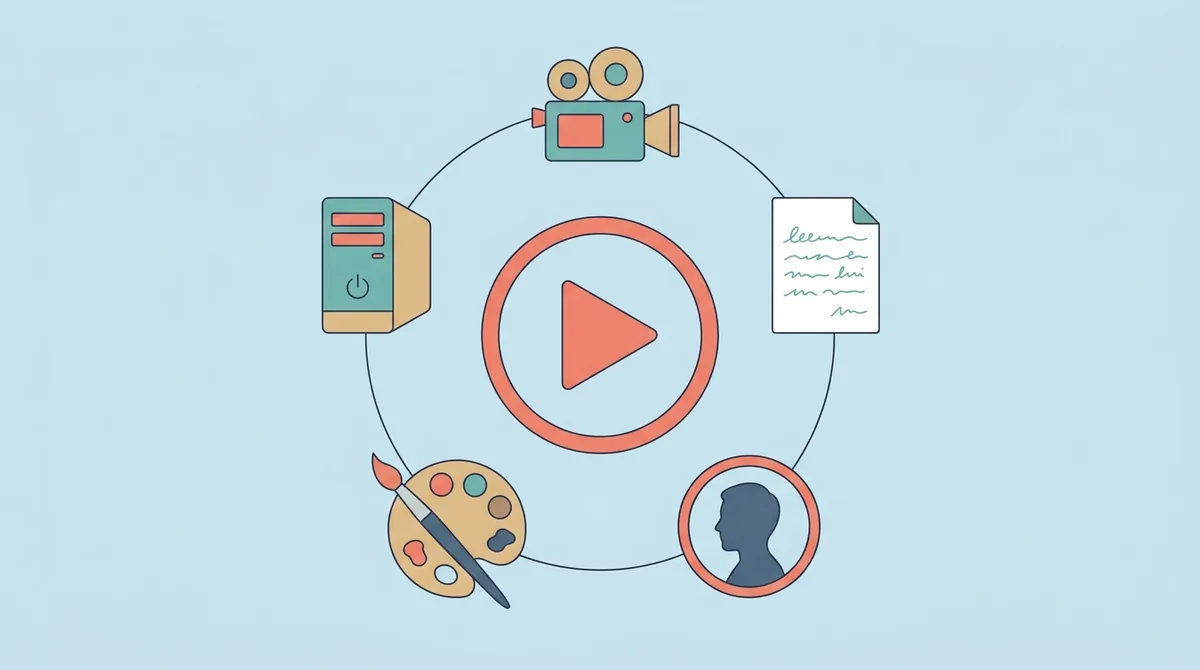
The Five Main Types of AI Video Generators
AI video generators fall into five practical types, and the same company can sell more than one: Runway’s paid plans list its own Gen-4.5 next to Kling 3.0 (Runway pricing), and HeyGen’s Pro plan lists Veo 3.1 (HeyGen pricing). Why sort by type first? Because it saves you from comparing tools that were never meant to compete.
1. Model-first clip generators
These tools give you direct access to a video model. You write a shot description, and the model returns a clip a few seconds long. Google’s Gemini Omni and Veo 3.1, Kling, and Runway’s Gen-4.5 sit here. Runway’s help center says Gen-4.5 can follow “detailed camera choreography, intricate scene compositions, precise timing of events” in one prompt (Runway Help Center). You get the most control here, and the shortest clips. For the details on two of them, see how to get access to Veo 3.1 and what it limits and how Runway’s Gen-4.5 credits and plans work.
2. Script-to-video assemblers
Here you don’t direct shots. You paste a script or an idea, and an agent plans the whole video: voiceover, visuals, music and captions. InVideo AI is the example we know best, because it is the one we ran through our own test. Its pricing page sells plans by monthly credits, from 400 credits a month on Starter to 2,000 on Plus (InVideo pricing).
3. Avatar presenter tools
These put a digital person on screen to read your script. Synthesia and HeyGen lead this group. Their videos run in minutes, not seconds, because the use cases are training, product walkthroughs and internal updates. Synthesia’s free Basic plan includes 10 minutes of video a month (Synthesia pricing). Our overview of Synthesia’s avatars, plans and limits goes further.
4. Generators inside tools you already use
Design and creative suites now ship a video button. Canva’s “Create a video clip” makes 8-second videos with audio or 6-second videos without (Canva Help Center). Adobe’s Firefly plans include “partner generative AI models in Firefly such as Google, OpenAI, Flux, and more” (Adobe Firefly plans). These are rarely the most powerful option, but they are the most convenient if your design work already lives there. We cover the Canva side in how Canva’s AI video clips work and what they cost.
5. Open-source models you run yourself
Some teams publish their models for anyone to download. Wan2.1 says its smaller 1.3B model needs only 8.19 GB of graphics memory and can make a 5-second 480p video on an RTX 4090 in about 4 minutes (Wan2.1 on GitHub). HunyuanVideo’s technical report describes a model with “over 13 billion parameters” (arXiv). You pay in hardware and setup time instead of credits, and nobody adds a watermark or a usage cap for you.
A Real Example: How InVideo AI Plans a Video From a Script
A script-to-video agent behaves more like a producer than a camera: when we pasted a 20-second script into InVideo AI’s “Use my script” flow on October 21, 2026, its agent asked six production questions before it made anything. That test is the clearest example we have of what this type of AI video generator actually does.
The agent, labeled “Agent Two Lite,” asked us about format, length, voice, visual style, music and the end card. We chose:
- 16:9, kept tight to the script, about 20 to 25 seconds
- voiceover only, with no on-screen presenter
- stylized, generic dashboard visuals
- light background music
- a plain text end card
What surprised us was how sensible the questions were. They are the ones a human video editor would ask on a first call. Then the agent priced the plan: “The locked cut lands around 350 credits to produce. Your balance is about 5.4, so we can’t run it as planned.”
No video came out of our test. The free account started with 10 credits, and the planning chat alone used about 4.7 of them. That is a useful lesson in itself: on some tools, talking to the agent costs credits even before any frame exists. The full step-by-step record, with every screen, is in our free-plan test of InVideo AI, from sign-up to the credit quote, and the agent’s other tools are covered in what InVideo AI’s agent, voices and editor can do.
So is a script-to-video agent the same as a text-to-video model? No. The agent is a planner that calls models, stock libraries and voice engines for you. That makes it easier for beginners and harder to budget, because you pay for the whole plan, not one clip.
Inputs You Can Use: Text, Images, Video and Audio
Most AI video generators accept text and images, and a growing number accept video: Google lists text-to-video, image-to-video and “from first and last frame” as supported Veo 3.1 modes (Google Cloud, Veo 3.1). What you feed in shapes what you get out.
Text prompts. This is the default. Google’s Omni documentation says to include “scene description, camera movement, lighting and mood for best results.” It also notes that Omni will try to build “a video with a few different shots” by default, so you have to ask for “a single continuous shot” if you want one.
Images. Image-to-video turns a still into motion. It is the natural starting point for product shots, illustrations and photos. Gemini Omni can also take two images and animate the move from the first frame to the last. Runway’s help center adds a practical tip: image-to-video prompts “should focus on describing the motion of the scene,” because the image already supplies the look. If photos are your main input, see our guide to turning photos into video with AI.
Video. Video-to-video tools edit or restyle footage you already have. Runway describes its Aleph model as able to add, remove and transform objects, generate new angles, and change style and lighting on an input video (Runway Research). Gemini Omni can edit uploaded clips too, but its docs cap uploaded videos for editing at 10 seconds.
Audio and scripts. Audio support is uneven. Omni’s documentation says “uploading audio references is unsupported in the current version of the API,” even though the model generates its own soundtrack. Script-driven tools such as InVideo, Synthesia and HeyGen take written text and turn it into a voiceover or an avatar’s speech.
Which input should you start with? If you have a strong photo, start from the image. You give the model less to invent, so you spend fewer retries on getting the look right.
Clip Length, Resolution and Audio: Typical Limits in 2026
Single AI-generated clips usually run between 2 and 10 seconds, with Kling 4.0’s listed “native 30s-generation” as the long outlier (Kling AI membership plans). Avatar tools are the exception to the exception, because they measure videos in minutes.
| Tool and type | Length per generation | Resolution | Audio |
|---|---|---|---|
| Google Veo 3.1 (model, Google Cloud) | 4, 6 or 8 seconds | 720p, 1080p or 4K output at 24 FPS | Sound generation supported |
| Google Gemini Omni Flash (model, Gemini API) | Extend 10 seconds at a time, up to 40 seconds in total | 720p by default; 360p drafts; 1080p and 4K upscaled | Generates an audio track by default |
| Runway Gen-4.5 (model) | 2 to 10 seconds | 720p at 24 or 25 FPS | Music, voice and sound effects sold as separate tools |
| Kling 4.0 and 3.0 (model) | 30 seconds listed for Kling 4.0 | 1080p video on paid plans | Kling 3.0 lists synchronized audio-video generation |
| Canva Create a video clip (inside an editor) | 8 seconds with audio, 6 without | Not listed on the help page | Audio in a clip can’t be edited by hand |
| Adobe Firefly (inside an editor) | 5-second videos | Not listed on the plan page | Sound effects and music generated separately |
| HeyGen (avatar) | 1 minute on Free, 30 minutes on paid plans | Up to 1080p on Creator, 4K on Pro | Avatar voice |
| Synthesia (avatar) | Measured in minutes; 10 free minutes a month | Not covered here | Avatar voice |
Sources for each row: the Google Cloud and Gemini API pages, Runway’s help center, Kling’s plan page, Canva’s help center, Adobe’s plan page, and the HeyGen and Synthesia pricing pages, all read on October 24, 2026.
What does the table leave out? Quality, for one. A 4K setting on an upscaled clip is not the same as footage generated at 4K. And a 40-second Omni video is built from extensions, not one pass: the docs say each extension uses the last 10 seconds of the clip as context.
Need something longer than any row here? Then you are editing, not generating. You stitch several clips together in a regular video editor that can join AI clips into one timeline, or you switch to an avatar or script-to-video tool built for minutes.
How Credits Turn Into Seconds of Video
Most AI video generators sell credits, and the exchange rate is the number to read first: Runway charges 12 credits per second of Gen-4.5 video, so its Standard plan’s 625 monthly credits equal 52 seconds (Runway pricing). Once you know the rate, every plan becomes a simple seconds-per-month figure.

Here is how four vendors describe the exchange, all from pages read on October 24, 2026:
- Runway, billed per second. Gen-4.5 costs 12 credits per second. The yearly-billed plans list Standard at $12/month for 625 credits (52 seconds of Gen-4.5), Pro at $28/month for 2,250 credits (187 seconds) and Max at $76/month for 9,500 credits (791 seconds). The editing model Aleph 2.0 is priced at 140 credits per 5 seconds.
- Synthesia, billed per minute. Its pricing page prices video at 100 credits per minute, with the first 10 minutes included on every plan.
- Kling, billed by the job. Kling’s membership FAQ says credits are deducted “based on factors such as the number of outputs, model type, duration, and resolution.” Monthly plan credits are valid for 31 days; purchased credits last 2 years.
- InVideo AI, billed by the plan. In our own test, the agent quoted about 350 credits for one 20-second voiceover video. Against the 2,000 monthly credits of the Plus plan on InVideo’s pricing page, that is roughly five videos like ours a month; against Starter’s 400, about one.
Retries are the hidden multiplier. If you need three attempts to get one usable clip, your real cost per clip is three times the listed rate. We’d budget for at least two attempts per shot before you compare plans.
Why not compare dollar prices directly? Because several vendor pages showed only promotional or local-currency prices on the day we checked. Kling’s plan page displayed a first-month discount and a countdown timer, InVideo’s displayed a 50% off offer, and Adobe’s showed a non-US currency from our location. In those cases we list credits, not dollars. Our breakdown of InVideo AI’s plans and per-credit costs shows how the math works on one tool in more detail.
What Free Plans Usually Include
Free AI video plans are samples, not production budgets: Runway’s free plan gives 125 one-time credits and no access to Gen-4.5, which requires Standard or higher (Runway pricing; Runway Help Center). Most free tiers follow one of three patterns.
One-time credits. You get a starting balance that never refills. Runway works this way.
Refilling credits. The balance resets on a schedule. InVideo’s help center says the free quota “is reset weekly on Monday at 12 a.m. UTC” (InVideo Help Center), and our free account showed 10 credits per period. Kling says non-subscribers can claim monthly free credits at login, valid for 31 days (Kling AI). Adobe says you can get “free daily generations across image, video, and audio” without a plan.
Capped output. Avatar tools limit minutes or videos instead. Synthesia’s Basic plan includes 10 minutes of video a month, carries a Synthesia watermark, and shares by link; downloading is listed under the paid Starter plan (Synthesia pricing). HeyGen’s free plan includes 3 watermarked videos a month, up to 1 minute each (HeyGen pricing).
Watch for these restrictions on any free tier:
- Watermarks. Kling’s FAQ says watermark removal is “available only with an active Subscription.” InVideo’s plan page in our test listed “watermark-free exports” as an upgrade feature.
- Downloads. Synthesia’s free videos are shared by link; the download button is a paid feature.
- Model access. The newest models are often paid only. Canva Free has no access to Ultra AI tools, which include “Create a video clip with Canva AI” (Canva Help Center).
- Commercial use. Kling grants commercial use to paid subscribers.
Is there a truly free AI video generator? The open-source route comes closest, if you own a capable graphics card. For hosted tools, compare the limits side by side in our list of free AI video generator plans and what each one allows.
Watermarks, Ownership and Disclosure When You Publish AI Video
Publishing AI video means dealing with three separate things: invisible watermarks, who owns the output, and platform labels. Google’s Omni documentation says “all generated videos include SynthID watermarking, which is invisible to viewers but can be detected programmatically” (Gemini API, Omni Flash). That mark travels with your file.
Invisible watermarks and Content Credentials
SynthID is Google’s watermark for AI content. Google DeepMind says it is added “the moment content is created” and designed to survive cropping, filters, frame-rate changes and compression (Google DeepMind, SynthID). Google Cloud also lists Content Credentials (C2PA) as supported on Veo 3.1. C2PA is an open standard that records where a file came from and how it was edited; its site compares Content Credentials to “a nutrition label for digital content” (C2PA).
Who owns the output
Ownership depends on each tool’s terms, so read them before you sell anything. Runway’s terms say the company “does not claim ownership of any of your Inputs or Outputs” and “does not restrict your commercial use of your Outputs.” The same section says Runway may use inputs and outputs to train its models, and the disclaimer section warns that outputs “may not be unique” (Runway Terms of Use). Kling allows commercial use for paid subscribers and adds that you remain responsible for portrait rights, trademarks and AI labeling rules.
Platform disclosure labels
YouTube requires creators “to disclose AI-generated or altered content that seems realistic,” using the “AI use” setting during upload (YouTube Help). YouTube may also add a label automatically to content that carries C2PA metadata. TikTok requires a label on AI-generated content that contains realistic images, audio or video, and may auto-label uploads with Content Credentials attached (TikTok Support).
Does disclosure hurt reach? YouTube says disclosing AI content “alone won’t limit a video’s audience or impact its eligibility to earn money.” Hiding it is the bigger risk: YouTube lists removal of content or suspension from the Partner Program for creators who consistently don’t disclose.
What AI Video Is Good At, and Where It Still Falls Short
AI video is strongest at short, self-contained shots, and even Google lists open problems: its Veo page says natural, consistent spoken audio, “particularly for shorter speech segments, remains an area of active development” (Google DeepMind, Veo). Knowing both sides keeps expectations realistic.
What it does well:
- B-roll and concept shots: a drone view, a product on a turntable, a stylized scene for an intro.
- Social clips: Canva pitches its clips for “a product teaser, a pitch deck opener, or a creative social post.”
- Narrated drafts: a script-to-video agent can plan voice, visuals and music in one pass, as our InVideo test showed before credits ran out.
- Presenter videos: avatar tools keep one face talking through a 10-minute training module.
Where it still falls short, according to the vendors’ own documentation:
- Length. Runway’s Gen-4.5 stops at 10 seconds, and Veo 3.1 at 8. Longer scenes are stitched together, which makes consistency your job.
- Editing limits. Omni can’t prepend to a clip or extend the middle of one, and the docs say “voice editing is not supported.”
- Faces and motion. Canva says its Image to Video tool “doesn’t fully support face animation” and may sometimes produce 3-second clips instead of 5.
- Regional gaps. Omni’s docs say editing or extending uploaded videos is not available in the European Economic Area, Switzerland and the United Kingdom.
There is also platform risk. OpenAI’s help center says the Sora web and app experiences “were discontinued on April 26, 2026,” and that the Sora API “will be discontinued on September 24, 2026” (OpenAI Help Center). Google’s Gemini API page says the Veo 3.1 Preview models there “shut down on October 22, 2026” (Gemini API, video generation). What should you take from that? Keep your prompts, source images and exports in storage you control, so a retired model doesn’t take your project with it.
How to Choose Your First AI Video Generator
Choose by the video you need first, then by price: a vertical social clip, a 10-minute training video and a 30-second continuous shot each point to a different type of tool, and in our one free-plan test, a single 20-second video was quoted at about 350 credits. Start from the output, not from a ranking. What will your viewers actually watch, and for how long?

A quick way to route yourself:
- You want cinematic shots and control over the camera. Start with a model-first tool such as Veo, Kling or Runway.
- You have a script and want a finished, narrated video. Try a script-to-video assembler such as InVideo AI, and check the credit quote before you commit.
- You need a person explaining something on screen. Use an avatar tool such as Synthesia or HeyGen.
- You already design in Canva or Adobe. Try the built-in generator first; it may be enough.
- You have a strong graphics card and time to tinker. Look at open models such as Wan2.1.
- You mostly work on a phone. Our picks of AI video generator apps for iPhone, Android and the web start there.
For named picks by job, from realistic clips to presenters, see which AI video generator fits each kind of video job. Before you pay, run one real brief through a free tier, read the cost it quotes, and multiply by the retries you expect. That one number tells you more than any feature list.
References
- Wyzowl: Video Marketing Statistics 2026
- Google Cloud: Veo 3.1
- Gemini API: Generate and edit videos with Gemini Omni Flash
- Gemini API: Video generation in the Gemini API
- Google DeepMind: Veo
- Google DeepMind: SynthID
- C2PA: Content Credentials
- Tencent: HunyuanVideo on GitHub
- arXiv: HunyuanVideo, A Systematic Framework for Large Video Generative Models
- Wan2.1 on GitHub
- Runway: Pricing
- Runway Help Center: Creating with Gen-4.5
- Runway Research: Introducing Runway Aleph
- Runway: Terms of Use
- Kling AI: Membership plans
- InVideo: Pricing
- InVideo Help Center: Can I use invideo AI for free?
- Synthesia: Pricing
- HeyGen: Pricing
- Canva Help Center: Create a video clip in Canva AI
- Canva Help Center: Understanding your AI usage
- Adobe: Compare Firefly plans
- YouTube Help: Disclosing use of GenAI content
- TikTok Support: About AI-generated content
- OpenAI Help Center: What to know about the Sora discontinuation