Almost every AI video tool now has a “free” button. Behind it you’ll find a daily credit pool, a one-time gift, a 7-day trial, or a plan with zero credits that sells packs. We gave one of these free plans a real 20-second script, and it quoted us roughly 35 times what our account held.
Why Free AI Video Plans Are So Hard to Compare
AI video has gone mainstream fast: 63% of video marketers have now used AI to make video, up 12 points in a year (Wyzowl, Video Marketing Statistics 2026). Most of them start the same way you probably are, by looking for a free AI video generator before paying for one.
The trouble is that “free” means something different on every pricing page. One tool refills your credits every day. Another gives you a single deposit that never comes back. A third calls its plan free but includes no credits at all.

So how do you compare them? You line up the same five facts for each one: how many credits, how often they refill, how long a clip they buy, whether a watermark rides along, and whether you can use the result for paid work. That’s what this guide does, with every number dated and linked to the vendor’s own page.
Key Takeaways
Google Flow gives 50 credits a day to people without a Google AI plan (Google Flow Help), the most generous refilling allowance we found. No free plan here makes long, watermark-free videos you can sell, and the InVideo AI free plan in our own test could not produce a single 20-second video.
Quick Answer: Which Free AI Video Generator to Start With
The best free AI video generator for short clips with sound is Google Flow, with 50 credits a day and Veo 3.1 Lite clips listed at 10 credits each at the non-Ultra rate (Google Flow Help). For anything else, the right pick depends on the video you need.
| If you want… | Start with | Official free-plan page |
|---|---|---|
| Short generated clips that refill every day | Google Flow | Manage your Google Flow credits |
| Watermark-free downloads for personal projects | Pika (buy a credit pack) | Pika FAQ |
| A one-time test of a pro editing suite | Runway | Runway free plan details |
| Monthly free credits on a long-clip model | Kling | Kling membership plans |
| A presenter reading your script | Synthesia | Synthesia pricing |
| Daily free generations inside a design suite | Adobe Firefly | Adobe Firefly plans |
| Animating your own photo in a design you already have | Canva Free | Canva AI usage |
| A script turned into a narrated video | InVideo AI, but expect to pay | Can I use invideo AI for free? |
Is there a completely free AI video generator, then? Not in the sense most people mean. Every tool above either caps your output, stamps a watermark, limits commercial use, or does all three. The rest of this guide shows which limit hits first on each one.
How We Compared Free Plans
We read every vendor’s official pricing page, help center and FAQ on October 24, 2026, from a US English browser with no account signed in, and we tested one free plan ourselves: InVideo AI, on October 21, 2026. That is the full scope of this comparison.
We did not generate videos on Kling, Google Flow, Runway, Pika, Hailuo, Canva, CapCut, Firefly, Synthesia or HeyGen. So this guide does not score video quality. It compares what each vendor publishes about its free tier: the allowance, the refill rule, the watermark and the usage rights.
Why skip third-party lists? Because they disagree. While preparing this guide, guides from other sites gave three different free allowances for Kling and two different ones for Hailuo. When a vendor page and a third-party page conflict, we follow the vendor page. When we could not open the vendor page without an account, we say so and leave the number out.
Two more rules. When a page showed a price in a currency other than US dollars, or only as a first-month promotion with a countdown, we left the price out. And when a help page quotes a limit, we quote the help page’s own words rather than paraphrase them.
A note on money: Indie Stack Lab may add affiliate links to some tools later. When a link is an affiliate link, it is labeled, and our disclosure page explains how that works. It did not change what we checked or what we wrote down.
What Free Means for AI Video: Daily Credits, One-Time Credits and Trials
Free AI video plans come in four shapes, and the shape matters more than the headline number: Runway’s one-time deposit of 125 credits “does not renew or refresh once spent” (Runway Help Center), while Google Flow’s 50 credits come back every day.
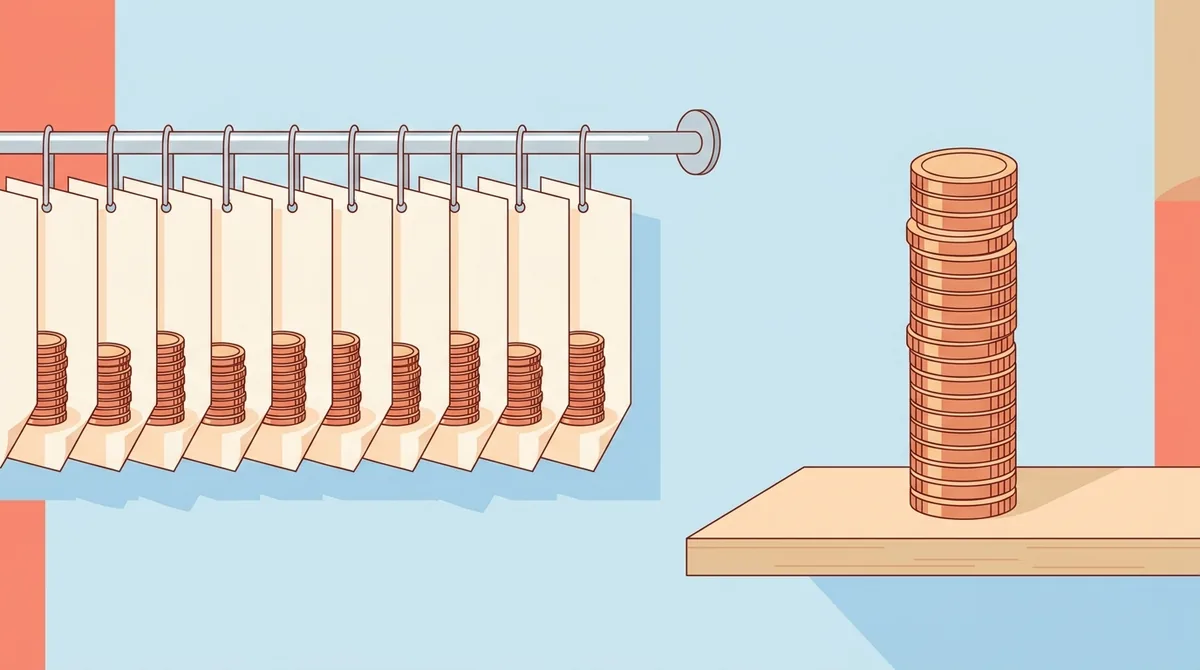
Here are the four shapes, with an example of each:
- Daily refill. A small allowance that comes back each day. Google Flow gives 50 credits a day, and Adobe says Firefly users without a plan get free daily generations whose limits “refresh every day.”
- Weekly or monthly refill. InVideo AI’s help center says its free quota “is reset weekly on Monday at 12 a.m. UTC.” Kling’s FAQ says non-subscribers claim monthly free credits at login, valid for 31 days. Canva Free resets its AI allowance on the first of each month. Synthesia’s Basic plan includes 500 credits a month.
- One-time grant. Runway’s 125 credits never refresh. Once they are gone, the free plan has nothing left to spend, and Runway’s FAQ says you cannot buy credits on it either.
- Trial or packs only. CapCut’s AI video generator page says it “provides 7-day free trial to this AI video generator.” Pika’s free plan “doesn’t include a monthly credit allowance”; you buy credit packs instead.
Which shape suits you? If you want to learn a tool slowly, a daily or weekly refill wins over time. If you have one specific video to test, a one-time grant is fine, as long as it covers that video. Check that before you start, because a half-finished project on a one-time grant has no free way forward.
InVideo AI Free Plan: 10 Credits and a 350-Credit Quote
The InVideo AI free plan in our account held 10 credits per period, 10 GB of storage and no licensed iStock footage, and its AI agent quoted about 350 credits for a 20-second voiceover video we asked it to make on October 21, 2026. No video came out of the test.
InVideo’s help center confirms the basics: “Yes, you can use invideo AI for free without entering your card details,” and the free plan “gives you limited credits to explore the platform” (InVideo Help Center). The help page describes the allowance only as limited credits, so the 10 is what our account showed, not a published promise.
Here is what happened, in short:
- We pasted a 20-second script and let the agent ask its production questions. We chose 16:9, voiceover only, simple stylized visuals, light music and a plain end card.
- The agent’s answer: “The locked cut lands around 350 credits to produce. Your balance is about 5.4, so we can’t run it as planned.”
- The planning chat alone had used about 4.7 of our 10 credits. Our usage page then read “Credits 5.3 / 10 credits — 53% used — Resets on 26 Oct.”
What surprised us most was that the conversation itself cost credits. Nothing was generated, yet half the weekly allowance was gone. InVideo’s own pricing calculator lists about 30 credits for a single Seedance 2.0 Fast video (InVideo pricing), three times what our free account started with.
What about the watermark? We never reached an export, so we could not inspect a file. The subscription page in our account said: “Free plan — Upgrade for all AI models, workflows, trends, avatars & watermark-free exports.” The help center is direct: “You can download the videos with a watermark on the free plan” (InVideo Help Center). The same article says you may share free-plan videos on social media.
So is the InVideo free plan worth opening? Yes, for one job: getting the agent’s credit quote for your typical video before you pay. Every screen of our test, from the sign-up questionnaire to the quote, is in our sign-up-to-quote log of the InVideo AI free plan. If the quote looks affordable, our page on what InVideo’s paid credit plans cost does the monthly math.
Kling Free Tier: Monthly Free Credits With Watermarks
Kling’s free Basic plan costs $0 and gives non-subscribers monthly free credits that they claim at login, valid for 31 days (Kling AI membership plans). The daily bonus credits that many guides mention belong to paying subscribers only.
That detail trips up a lot of readers. Kling’s FAQ lists “Daily Bonus Credits for Subscribers,” issued at your first login each day and expiring at midnight local time. Non-subscribers get the monthly grant instead. Kling shows the size of that grant when you log in, so check it there before you plan a project.
What else does the free tier leave out? The plan comparison on the same page lists these for Basic:
- 1 video per generation, where paid plans allow 4.
- No 1080p or 4K video generation.
- No brand watermark removal.
- No commercial use of generated content.
The FAQ spells out the watermark rule: “Some features, such as watermark removal and 4K generation, are available only with an active Subscription.” Buying a credit pack does not change that. Its commercial-use answer starts with “Paid Subscribers may lawfully use, reproduce, distribute, modify, and create derivative works,” which leaves free users out.
We left Kling’s prices out on purpose. On October 24, 2026, every paid plan showed a first-month discount and a countdown timer, so any dollar figure we copied would be a promotion. Kling stays a good free choice for testing its long-clip models, which the plan page describes with “native 30s-generation” on Kling 4.0. Just treat the free credits as a preview, not a production budget.
Google Veo in Gemini and Flow: What You Get Without Paying
Google’s free path to Veo runs through Google Flow, not the Gemini app: Flow’s help page says users without a subscription get 50 Flow credits per day, while Gemini Apps Help says a personal account “must have a Google AI plan” to generate video (Google Flow Help; Gemini Apps Help).
The Gemini app
If you searched for free Veo in Gemini, here is the short answer: video generation in the Gemini app needs a Google AI plan on a personal account, and the feature “isn’t available to users under 18.” The Gemini Apps limits page also lists video generation as the most expensive kind of request, so it uses up any plan’s allowance fastest (Gemini Apps limits).
Google Flow
Flow is Google’s AI filmmaking tool, and its credits page is the most detailed free allowance on this list. Per that page, on October 24, 2026:
- “With no subscription, you receive only 50 Google Flow credits per day to try Google Flow.”
- Your daily refresh starts with your first generation, and unused credits don’t roll over.
- During peak hours, “roughly 2 PM to 5 PM UTC, you may not be able to generate videos without a subscription.”
- 1080p upscaling is not available to non-subscribers.
What do 50 credits buy? The credit table lists, at its non-Ultra rates, 10 credits per Veo 3.1 Lite generation, 20 per Veo 3.1 Fast generation and 100 per Veo 3.1 Quality generation. Gemini Omni Flash at 720p costs 7 credits for 4 seconds and 15 credits for 10 seconds. At those rates, a day’s 50 credits cover up to five Lite clips or two Fast clips, and not even one Quality clip. Keep in mind that one request can create two videos, and the page counts credits per generation.
One warning before you plan around it. Flow’s “Get started” page lists a Google AI Plus, Pro or Ultra subscription among the requirements to use Flow, and it requires age verification at 18 or older (Get started with Google Flow). The two Google pages don’t agree, so open Flow with your own account and look at the credit counter under your profile picture before you count on the free 50. For the paid side, see how to get Veo 3.1 and which plan includes it.
Runway, Pika and Hailuo: Free Credits Compared
Runway gives 125 one-time credits with a watermark on every free video, Pika gives 0 monthly credits but watermark-free downloads, and Hailuo offers new users free credits without a public number (Runway Help Center; Pika FAQ). Three studios, three very different deals.
Runway
Runway’s Help Center describes the free plan as “125 credits (one time),” “access to a limited set of generative AI tools” and 5 GB of asset storage. The deposit “does not expire,” but it also never comes back. Three more lines from the same page matter:
- “All videos generated on a Free plan feature a Runway watermark.”
- “Credits cannot be purchased on a Free plan.”
- The models on the free plan change; if a model shows an upgrade prompt, it isn’t included.
How far do 125 credits go? Runway’s pricing FAQ gives one rate: “Gen-4.5 uses 12 credits per second of generated video.” At that rate, 125 credits would buy about 10 seconds, but Gen-4.5 sits on paid plans. The cheapest one, Standard, costs $15 a month, or $12 a month billed yearly, and lists “No watermarks” (Runway pricing). Our page on Runway’s paid models and credit math covers what each plan buys.
Pika
Pika’s free plan is the odd one out. Its pricing page lists “0 credits / month · packs only,” and the FAQ says the Free plan “doesn’t include a monthly credit allowance.” So you can’t generate anything for $0. You can, however, buy a pack without subscribing: the smallest listed pack is 1,500 credits for $25, and top-up credits “expire 365 days after purchase.”
Why list it in a free guide at all? Because Pika’s downloads carry no watermark, even on Free: “Downloads on our current plans are watermark-free, including the Free Plan.” The catch is usage rights. The same FAQ says “Free plans don’t have commercial use, even when you purchase credit packs.” For a personal clip, that’s a fair deal. For client work, you need Starter or higher.
Hailuo
Hailuo’s homepage says “New users receive free credits and unlock AI video creation.” When we opened its subscription page without an account on October 24, 2026, it sent us back to the homepage. Third-party guides describe both a daily allowance and a one-time grant, and we could not confirm either from Hailuo’s own pages. Sign in, read the credit counter, and check the watermark and commercial terms in your account before you rely on it.
Canva, CapCut and Adobe Firefly: Free AI Video Inside Editors
Canva Free includes up to 20 uses of Standard or Premium AI tools a month but “No access to Ultra AI tools,” which is where Canva’s text-to-video clip generator sits (Canva Help Center). Editors give you free AI video in smaller, more specific doses than the studios do.
Canva
Canva’s “Create a video clip with Canva AI” makes 8-second clips with audio or 6-second clips without, but Canva lists it as an Ultra AI tool for Pro, Teams, Business, Enterprise and Nonprofit plans. Canva Pro, for comparison, includes up to 20 Ultra uses a month.
What still works on Canva Free? Two things:
- Image to Video, a Premium AI tool, animates one of your images into a fixed 5-second clip with no audio. Canva’s FAQ says Free users can use it “as long as you still have monthly AI allowance available.”
- Magic Video, “Included with all Canva plans, including free,” turns your own clips or photos into a 60-second video with templates and music. It arranges footage you already have; it doesn’t invent new scenes.
Canva Free’s AI allowance resets at 12:00 a.m. UTC on the first of each month. For the full Canva picture, see how Canva’s video clip tool works and what it costs. If your starting point is a still photo, our page on turning a photo into a moving clip with AI compares that mode across tools.
CapCut
Is CapCut’s AI video generator free? Its own page answers with a trial: “CapCut provides 7-day free trial to this AI video generator.” It adds that credits, export resolutions and features “vary depending on your workflow, account tier and regional terms” (CapCut AI video generator). So treat CapCut as an AI video generator free trial, not a free plan, and check your workspace before you start a project.
Adobe Firefly
Adobe’s Firefly plans page says: “You don’t need a plan to get free daily generations across image, video, and audio,” with models including Nano Banana and Luma Ray3.14, and “Limits refresh every day” (Adobe Firefly plans). Your daily allowance shows inside Firefly, so check it there; the plan page’s prices showed in a local currency for us, so we quote no price.
Firefly’s strongest free-tier argument is rights. Adobe’s FAQ says: “Outputs from Adobe Firefly AI models are safe for commercial use,” and adds that you are responsible for checking content made with partner models. If your free clip might end up in an ad, that distinction between Adobe’s own models and partner models matters.
Free Plan Comparison Table: Credits, Refill, Watermark, Commercial Use
Across the 12 options below, only Pika’s help page promises watermark-free downloads on its Free plan in so many words (Pika FAQ), and only Runway and Adobe describe commercial use without tying it to a paid plan. Every other cell comes from the vendor page linked in the sections above, read on October 24, 2026; the InVideo row also uses our own test from October 21, 2026.
| Tool | Free allowance | Refill | Watermark on free | Commercial use on free |
|---|---|---|---|---|
| InVideo AI (tested) | 10 credits in our account | Weekly, Monday 12 a.m. UTC | Yes, per help center | Social sharing allowed; check terms for paid work |
| Kling | Monthly free credits at login | Monthly, valid 31 days | Yes; removal needs a subscription | No, paid subscribers only |
| Google Flow | 50 credits per day | Daily, after first generation | Invisible SynthID; visible mark is a toggle | Google won’t claim ownership; Terms apply |
| Gemini app | No video without a Google AI plan | Not applicable | Not applicable | Not applicable |
| Runway | 125 credits | Never (one time) | Yes, on all free videos | No non-commercial restrictions, per help center; watermark stays |
| Pika | 0 credits; packs from $25 | Packs only | No watermark | No, even with packs |
| Hailuo | Free credits for new users | Not public | Not confirmed | Not confirmed |
| Canva Free | Up to 20 Standard or Premium AI uses | Monthly, 1st of the month | Not checked | Check Canva’s terms |
| CapCut | 7-day free trial | Trial only | Not checked | Not checked |
| Adobe Firefly | Free daily generations | Daily | Content Credentials attached | Firefly-model outputs: yes, per Adobe |
| Synthesia | 10 minutes of video a month | Monthly | Yes | Share link only; downloads start on Starter |
| HeyGen | 3 videos a month, up to 1 minute each | Monthly | Yes | Check HeyGen’s terms |
What doesn’t the table show? Quality and failure rates. Google’s Flow FAQ even has a question titled “Why am I being charged credits if my generation failed?”, which tells you retries are part of the real cost. If one usable clip takes three tries, divide every free allowance by three.
The avatar tools deserve a line of their own. Synthesia’s Basic plan gives 500 credits a month at 100 credits per minute, with the first 10 minutes “included on every plan,” and its videos “carry a Synthesia watermark” (Synthesia pricing). HeyGen’s free plan lists “3 videos a month, watermarked” and “Videos up to 1 minute each” (HeyGen pricing). Synthesia’s paid Starter plan, which adds downloads and logo removal, costs $18 a month billed yearly; HeyGen’s Creator plan costs $29 a month. For a plan-by-plan look at the presenter side, see Synthesia’s avatar plans in detail. For the paid winners by job rather than by free tier, our ranking of AI video generators sorted by the job you need done picks up where this table stops.
Watermarks, Sign-Up Rules and Commercial Rights on Free Plans
Most free AI video plans add a visible watermark, and Runway puts it plainly: “All videos generated on a Free plan feature a Runway watermark” (Runway Help Center). Before you post or sell a free clip, check three things: the mark, the account and the rights.
Watermarks
Visible watermarks are the norm on free tiers: InVideo, Kling, Runway, Synthesia and HeyGen all state one. Pika is the exception for downloads, and Google handles it with a setting. Google works differently: every Flow output carries an invisible SynthID watermark, and a visible watermark is a toggle under your profile picture, applied automatically for users in India, South Korea and Vietnam who are not on the Google One AI Ultra 20x Plan (Get started with Google Flow). Adobe attaches Content Credentials to Firefly outputs. Can you crop a visible watermark out? Technically, sometimes. But it usually breaks the vendor’s terms, and invisible marks stay in the file anyway.
Sign-up rules
Every free plan in this guide starts from a sign-up or sign-in screen. Gemini Apps Help says you “must be signed in,” Runway asks you to “Log in with a free account” to see current free models, and Kling’s free credits are “Claimed upon login.” Age rules apply too: Flow requires verified users of 18 or older, and Gemini’s video feature excludes users under 18. In our InVideo sign-up, the questionnaire asked for a birth year it said “can’t be changed later.” Expect to hand over an email address at minimum.
Commercial rights
Can you use a free clip in an ad or a client video? On Kling and Pika, the official answer is no; both reserve commercial use for paid plans. Runway is more open: its help center says your content “is yours to use without any non-commercial restrictions from us” (Runway Help Center), though a free clip still carries the Runway watermark. Google’s Flow FAQ says Google “won’t claim ownership” of content you generate, but sends you to its Terms of Service for the full rules. Adobe calls outputs from its own Firefly models safe for commercial use. Everywhere else, read the terms before the clip goes into anything that earns money.
What about Sora? It is not a free option anymore, or a paid one. OpenAI’s Help Center says “The Sora web and app experiences were discontinued on April 26, 2026,” and the Sora API on September 24, 2026 (OpenAI Help Center). Older free lists that still recommend it are out of date.
How to Get More Out of a Free Plan
The biggest saving on a free AI video plan happens before you click Generate: in our InVideo AI test, the planning chat alone used about 4.7 of 10 credits without producing a frame. Treat every free credit as a final-render credit, not a brainstorming credit.
Here is how to stretch a free allowance, based on our test and the vendors’ own pages:
- Write the brief somewhere free first. Draft your script, shot list, aspect ratio and music choice in a notes app before you open the tool. Fewer back-and-forth replies means fewer credits gone.
- Ask for the price before the render. InVideo’s help center tells you to “check the credit cost before generating,” Pika says “Each app shows the estimated credit cost before you generate,” and Flow shows the latest costs under Settings in the prompt box.
- Test on the cheapest model and the shortest length. In Flow, a 4-second Omni Flash clip at 360p costs 4 credits, while a Veo 3.1 Quality clip costs 100. Find the look on the cheap setting, then spend on the final.
- Stack daily allowances. Google Flow and Adobe Firefly both refill every day. A small daily habit beats waiting for a monthly reset.
- Use the free tool your editor already includes. Canva’s Magic Video and Image to Video work on Canva Free, and a regular editor can trim, caption and join short AI clips. Our list of free video editors for finishing AI clips covers that step.
- Keep your exports outside the tool. Sora’s shutdown showed that a tool can disappear with your library. Download what you make, even watermarked drafts.
Working from a phone? Our roundup of AI video generator apps for iPhone and Android covers the mobile versions. And if the credit math still feels abstract, our explainer on why AI video generators charge in credits walks through the basics. For InVideo specifically, our page on what InVideo’s agent, voice and avatar tools do shows where its credits go.
A last word on searches for a freeware AI video generator you install on your own computer: that is a different route. Open-source video models can run locally with no credit meter, but you pay in hardware and setup time instead, and none of the hosted tools in this guide work that way.
Before You Pick a Free AI Video Generator: Your Next Step
Before you commit to any free AI video generator, run one real brief through it and read the cost it quotes: in our test, a single 350-credit quote against a 10-credit balance told us more than the whole pricing page. Then pick the free plan whose refill rule fits how often you make videos.
A short checklist to take with you:
- How long is your longest shot? Compare it with what the free allowance buys at the cheapest model.
- Does the allowance refill daily, weekly, monthly or never?
- Will a visible watermark be acceptable for this video?
- Will the clip earn money? Confirm commercial use on the free plan first.
- What does one usable clip cost after retries? Multiply the listed price by your usual number of tries.
- Where will your files live if the tool changes or shuts down?
Want more depth on one mode? Watermark-free free plans, no-sign-up tools and “unlimited” offers each get their own guide on Indie Stack Lab as they go live.
References
- Wyzowl: Video Marketing Statistics 2026
- InVideo Help Center: Can I use invideo AI for free?
- InVideo Help Center: Can I upload and share videos I download on the free plan to social media?
- InVideo: Pricing
- Kling AI: Membership plans
- Google Flow Help: Manage your Google Flow credits
- Google Flow Help: Get started with Google Flow
- Gemini Apps Help: Generate videos with Gemini Apps
- Gemini Apps Help: Gemini Apps limits & feature availability
- Runway Help Center: Free plan details
- Runway: Pricing
- Runway Help Center: Can I use the content I made in Runway for commercial purposes?
- Pika: Pricing
- Pika: FAQ
- Hailuo AI
- Canva Help Center: Understanding your AI usage
- Canva Help Center: Create a video clip in Canva AI
- CapCut: AI video generator
- Adobe: Compare Firefly plans
- Synthesia: Pricing
- HeyGen: Pricing
- OpenAI Help Center: What to know about the Sora discontinuation