The InVideo AI video generator is no longer a template tool with a text box. In 2026 it is an AI agent that interviews you about your video, picks from dozens of generative models, and prices every step in credits. We pasted a 20-second script into it on the free plan, and the agent planned the whole video before it told us the price: about 350 credits.
What This Guide to InVideo AI Features Covers
This guide explains what each InVideo AI feature does, how you start it, and what it costs in credits, using InVideo’s own pages as of October 23, 2026, plus our free-plan test from October 21, 2026. The company says its agents can draw on “200+ AI models for video, image, and audio generation” (InVideo Help Center: Agents & models). That is a lot of features to sort through, so we grouped them by job. If you are new to the category itself, our guide to what an AI video generator is and what it costs explains the basics first.
Why a feature guide and not a review? We already wrote the review: what InVideo AI’s free plan let us do before it asked for credits covers signing up, the plan picker and whether the free plan is worth your time. This page goes feature by feature instead.
A note on scope before we start. Our test account never produced a video, because the free credits ran out first. So this guide never describes how a finished InVideo video looks or sounds. Where we tried something ourselves, we say so. Everything else comes from InVideo’s product pages and help center, and we link each one.
Key Takeaways
The InVideo AI video generator’s agent quoted about 350 credits for one 20-second voiceover video, while our free account held 10 credits per period, in our test on October 21, 2026. Manual timeline editing is free, but agent work, voice generation, avatars and every generative model use credits (InVideo Help Center). On the free plan you can explore the features; finishing a video takes a paid credit budget.
Quick Answer: What the InVideo AI Video Generator Does in 2026
The InVideo AI video generator turns a prompt, a script or uploaded media into a video through an AI agent that plans the shots, generates or picks the footage, adds voice and music, and then lets you revise by chat or on a timeline. InVideo says its agent reads “Videos, scripts, PDFs, links, rough cuts” as input (Agent Two).
So what happens in practice? The workflow has four stages, and credits apply at most of them:
- You describe the video, paste a script or upload files.
- The agent asks questions and builds a plan.
- The agent generates the clips, voice and music, using stock media or generative models.
- You revise by chatting with the agent or by editing the timeline yourself.
Here is how the main features map to those stages:
| Feature | What it does | Uses credits? |
|---|---|---|
| AI agent (Lite, Pro, Ultra) | Plans and produces the video from your brief | Yes |
| Text, script and image to video | Starts a video from words or photos | Yes |
| AI voiceover and voice cloning | Narrates in 50+ languages, or in your own voice | Yes |
| AI twins and avatars | Puts a digital presenter on screen | Yes (Pro avatar: 200 credits) |
| Stock library | Licensed clips, images and music | Licensed at export |
| invideo Editor timeline | Manual cuts, color, audio and effects | Manual editing is free |
| Dynamic Text captions | Word-by-word animated captions | Check the cost in the app first |
Sources for each row appear in the sections below. One thing stands out right away: the only clearly free feature is manual editing, and you need footage first.
How the AI Agent Turns a Prompt or Script Into a Video
InVideo’s AI agent is the center of the product: it takes your brief, asks follow-up questions, and then runs the generation for you, at one of three tiers named Ultra, Pro and Lite (Agent Two). InVideo calls the current version Agent Two. In our free account, the agent label read “Agent Two Lite”.
How do you start? The help center says the agent is the default mode on the prompt page: “Just type in your idea, whether it’s a script, concept, or scene” (Get started with AI filmmaking). We used a different door. On the home screen we chose “Use my script,” pasted our 20-second script with the line “Create a video for YouTube using exactly this script,” pressed Proceed and named the project. The agent took over from there.
The Agent Two product page lists several tools around the agent (Agent Two):
- Playbooks: standing rules the agent follows on every project, such as process, language and generation options.
- Notebooks: direct control over single generations with an image, video, sound or music model, then a hand-back to the agent.
- Slate: an editor inside the agent for lining up approved shots, with “Premiere and DaVinci shortcuts,” per the page.
- Workflows: ready-made jobs such as casting, storyboards, localization and campaign adapts. The page says “Nine live, or build and save your own.”
The page also says the agent runs on “Claude, Gemini, GPT.” That is InVideo’s statement; we can only confirm that the Lite agent asked sensible questions and priced its plan before running it.
Want to see the agent in motion first? InVideo’s own filmmaking channel published a walkthrough called Context and Briefs: 12 days of invideo Agent Two (Day 1). It shows how the agent uses the brief you give it, which is the same step our test reached.
One tip from our session: the chat showed “Connection issue — Restoring…” once. We pressed the retry button and the conversation picked up where it had stopped, so don’t start over if you see that message.
The Six Production Questions the Agent Asked Us
The agent asked us 6 production questions before it quoted a price, and our answers became the plan it priced at about 350 credits in our October 21, 2026 test. Our test log records the answers we picked, not the agent’s exact wording. Here are the six topics and our choices:
- Format: 16:9.
- Length: kept tight to the script, about 20 to 25 seconds.
- Voice: a voiceover only, with no on-screen presenter.
- Visuals: stylized, generic dashboard visuals, not real product screens.
- Music: light background music.
- Ending: a plain text end card.

Why does this matter for features? Each answer switches a feature on or off. A voiceover means a voice model runs. An on-screen presenter would have meant an avatar. Generated visuals mean a video model runs, and that is usually the most expensive part, as the credit section shows. What surprised us was how much this exchange worked like a real brief: the questions were the ones a human editor would ask.
Our advice is simple. Answer these six questions in a text file before you open the agent. In our account, the planning chat alone used about 4.7 of the 10 free credits. A brief that is ready in advance means fewer replies, and fewer replies mean fewer credits.
Text to Video, Script to Video and Image to Video
InVideo AI starts a video from three kinds of input: a text idea, a full script, or uploaded photos in JPG, PNG or WEBP, per its image to video page (InVideo Image to Video). All three go through the same agent.
Text to video is the default. You type an idea and add details “like length, platform, voiceover accent,” according to the AI video generator page (InVideo AI Video Generator). The agent writes the script for you if you don’t have one. Script to video is what we tried: “Use my script” on the home screen, then the agent’s questions. Is one better than the other? If you care about the exact words, paste a script. If you only have a topic, start from text and edit the script the agent writes.
Image to video has four steps on InVideo’s page: upload a photo, “describe the motion and pick the model” (for example “a slow zoom or a pan across the frame”), let the agent keep brand colors and character references consistent, then edit and publish. The page lists a few extra modes:
- animation styles such as Ghibli, Arcade, Photobooth and Portrait
- reference-to-video, which keeps a person or product looking the same across shots
- start and end frame chaining, for a clip with a known first and last shot
- product consistency from reference photos taken from the front, side, back and close up
Clip length depends on the model. The same page says “Seedance 2.0 generates in steps of 4 to 15 seconds, Veo caps around 8 seconds, and Kling and Runway cap around 10.” For longer pieces, “invideo’s agent auto-splits your script into clips that fit each model’s ceiling and stitches them into one sequence.” By the same logic, a longer piece from the InVideo AI slideshow maker or a music video would be a series of short clips joined together, each one charged separately. If you would rather use Runway on its own platform, our guide to Runway’s models, credits and pricing covers that route.
There is also a storyboard tool. The help center says “Vision turns a text prompt into a 9-shot storyboard” in a 3×3 grid, found under Agents & models, then AI tools (Creating storyboards with invideo). It is meant for settling the look before you spend credits on video. Comparing photo-to-video tools across brands? Our guide to AI video generators that turn images into video is the place for that.
We did not try any of these input modes beyond the script, because each one needs generation credits.
Voiceovers, Voice Cloning, AI Twins and Avatars
InVideo AI offers voiceovers “in over 50 languages,” voice cloning from about a 30-second sample, and avatars of yourself, and all of them use credits (InVideo AI Video Generator; Voice Cloning). We did not test any voice or avatar feature, so nothing here describes how they sound or look.
AI voiceovers
The AI voice generator page names ElevenLabs among the voice models, and the Agent Two page lists Eleven Labs and Minimax as audio models (AI Voice Generator). You pick a voice from the library, or clone your own, then direct the read by age, accent and mood, or ask for a slower read or a pause. The page also says “Voice generation uses AI credits, so there’s a cap on how much you can produce until you upgrade.”
Voice cloning
The voice cloning page says to “Upload just a 30-second snippet” of clean audio with no music or background noise (Voice Cloning). Its FAQ adds two rules worth knowing: “Only clone a voice you have permission to use,” and “invideo checks that a voice is yours to clone before creating it.” Can a cloned voice speak another language? The page says yes: ask the agent to translate the script, and the clone reads it.
The help center’s steps are more specific (How to clone your voice). Here’s the catch: the current Agent flow doesn’t include AI twins, so you click “Older versions” first. Then:
- Click “AI twins” in the prompt box.
- Choose “Create voice clone.”
- Upload an .mp3, .wav or .m4a file. The help center says “The permission should be read at the start of the recording.”
- Click “Looks good” and tick every checkbox.
- Wait a few minutes, or choose “Redo” to record again.
The finished clone appears under “Your voice only clones” in AI twins.
AI twins and avatars
An AI twin is a digital presenter made from a photo or video of you. The help center’s steps start the same way, under “Older versions” and “AI twins,” then ask you to pick a Free or Pro avatar (How to create my avatar?). The Free avatar setup includes a consent step, and “Creating a Pro avatar costs 200 credits.” That one action is 20 times the free allowance our account showed.
InVideo’s avatar page describes a newer route: start with “a presenter image and a script or voiceover,” then use “a supported avatar or lip-sync model to create the talking-head clip” (AI Avatar Generator). It warns that “Timeline edits work on the video clip as a whole; changing the performance requires updated presenter footage.” In plain words, if you change a line of dialogue, you generate the presenter clip again, and pay again.
If avatars are the main reason you want an AI video tool, compare InVideo with an avatar-first product such as the one in our Synthesia AI video generator guide.
Stock Footage, Music and the Generative Models Inside InVideo
InVideo AI combines a stock library of “16 million premium clips, images, and music tracks” with dozens of third-party generative models, per its Agent Two page (Agent Two). Stock footage and generated footage are billed differently, so it helps to know which one the agent is using.
Stock footage and music
The AI video generator page shows iStock, Storyblocks and Shutterstock logos next to its stock library (InVideo AI Video Generator). In our free account, the usage page showed iStock at “0 / 0” with the note “Stock footage are licensed only when you export videos”. So the free plan had no premium stock allowance at all. The pricing page lists 100, 200 and 500 premium stock footage items on its three paid plans (InVideo pricing).
What about music? The agent asked us whether we wanted background music, and we chose light music. Music models such as those in Notebooks run on credits; the Agent Two page lists them alongside image, video and sound models.
Generative models
On October 23, 2026, the Agent Two page listed these model families by name (Agent Two):
| Type | Models named on the page |
|---|---|
| Image | Nano Banana Pro, Ideogram, Seedream, Flux Kontext, Qwen, Imagen AI, Reve AI |
| Video | Google Veo 3.1, Sora 2, Kling AI, Wan AI, Pixverse AI, Hailuo AI, Seedance |
| Audio | Eleven Labs, Minimax |
You can call a model by typing its name in the prompt, or pick one from the Agents & models panel at the bottom of the home page, according to the help center (Agents & models on invideo). It also says you can click the settings icon before generating to see the exact cost of your setup. Model line-ups change often, so check the panel before you plan around a specific model. For Google’s model on its own terms, see our guide to Veo 3.1 access and limits. We did not run any generative model; our test record lists Seedance and Nano Banana among the features that needed credits we did not have.
Is a generated clip safe to use in an ad? InVideo’s image to video FAQ says “All videos you generate, free or paid, are licensed for commercial use, including paid social and client work” (InVideo Image to Video). That is the vendor’s statement, and free downloads still carry a watermark, so read it together with the free plan section below.
Editing After Generation: Chat Commands and the Timeline Editor
InVideo AI gives you two ways to edit: tell the agent what to change in plain words, or cut the video yourself on the invideo Editor timeline, where “Manual editing is free; agent work uses credits” (How to use the timeline in invideo Editor). The help center introduced the editor on September 11, 2026.
Editing by chat
The help center gives example instructions for the agent (How to ask AI agents to edit your timeline):
- “Shorten this section while keeping the speaker’s explanation in its original order.”
- “Lower the background music during the dialogue.”
- “Adjust these two shots so their color feels consistent.”
The editor’s introduction adds “cut this down to 60 seconds” and “clean up the silences” (Introducing invideo Editor). The older text box, which InVideo’s generator page calls the Magic Box, took commands such as “delete scene” or “change voiceover” (InVideo AI Video Generator). Does a small chat edit still cost credits? Yes: every chat edit is agent work, so every one of them draws on your balance.
Editing on the timeline
The invideo Editor is “a proper video editor that lives in your browser,” per the help center, with a multitrack timeline, keyframes, color grading, an audio mixer, effects and transitions (Introducing invideo Editor). To open it, you select Timeline Editor below the prompt box and create a blank timeline, then upload footage under Media. You can also import a Premiere Pro or DaVinci Resolve project.
We tried that first step. The app offered “Timeline Editor (Free),” and we clicked “Create a blank timeline.” In our session, no editor opened. That is one session’s result, not a verdict, but it means we cannot describe the editor from use.
Exports, per the help center, come as “H.264 · MP4 for a finished video, Audio only for sound, or Still frame for a PNG image,” with WAV, AAC and Opus listed for audio. Premiere Pro and Final Cut Pro users can export an editable project, and DaVinci Resolve users can use OpenTimelineIO (How to export).
Captions
Dynamic Text “transcribes your video audio and syncs animated text word-by-word to every spoken word,” in 50+ languages and 10+ styles, according to the help center (Adding dynamic text to your videos). You find it under Agents & models, then Generative models, then Tools. Review the transcript before you pick a style, so spelling mistakes don’t end up burned into the video.
Formats for YouTube, Shorts, Reels, TikTok and Ads
InVideo AI sets the format through your brief: its image to video page lists “16:9 for YouTube, 9:16 for TikTok, Instagram, and Shorts” as export ratios (InVideo Image to Video). In our test, aspect ratio was the first thing the agent settled, and we chose 16:9 for YouTube.
How do you pick a platform? The AI video generator page describes a step where you “Select your audience, platform, and appearance” before you generate (InVideo AI Video Generator). The home page goes further and says one idea can become “dozens of vertical cuts” for social media (InVideo). That is a product claim; we only made a 16:9 plan.
A few format details from the help center are worth knowing before you make short-form video:
- Captions need a safe zone. The Dynamic Text article says good placement “Keeps captions visible on TikTok, Instagram Reels and YouTube Shorts where platform UI can cover text.”
- Short clips are cheaper. Video models are priced by duration, so a vertical cut of 15 seconds costs less than a 60-second version on the same model.
- Ads have their own workflow. The Agent Two page lists “campaign adapts” among its workflows, meant for turning one campaign into several versions.
If you mostly publish on YouTube and want a full editor rather than an AI agent, see our guide to the best video editing software for YouTube.
What Each Step Costs in Credits
Almost every InVideo AI feature costs credits, and the price depends on the model, length, resolution and agent tier: in our test, planning used about 4.7 credits and the full 20-second plan was quoted at about 350. InVideo’s help center says video models follow “Total cost = credits/sec × video duration” (Plan Limits).
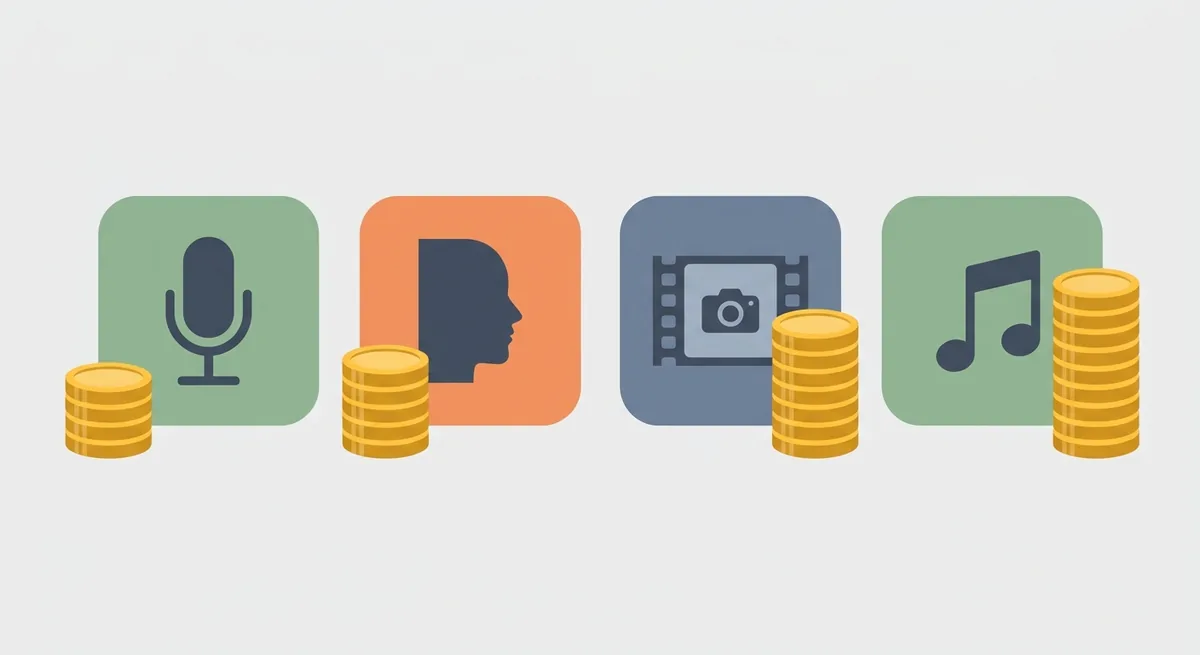
Here are example costs from InVideo’s own pages and our test log, as of October 23, 2026:
| Step or feature | Credit cost | Source |
|---|---|---|
| Agent planning chat for our 20-second script | About 4.7 | Our test, October 21, 2026 |
| Our full 20-second voiceover plan | About 350 (quoted) | Our test, October 21, 2026 |
| Nano Banana Pro image | About 2.5 per image | InVideo pricing page |
| Seedance 2.5 video, 720p | About 56 per 5 seconds | InVideo pricing page |
| Veo 3.1 Lite video | 4.80 to 25.60 | InVideo video model pricing |
| Veo 3.1 video | 32.00 to 192.00 | InVideo video model pricing |
| Kling 3.0 video | 10.08 to 252.00 | InVideo video model pricing |
| Pro avatar | 200 | InVideo help center |
| Manual timeline editing | Free | InVideo help center |
The model ranges come from the video model pricing page, which says the cheapest end of each range has no audio and the most expensive includes it. The image and Seedance figures come from the pricing page, and the avatar figure from the avatar help article.
Why does the agent cost credits even when nothing is generated? The help center says an agent reply may involve “reasoning through your brief, generating images, producing video clips, designing voice, and more” (How credits are charged when using AI Agents). The same article describes Lite as “fast and credit-efficient,” Pro as having a “higher credit cost per generation,” and Ultra as adding 4K video and upscaled images. It also lists approval settings: the default “Always allow,” and two stricter options, “Ask before generating videos” and “Always ask before generating.” Switch to one of the stricter ones before your first real project.
Two more rules from the billing help pages: you are not charged for downloading content you already generated or for editing existing videos (How Do Credits Work?), and InVideo “reserves the right to update credit costs at any time, without prior notice” (Plan Limits). For what a month of credits costs on each plan, see our InVideo AI pricing guide.
Which Features the Free Plan Unlocks, and Which It Does Not
The InVideo AI free plan in our account unlocked the agent chat, the feature menus and the usage page, with 10 credits per period, 10 GB of storage and no iStock footage, as shown on October 21, 2026. Our subscription page summed up the rest: “Free plan — Upgrade for all AI models, workflows, trends, avatars & watermark-free exports.”
What could we actually do for free? This table uses only what our account showed and what InVideo’s help center says:
| Feature | On our free account |
|---|---|
| Agent chat and planning | Worked, and used about 4.7 credits |
| Producing the planned 20-second video | Stopped at a quote of about 350 credits |
| Premium stock footage | iStock “0 / 0” |
| Storage | “0 / 10 GB” |
| All AI models, workflows and avatars | Listed as an upgrade feature |
| Watermark-free export | Listed as an upgrade feature |
| Timeline editor | Offered as “Timeline Editor (Free)”; did not open in our session |
When does the free allowance refill? The help center says the free quota “is reset weekly on Monday at 12 a.m. UTC” (Can I use invideo AI for free?). Our usage page said “Resets on 26 Oct,” and October 26, 2026 is a Monday. The same article says only “limited credits,” so treat our 10 as what one account showed, not a published number.
The InVideo AI watermark is the other limit. The help center says “You can download the videos with a watermark on the free plan” (InVideo Help Center). We could not check a file ourselves, because no video was produced. The image to video page says free accounts get “limited weekly minutes and exports”; our account counted its allowance in credits, not minutes.
For the step-by-step story of our free account, see how the InVideo AI free plan went from sign-up to a 350-credit quote. If you want a tool that can finish a video for free, start with our list of free AI video generators.
Who the InVideo AI Video Generator Suits
Based on the features above and our test, the InVideo AI video generator suits people who will pay for a monthly credit budget, since the smallest paid plan on the pricing page lists 400 credits per seat per month (InVideo pricing). This section is our judgment, not a test of the paid plans.
It looks like a fit if you:
- want an InVideo AI video maker that interviews you and plans the video, rather than a blank timeline
- make short explainer, YouTube or social videos often enough to plan around credits
- need narration in many languages, or want a cloned voice and are fine recording a consent statement
- like having many generative models in one place and are willing to check the cost of each before you run it
It is probably not a fit if you:
- want a finished, watermark-free video without paying
- need to judge output quality before you buy; on our free credits, there was nothing to watch
- mostly edit your own footage and don’t need AI generation; a regular editor may be simpler, and our picks of the best video editing software for every budget start there
What would change our view? A paid test that produces the same 20-second video and shows its real credit cost. Until then we can describe the features, not rate their results. If you are still choosing between tools, our guide to the best AI video generators by use case puts InVideo next to its alternatives.
Before You Try an InVideo AI Feature: A Short Checklist
Before you spend credits on any InVideo AI feature, write down the six answers the agent will ask for and switch the agent to ask before it generates; in our test, planning alone used about 4.7 of 10 free credits. A few minutes of preparation saves more credits than any setting.

Take this list with you:
- Is your brief ready? Format, length, voice, visuals, music and ending.
- Is the agent set to “Ask before generating videos” or “Always ask before generating”?
- Are you on the Lite tier while you sketch ideas?
- Did you check the cost in the settings icon before generating?
- Are test clips short, since video models are priced per second?
- Do you plan to use a cloned voice or an AI twin, and have you recorded the consent line?
- Does the quote for your typical video fit inside your monthly credits, with room for retries?
If every answer is yes, you are ready to try the features that matter to you. If the last one is no, simplify the brief or compare plans first.
References
- InVideo: Agent Two
- InVideo: AI Video Generator
- InVideo: Image to Video
- InVideo: AI Voice Generator
- InVideo: Voice Cloning
- InVideo: AI Avatar Generator
- InVideo: Pricing
- InVideo Help: Video Model Pricing
- InVideo Help: How Do Credits Work?
- InVideo Help: Plan Limits
- InVideo Help Center: Get started with AI filmmaking
- InVideo Help Center: Agents & models on invideo
- InVideo Help Center: Creating storyboards with invideo
- InVideo Help Center: How to clone your voice
- InVideo Help Center: How to create my avatar?
- InVideo Help Center: Introducing invideo Editor
- InVideo Help Center: How to use the timeline in invideo Editor
- InVideo Help Center: Is invideo Editor free and which actions use credits
- InVideo Help Center: How to ask AI agents to edit your timeline
- InVideo Help Center: How to export video, audio or a PNG still from invideo Editor
- InVideo Help Center: Adding dynamic text to your videos
- InVideo Help Center: How credits are charged when using AI Agents
- InVideo Help Center: Can I use invideo AI for free?
- InVideo Help Center: Can I upload and share videos I download on the free plan to social media?
- InVideo for Filmmaking on YouTube: Context and Briefs, 12 days of invideo Agent Two (Day 1)