Kit lists a free plan for up to 10,000 subscribers, the biggest free number we have seen on any newsletter tool. Then you sign up, and the first thing on your screen is a card form for a paid plan. We set up Kit from scratch on a trial account, step by step, and wrote down what each screen actually said.
What Kit Is, and Why the Old Name ConvertKit Still Shows Up
Kit is the email marketing platform that used to be called ConvertKit: you build signup forms, collect subscribers, send newsletters called broadcasts, and run automated email series. Founder Nathan Barry writes that the rename went live on October 1, 2024, and that the company raised the free subscriber limit from 1,000 to 10,000 the same year (Nathan Barry, 2024 review). Kit’s own announcement calls the new brand “the email-first operating system for creators who mean business” (Kit blog).
So why do people still search for “convertkit”? Old tutorials, old links and years of habit. If you find a ConvertKit guide from 2023, it is describing the same product, but menu names may have moved since then.

This review is the deep, single-tool version. If you are still choosing a platform, our hands-on comparison of beehiiv, Kit and MailerLite puts all three side by side on the same seven tasks. Here we go further into Kit alone: every screen, every switch, and the parts of Kit’s own documentation that explain what we saw.
Key Takeaways
Nathan Barry says Kit raised its free limit from 1,000 to 10,000 subscribers in 2024 (Nathan Barry, 2024 review). In our test, forms, a welcome email and a test send all worked on the 14-day trial with no card. The catch: Kit’s docs say automations and sequences stop running on the free plan.
Quick Verdict: Is Kit Good for Email Marketing in 2026?
Yes, Kit is good for email marketing if you want a large free list and plan to sell digital products, because the public pricing page lists Free for “up to 10,000 subscribers” with digital products and subscriptions included (Kit pricing). Our trial finished all seven tasks we set, with no card entered. Three things slowed us down, though.
| What we checked | Result in our test | What it means for you |
|---|---|---|
| Signup | Email and password only, no Google sign-in | Have a password manager ready |
| Card prompt | Full-screen “Welcome to Kit!” card modal after onboarding | Use “I’ll do this later” at the bottom to skip it |
| Signup form | Live in a few clicks, with five embed options | The easiest part of Kit |
| Welcome email | Needed a sequence, a Published switch and a separate automation | Budget extra setup time |
| Double opt-in | On by default; our welcome email arrived after we confirmed | Tell new readers to check their inbox |
| Test send | “Send preview” changed to “Sent,” and the email arrived | Proofread safely before sending to a list |
| Free plan | Up to 10,000 subscribers on the pricing page, but no automations or sequences | Your welcome series needs a paid plan |
Who should look elsewhere? If an automatic welcome series is the first thing you need, and you don’t want to pay, Kit’s free plan won’t run it. If you want a big list, forms and broadcasts for $0, Kit is hard to beat. Kit’s pricing page says the 14-day trial needs no credit card, which matched our experience.
How We Tested Kit
We tested Kit on October 20, 2026, with one work account, on the 14-day free trial, and never entered a card. We ran the same seven tasks we use for every newsletter tool on Indie Stack Lab, so the results line up with our other reviews:
- Sign up.
- Create a newsletter.
- Build a subscribe form and get the embed code.
- Set up an automatic welcome email.
- Subscribe our own address and check that the welcome email arrives.
- Write an email and send it only to ourselves as a test.
- Read the free plan limits from the billing page.
Why these seven? They are the first-week steps of every new newsletter, whatever the topic. If a tool makes one of them painful, you feel it right away.
We never sent anything to a real list. Every email went to our own inbox. We copied on-screen text word for word into a test log and kept masked screenshots of each step, so every quote in this review comes from that log. Anything we did not try is labeled as coming from Kit’s documentation.
A note on money: Indie Stack Lab may add affiliate links to some tools later. Affiliate links are labeled, and our disclosure page explains how they work. They did not change what we tested or what we wrote down.
Signing Up: No Google Sign-In and a Card Prompt You Can Skip
Kit’s signup form asks for four things, a name, an email, a password and a terms checkbox, and neither the signup page nor the login page offers “Sign in with Google”. If you are used to one-click sign-in on other tools, that is the first small surprise.
Then comes a short onboarding survey. Here is what it asked us, and what we answered:
- Do you use another email tool? We said no.
- How big is your audience? We picked 0 to 9,999.
- Business name: “Indie Stack Lab.”
- Website: Kit filled this in from the email domain.
- Creator type: we picked Blogger and Marketer.
- What do you want to do first? We chose “I just want to look around.”
None of the questions asked for payment details. That came next.
The “Welcome to Kit!” card modal
Right after onboarding, the dashboard showed “14 / 14 days remaining in trial.” A full-screen “Welcome to Kit!” modal then appeared on top, asking for card details for the Creator plan. It listed “Monthly $39/month · Annual $390/year (2 months free!)” and said “You won’t be billed until after your free trial ends.”
Does that mean Kit isn’t free? No. The skip link, “I’ll do this later,” sits at the bottom of the modal. We clicked it, entered no card, and the trial carried on as normal. Honestly, a beginner could easily read that modal as a paywall. It isn’t one; it just doesn’t say so.
Building a Signup Form: Five Ways to Embed It
Building a form took us one path through the menus and gave us five embed options: JavaScript, HTML, Share, WordPress and Unbounce. The path was Audience growth → Landing pages & forms → Create a form. We picked Inline, chose the template “Charlotte,” and pressed Save & Publish, then Embed.
Which embed should you use? Kit’s help center answers that directly. It calls JavaScript “the embed code we recommend you use,” and notes that the JavaScript version picks up changes you make in Kit, while the HTML version does not: “Your site won’t reflect your Form’s changes automatically” (Kit, Form embedding basics).
| Embed tab | What it gave us | When to use it, per Kit’s docs |
|---|---|---|
| JavaScript | One <script> line |
Default choice; updates when you edit the form |
| HTML | The form’s raw code | Only if you need to edit the HTML yourself |
| Share | A hosted form page with its own URL | Sending people straight to the form; works best for inline forms |
| WordPress | A shortcode | Sites with the Kit WordPress plugin installed |
| Unbounce | Webhook settings | Unbounce users connecting Kit |
The Share tab was the one we used for our signup test. It gave us a hosted page we could open in any browser without touching a website.
One detail stands out on the free plan. Our form carried a “Built with Kit” badge. The pricing page lists “Remove Kit branding” under Creator, not Free (Kit pricing), so expect the badge until you pay.
Where should the form go once it’s built? That is a strategy question more than a Kit question. Our six-step plan for a brand-new email list covers placement, lead magnets and the first hundred subscribers.
The Welcome Email: Sequence, Published Switch and Visual Automation
Our welcome email took work in three separate places before it went live: a sequence holding the email, the email’s own Published switch, and a Visual Automation linking the form to that sequence. On beehiiv, tested the same day, the same job took one publish. So how do Kit’s three pieces fit together?
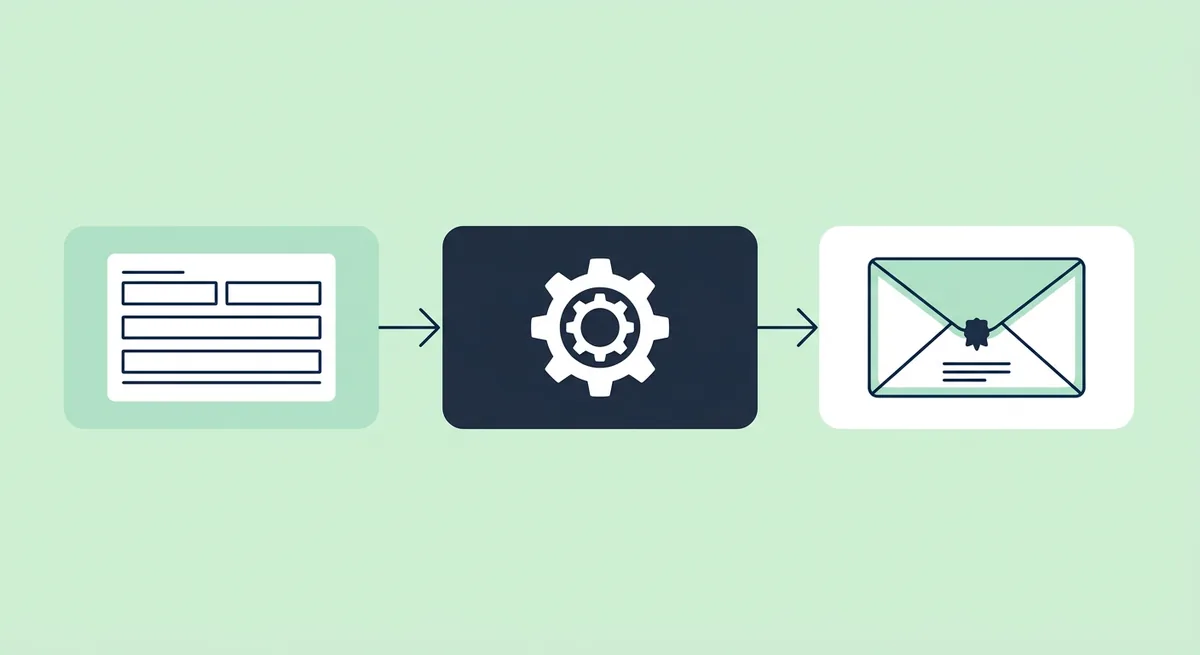
Step 1: a sequence with one email
We created a sequence from the “Text only” template and set the subject line to “Welcome to the Indie Stack Lab test list.” Then we flipped the email’s status to Published. Skip that switch and the email exists but never sends.
Step 2: a Visual Automation
Next we built a Visual Automation with one event and one action: “Added to a form — Charlotte form” → “Add to sequence — Sequence.” The first time we opened automations, Kit asked us to pick between the new builder and the legacy one.
Kit’s help center explains that choice. The new canvas builder is in open beta, you can “switch to legacy builder” from the three-dot menu at any time during the beta, and “any new functionality is only available in the new builder” (Kit, Visual Automations 2.0 beta). Switching back to legacy can lose unpublished drafts on a live automation, so pick one and stay with it.
Step 3: the publish review panel
Before the automation went live, Kit showed a review panel. We think it is one of Kit’s best details. It said, word for word:
- “Applies only to new matches — existing subscribers aren’t re-enrolled”
- “Worth reviewing (2): Sequence uses placeholder copy · First email goes out immediately”
- “Passed (5) … Plan level - Included on your plan”
We published, and the automation status read On. The first warning matters most. Kit’s guide to a first automation says it plainly: “Visual Automations don’t work retroactively” (Kit, How to create your first Visual Automation). People already on your list won’t get the welcome email; only new signups will.
The same guide lists the entry points you can start from: joining a form or landing page, a tag being added, a custom field changing, or a purchase in a connected store, with up to five entry points per automation. For what to actually say in those first emails, see our welcome email examples and setup guide.
Double Opt-In and the Subscriber Count That Lagged
Double opt-in was on by default in our test: after we subscribed on the hosted form page, Kit showed “Success! Now check your email to confirm your subscription.” We clicked the confirmation link, and the welcome email from our automation arrived. The system worked end to end.
What surprised us was the Subscribers page. A minute after the confirmed signup, it still showed “Total subscribers 0.” Nothing was broken; the welcome email had already landed. The count simply lagged. Is that a reason to worry? Not on its own, but don’t judge a new form by the dashboard in its first minutes.
How Kit handles confirmations
The confirmation settings live in the form builder, under Settings → Confirmation Email. An “auto-confirm” checkbox turns double opt-in off, and Kit’s help article strongly recommends leaving it unchecked (Kit, The confirmation email). You can also choose where people land after they click: a URL of your choice or a file download.
Unconfirmed people matter for your bill, too. Kit’s help center says “Only subscribers with the “Confirmed” status count toward your billing total,“ and unconfirmed, bounced, unsubscribed and complained subscribers don’t count (Kit, Subscriber profile and status). Cold subscribers, confirmed people with no opens or clicks for 90 days, still count.
One limit to know: you can’t confirm someone on their behalf. Kit’s article on unconfirmed subscribers says you can filter the Subscribers page by “Unconfirmed,” but there is no button to confirm them for the reader (Kit, Why do I have unconfirmed subscribers?). If your numbers look low, check that filter first.
Writing and Test-Sending a Broadcast
Sending a test broadcast to ourselves worked on the first try: the “Send preview” button changed to “Sent,” and the email arrived in our inbox. In Kit, a broadcast is a one-off email, the same thing other tools call a campaign or a post.
Our path: Broadcasts → New Broadcast → the “Text only” template. We set the subject “Indie Stack Lab test send (Kit),” wrote one paragraph, opened Preview and chose Send test email. The test box said: “Send a test email to see how it will look in your email client.” We did not press Publish, so nothing went to a list.
Why bother with a test send? Because it is the only safe way to see your email the way a reader will. Fonts, line breaks and links often look different in an inbox than in the editor. Want more structure than a plain “Text only” email? Our guide to newsletter templates walks through layouts you can rebuild in Kit’s editor.
Resend to unopens
Kit has a built-in follow-up for broadcasts that didn’t get opened. We did not use it, since we never sent to a list. Per Kit’s help center, “Resend to unopens” duplicates a sent broadcast, adds “Resending:” to the subject line (you can edit that), and sends it only to subscribers who didn’t open the first one (Kit, Resending to unopens).
The rules are tight on purpose. It works for broadcasts, not sequence emails, only once per broadcast, and only after the broadcast has gone to at least one recipient. Kit suggests waiting a few days to a week before you resend.
Kit’s Free Plan vs the Creator Trial: What Changes on Day 15
Our account only ever showed the Creator trial in billing: “Creator Monthly — 1,000 subscribers — $39/month — 0 / 1,000,” with the note “Your free trial ends in 14 days. Your subscription will cancel at the end of the trial.” The same page added: “If you wish, you can cancel your free trial and downgrade to the free plan immediately.”
The free plan’s own limits never appeared inside the app. For those we read the public pricing page, which lists Free at $0/mo, “Free—up to 10,000 subscribers,” with unlimited landing pages and forms, unlimited email broadcasts, audience tagging and segmentation, and selling digital products and subscriptions (Kit pricing).
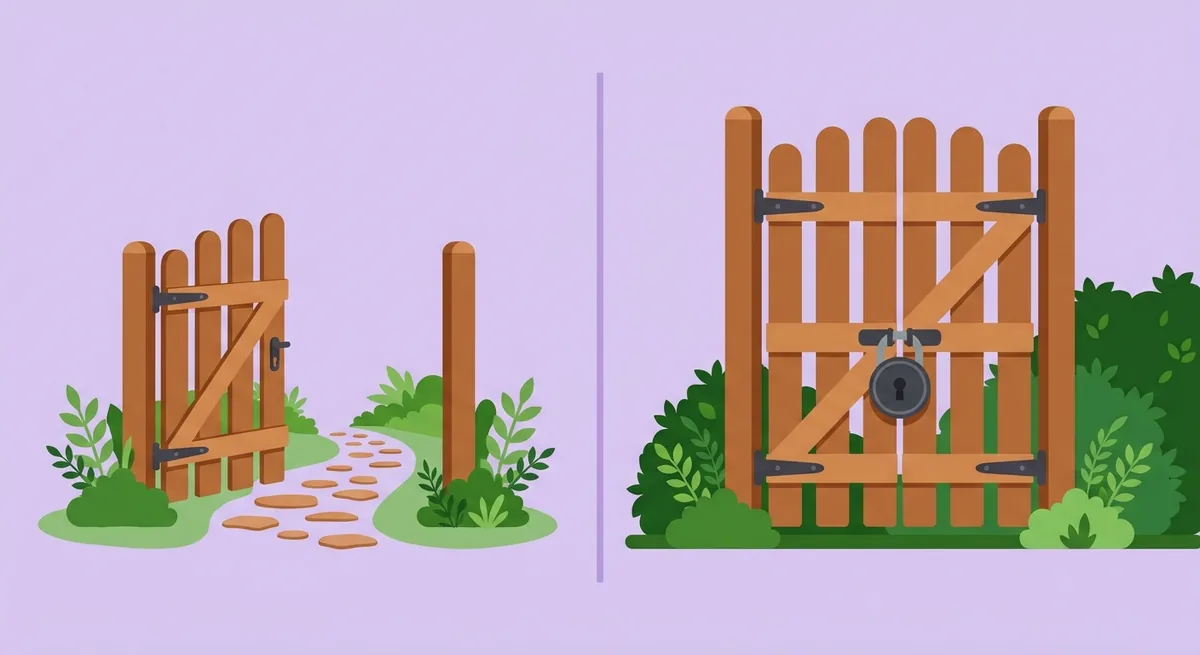
What stops when the trial ends
This is the part that matters most for anyone building a welcome email on the trial. Kit’s free plan article lists Visual Automations, the automation template library, email sequences, rules and RSS campaigns as paid features, and says “Visual automations and sequences stop running while you’re on the Free plan” (Kit, The Kit Free plan). It also says that on a trial, “access to paid features ends as soon as you switch.”
So the welcome automation we built in step 4 used trial features. We did not wait for the trial to end, so we can’t show you the moment it stops, but Kit’s own documentation is clear about it. The good news: what you build stays in your account and returns when you upgrade.
What does Free keep, per the same article? Up to 10,000 subscribers, unlimited forms, landing pages and broadcasts, tagging and segmentation, digital products and subscriptions, Creator Network recommendations, API access, free apps from the Kit App Store, and support on every plan. Above 10,000 subscribers, “You’ll need to upgrade to a paid plan to keep sending.”
Paid plans, in brief
Creator cost $39/month billed monthly for 1,000 subscribers in our in-app billing, and the pricing page shows $33/mo, or $390 billed yearly, for the same list size (Kit pricing). For every tier, how the price rises with your list, and what Pro adds, see our Kit pricing guide.
What do you get for that money? The pricing page lists Visual Automations, sequences, “Remove Kit branding,” SMS marketing, apps and integrations, RSS campaigns and 24/7 email and chat support under Creator. If a welcome series is all you need from a paid plan, that is a lot of extra features to pay for. If you will use sequences to sell, it adds up quickly.
What Else Kit Does, Per Its Own Docs: Commerce, Creator Network, Apps and API
Kit sells more than email: its help center says commerce is “available on every plan,” with selling in USD costing “3.5% + $0.30 per transaction” and no monthly fee (Kit, Sell digital products). None of this section comes from our test. Here is what we tried and what we only read:
| Feature | Did we test it? | Source |
|---|---|---|
| Signup forms and embed codes | Yes | Our test, task 3 |
| Sequences and Visual Automations | Yes, on the trial | Our test, task 4 |
| Double opt-in confirmation | Yes | Our test, task 5 |
| Broadcast test send | Yes | Our test, task 6 |
| Landing pages | No | Kit pricing page |
| Selling digital products and tips | No | Kit help center |
| Creator Network recommendations | No | Kit help center |
| Kit App Store and API | No | Kit developer docs |
Selling products, subscriptions and tips
What can you sell? The help center lists “e-books, courses, templates, presets, music, or a paid newsletter,” plus access to a link such as a members-only page. Stripe is the only payment platform Kit supports, payouts go out weekly on Fridays, and the supported currencies are USD, EUR, GBP, CAD, AUD and NZD. Fees vary slightly by currency, so check yours before you set prices.
For how product sales compare with ads, sponsorships and paid subscriptions as ways to earn from a list, see our guide to newsletter monetization.
The Creator Network
The Creator Network is Kit’s recommendation system: you recommend other creators to people who just subscribed to you, and they can recommend you back. Kit’s help center says you can recommend “up to 20 creators simultaneously,” and forms and landing pages show at most five recommendations at a time (Kit, What is the Creator Network?). Per the free plan article, Free accounts are enrolled at signup, while earning from paid recommendations needs a paid plan.
Apps and the API
Kit’s developer docs say “70% of Kit customers have at least one app or legacy integration installed” (Kit, App Store overview). That figure comes from Kit itself, so read it as a vendor claim. The free plan includes free apps; paid apps need a paid plan.
For developers, API V4 is “the latest version of our API,” and the older V3 “is still available for use but is deprecated and will be sunset in the future” (Kit, API overview). If you are following an old ConvertKit API tutorial, check which version it uses before you build on it.
What We Could Not Test, and Who Kit Fits
We covered 7 of 7 tasks on the trial, but three areas stayed out of reach: paid checkout, sending to a real list, and the features outside our shared task list. Here is exactly what we skipped and why:
- Paid plans and the Creator checkout. Both need a card, and we never entered one.
- Sending a broadcast to a list. The task only needed an email to ourselves, so we used Send test email and never pressed Publish. We have no inbox-placement data.
- Landing pages, Recommendations and the newsletter site. They were not on our seven-task list. Everything above about them comes from Kit’s documentation.
- Life after the trial. We did not wait 14 days to watch the account drop to Free.
Is that a big gap? For deliverability, yes. Any review that grades Kit’s inbox placement without sending real campaigns is guessing, and we would rather say so.
Who Kit fits, in our judgment
The following is our read, based on the test above and Kit’s documentation, not a measured result.
- Creators who want to sell digital products from day one. Commerce runs on every plan, and the free plan covers up to 10,000 subscribers.
- Writers who need a big list but simple sending. If broadcasts and forms are enough for now, Free goes a long way.
- People who want strong safety checks. The publish review panel caught two real issues before our automation went live.
Kit fits less well if you need an automatic welcome series for free, since sequences and automations need a paid plan, or if you want one-click Google sign-in.
Kit next to beehiiv and MailerLite
On the same seven tasks and the same day, Kit needed 3 separate pieces for a live welcome email, beehiiv needed 1 publish, and MailerLite was blocked until the sender domain was authenticated. beehiiv was the smoothest start with no domain; read our beehiiv review for its free plan and phone check. MailerLite suits people who already own a domain and want many forms and pages; our MailerLite review covers that domain wall in detail.
The full side-by-side lives in our comparison of the best newsletter platforms, and our guide to the best email marketing platforms for creators widens the field beyond these three.
Should You Start Your Kit Email Marketing on the Free Plan?
Start on Kit’s free plan if broadcasts, forms and selling products are what you need, because those stay free up to 10,000 subscribers per the pricing page (Kit pricing). Move to Creator when you want an automatic welcome series, since sequences and Visual Automations stop running on Free.
Before your 14-day trial runs out, take these steps:
- Skip the card modal with “I’ll do this later” if you only want to explore.
- Use the JavaScript embed for your form, so edits in Kit show up on your site.
- Build your welcome email in all three places: the sequence, the email’s Published switch, and the automation.
- Read the publish review panel before you press Publish; it flags placeholder copy and timing.
- Send yourself a test email before your first broadcast.
- Decide by day 14 whether you need sequences. If you do, budget for Creator.
Would we use Kit for a new creator newsletter? Yes, if selling a product is part of the plan. The free plan is generous where it counts for sellers, and the setup, while longer than we expected, was clear at every step.
References
- Kit: Pricing
- Kit: Allow us to reintroduce ourselves: ConvertKit is now Kit
- Nathan Barry: 2024 Annual Review
- Kit Help Center: The Kit Free plan
- Kit Help Center: Form embedding basics
- Kit Help Center: How to create your first Kit Visual Automation
- Kit Help Center: Visual Automations 2.0 (beta)
- Kit Help Center: The confirmation email
- Kit Help Center: The subscriber profile page and status
- Kit Help Center: Why do I have unconfirmed subscribers?
- Kit Help Center: Resending to unopens
- Kit Help Center: Sell digital products with Kit
- Kit Help Center: What is the Creator Network?
- Kit Developers: Kit App Store overview
- Kit Developers: API overview