Most welcome emails say “thanks for subscribing” and then go quiet for a week. That first week is when a new reader cares the most, so a single thank-you wastes it. Below you’ll find three welcome emails written out in full, plus what happened when we set up the first one on Kit, beehiiv and MailerLite.
What a Welcome Email Should Do in the First 24 Hours
A welcome email has four jobs in its first 24 hours: confirm the signup, say what the reader will get and how often, hand over one useful thing, and ask for one small action. Do those four and you have a welcome email. Everything else is decoration.
Why does it matter so much? Because this is the one email people are waiting for. GetResponse analyzed more than 4.4 billion messages its customers sent in 2023 and found welcome emails averaged an 83.63% open rate, against 40.08% for regular newsletters (GetResponse, Email Marketing Benchmarks). Treat the open rates as rough. The same report lists one-email autoresponder cycles at a 103.04% open rate, and a rate above 100% suggests some opens were counted more than once.
Clicks are a steadier signal, and the gap shows up there too. So the question is not whether to send a welcome email. It’s what to put in it, and what to send after it.
This guide is built from two kinds of material. The three example emails are our own writing, made for you to copy and adapt. The setup notes come from our October 20, 2026 test, when we built a first welcome email on three platforms with one work account and no card. We only built and checked the first email on each platform. Where this guide covers emails two and three, the steps come from each platform’s help center, not from our test.
Key Takeaways
Welcome emails averaged a 16.6% click-through rate in GetResponse’s benchmark report, against 3.84% for newsletters (GetResponse, Email Marketing Benchmarks), so a short series earns its keep. Send the first email right away, a “best of” email around day two and an ask around day four. Check your free plan first: beehiiv’s Free plan sends one welcome email, Kit’s Free plan stops sequences, and MailerLite’s Free plan allows 5 automation steps.
The Three-Email Welcome Series at a Glance
A three-email welcome series covers about four days: one email right after signup, one on day two and one on day four. Each email has a single goal and a single button. Here is the plan before we write each one out:
| When it goes out | Its one goal | Its one button | |
|---|---|---|---|
| 1. Instant welcome | Right after signup or confirmation | Confirm and set expectations | Read your best piece, or download the promised freebie |
| 2. “Best of” | About two days later | Show the reader why they stayed | One of three links, plus a reply prompt |
| 3. Ask or offer | About four days after signup | Start a two-way relationship, or make one offer | Reply, take a one-question survey, or see the offer |
Why stop at three? Because each extra email in a welcome series is another chance to lose a reader who signed up for your regular newsletter, not for an onboarding course. Three emails get the essentials across. After the third, your normal issues take over.
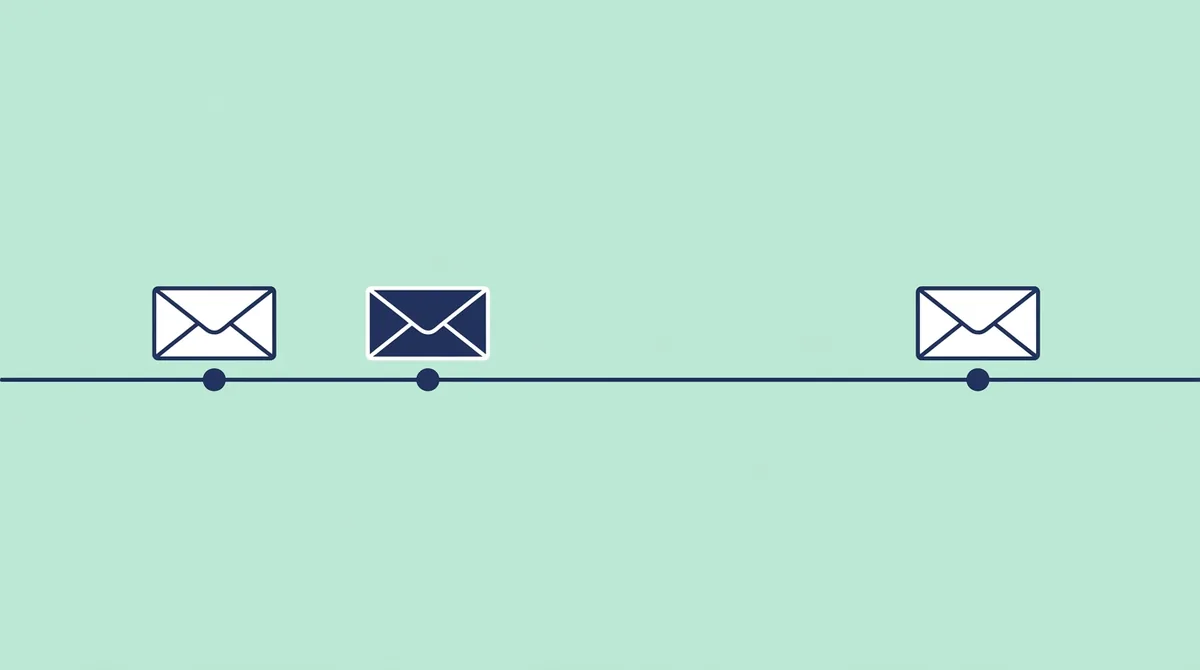
The days are a starting point, not a rule. Kit’s own help center uses a faster example: a welcome email “sent as soon as possible upon sign-up,” a second email two hours later and a third three days after that, on weekdays only (Kit, Email Sequences). A daily newsletter can move faster. A monthly one can stretch the gaps.
Example 1: The Instant Welcome and Confirmation
The first welcome email goes out within minutes of signup, and it has one job above all: tell the reader they’re in, what they’ll get and when. Here is our example for a fictional weekly gardening newsletter, written for this guide.
Subject line options:
- “You’re in: here’s what Saturdays look like now”
- “Welcome to The Saturday Garden”
- “Your planting calendar is inside”
Preview text: “One short email every Saturday morning, plus the calendar you asked for.”
The email:
Hi {first name},
Thanks for joining The Saturday Garden. Here’s the deal: every Saturday at 7 a.m., you’ll get one short email with what to plant, what to prune and one mistake to avoid that week. That’s it. No daily emails.
You asked for the planting calendar, so here it is:
[Download the planting calendar]
One small favor: if this landed in Promotions or spam, drag it to your main inbox. That way Saturday’s email won’t get lost.
See you Saturday, Maya
Notice what it leaves out. There’s no company history, no list of ten links, no discount. Just a promise, the freebie and one practical request.
What if you use double opt-in? Then the reader first gets a confirmation email, and only after the click does the welcome email go out. That was the order in our Kit test: the hosted form said “Success! Now check your email to confirm your subscription,” and the welcome email arrived after we clicked the confirmation link. In that case, keep the confirmation email short and save the warm welcome for email 1.
Kit’s help center describes the confirmation email as “also known as an incentive email and/or auto responder,” and it lets you send people to a page or a file after they confirm (Kit, The confirmation email). That detail matters later. The confirmation email lives in the form’s settings, and Kit’s Free plan includes unlimited forms, while sequences need a paid plan.
Example 2: The Day-Two “Best Of” Email
The second email goes out about two days later and shows the reader your three best pieces, so they see why they signed up. Two days is long enough that email 1 isn’t buried, and short enough that the signup still feels fresh.
Subject line options:
- “The 3 posts readers ask about most”
- “Start here: our most-saved guides”
- “Before Saturday: 3 things worth reading”
Preview text: “Pick one. Each takes less than five minutes.”
The email:
Hi {first name},
Your first Saturday email is on its way. While you wait, here are the three guides readers save most:
- How to start seeds indoors without a grow light
- The five-minute weekly watering check
- What to plant in a shady corner
[Read the seed-starting guide]
One question for you: what are you growing this season? Hit reply and tell me. I read every answer, and the most common questions become future issues.
Maya
Why only one button when there are three links? Because the button is the main action, and the list gives readers who don’t want that guide two other doors. Put your strongest piece on the button.
The reply prompt does real work, too. A question tied to the reader’s own situation is easy to answer, and every reply tells you what your readers want. Ask for one sentence, not a survey.
Example 3: The Day-Four Ask or Offer
The third email goes out about four days after signup and makes one ask: a reply, a one-question survey, or a single offer. This is where a welcome series turns into a relationship, or into your first sale.
Subject line options:
- “Can I ask you one question?”
- “What should I write about next?”
- “For new readers: the full planting course”
Preview text: “One click, and it shapes next month’s issues.”
Version A, the survey ask:
Hi {first name},
You’ve been here a few days, so I’d love one quick answer: what’s your biggest garden problem right now?
[Too little time] [Pests] [Poor soil] [Not sure what to plant]
One click is all it takes. Next month’s issues will follow the most common answer.
Maya
Version B, the offer:
Hi {first name},
If the weekly emails are helping, you might like the full course: twelve short lessons that walk you through a whole season, from seed to harvest.
[See what’s in the course]
No pressure. The Saturday emails stay free either way.
Maya
Which version should you send? If you have nothing to sell yet, send A. If you sell a product or a paid tier, send B, and keep it to one offer. For the bigger picture of how a list turns into income, see the main ways a newsletter earns money.
One legal note for US readers. An email that promotes a product is a commercial message, and the FTC’s CAN-SPAM guide says it “must include your valid physical postal address” and a clear way to opt out (FTC, CAN-SPAM Act: A Compliance Guide for Business). The guide adds: “Remember that subscribers and members can opt out of marketing emails, too.” MailerLite asked for our postal address during onboarding, before we reached the dashboard. Whatever tool you use, check that the footer of each welcome email still shows your address and an unsubscribe link before you publish.
Welcome Email Examples by Type: Newsletter, Creator Shop and Small Business
The same three-email shape works for a newsletter, a creator shop and a small business; what changes is the freebie in email 1 and the ask in email 3. Here are three welcome series examples, written as flows you can rebuild in any tool.
A newsletter writer. The reader signed up for your writing, so the series should feel like your writing.
| Step | Welcome series email flow |
|---|---|
| Trigger | Joins your newsletter list |
| Email 1, right away | Welcome, what arrives and when, link to your most-read issue |
| Wait about 2 days | Delay |
| Email 2 | Three best issues, reply prompt |
| Wait about 2 days | Delay |
| Email 3 | One-question survey about topics |
A creator who sells a digital product. The reader likely came for a freebie, such as a template, a checklist or a short lesson. If you haven’t picked a tool that can sell as well as send, compare how Kit, beehiiv and MailerLite handle digital products and paid subscriptions first.
| Step | Welcome series email flow |
|---|---|
| Trigger | Downloads the freebie |
| Email 1, right away | The freebie link, how to use it in five minutes |
| Wait about 2 days | Delay |
| Email 2 | A quick win built on the freebie, plus a customer’s story you have permission to share |
| Wait about 2 days | Delay |
| Email 3 | One offer for the paid product, with a plain “no pressure” line |
A small business. The reader may be a customer already, or close to becoming one.
| Step | Welcome series email flow |
|---|---|
| Trigger | Joins at checkout, in store or on the website |
| Email 1, right away | Welcome, what the emails cover, opening hours or service area |
| Wait about 2 days | Delay |
| Email 2 | Most-asked questions, answered in three short lines |
| Wait about 2 days | Delay |
| Email 3 | Reply to book, or one offer for first-time customers |
Do you need a different series for each signup form? Not at first. Start with one series for everyone. Split it later, once you can see which form brings readers who click. If you don’t have a list to welcome yet, start with getting your first subscribers onto a list, then come back to this series.
How We Set Up a Welcome Email in Kit
Our Kit welcome email needed three pieces before it went live: a sequence holding the email, the email’s own Published switch and a Visual Automation linking the form to the sequence. We created the sequence from the “Text only” template and set the subject line “Welcome to the Indie Stack Lab test list.” Then we flipped the email to Published and built a Visual Automation: “Added to a form — Charlotte form” → “Add to sequence — Sequence.”
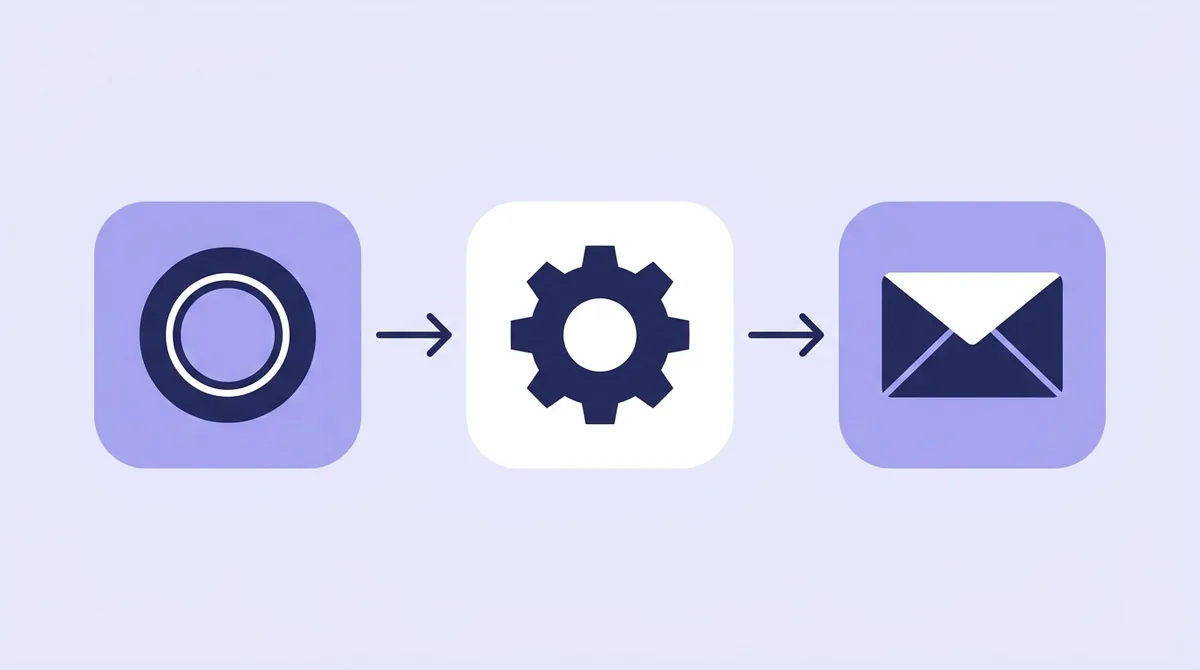
Before publishing, Kit showed a review panel. It said “Applies only to new matches — existing subscribers aren’t re-enrolled,” then “Worth reviewing (2): Sequence uses placeholder copy · First email goes out immediately.” We published, the automation status read On, and after we confirmed our own signup, the welcome email arrived.
How would you add emails 2 and 3? According to Kit’s help center, you add them to the same sequence. Only the first email can use “As soon as possible,” and later emails use “After a delay,” counted in hours or days from the previous email (Kit, Email Sequences). The same article warns that “the email won’t send if it isn’t published,” and that the sequence itself must be active, or nothing goes out even from an active Visual Automation.
Here’s the catch. Kit’s Free plan article lists email sequences and Visual Automations as paid features and says “Visual automations and sequences stop running while you’re on the Free plan” (Kit, The Kit Free plan). We built our welcome email during the 14-day Creator trial, so it used paid features. On the Free plan, the form’s confirmation email is the place to put your welcome, because it is a form setting rather than a sequence. For every screen of that setup, see our walkthrough of Kit’s sequences, forms and trial billing. For what Creator costs at your list size, see how Kit’s paid plans are priced.
How We Set Up a Welcome Email in beehiiv
beehiiv was the quickest of the three: a prebuilt automation went live with one Publish click, and the welcome email arrived when we subscribed our own address. The setup checklist step “Welcome new readers” opened an automation called “Welcome Email (with re-entry),” with the trigger “Signed up” and the step “Send email, Subject: Welcome to our newsletter.”
We pressed Publish. The confirmation dialog said: “Once published, subscribers who meet the trigger conditions will start moving through the flow.” The status changed from Draft to Live. When we signed up on the hosted subscribe page, the subscriber list showed “Showing 1 of 1 subscriber,” and the email landed in our inbox.
What about emails 2 and 3? That’s where the plan matters. beehiiv’s pricing table lists “Welcome email” on every plan, Free included, but “Live custom automations,” “Add delay” and the “Signed up” trigger start at Lite (beehiiv pricing). Its automations page puts it plainly: “all accounts have the ability to send a 1-email Welcome Email triggered by a user subscribing” (beehiiv automations). That FAQ still uses the older plan names, but the meaning is clear.
So on beehiiv’s Free plan, send Example 1 as your welcome email and fold the best of Example 2 into it. On Lite, you can build the full series. beehiiv’s help center describes two ways to space emails: a Time delay, which waits a set time after a reader enters the automation, and Wait until, which holds everyone until a set day and time and is listed for all paid plans (beehiiv, Using the Wait until action). We built ours on day 1 of the Pro trial and did not wait for the account to drop to Free. For the rest of that test, see beehiiv’s free plan limits and Pro trial in practice. For Lite’s price at your list size, see what beehiiv’s Lite plan costs and adds.
How We Set Up a Welcome Email in MailerLite, and Why It Stayed Off
MailerLite let us build a welcome automation in a few clicks, but it would not activate it, because the sender domain was not authenticated. We picked the “Simple welcome email” template, set the trigger to “Joins group(s): Indie Stack Lab test” and wrote the subject line “Welcome to the Indie Stack Lab test list.”
The email step showed two warnings: “Sender email must be authenticated before you can send from this address. Connect domain” and “Add missing URLs to buttons.” When we pressed Activate, MailerLite said: “Looks like some steps or triggers are incomplete. Let’s fix that!” The automation stayed inactive.
We could still read the email in our own inbox. “Send a test email” from the email step worked, with a warning that test emails “have limited features and Unsubscribe, Forward and Preference Center links will not work on them.” That is a good way to proofread a welcome email while your domain is still being set up.
What does authentication involve? MailerLite’s help center says you add three DNS records at your domain host, DKIM as a CNAME record plus SPF and a domain verification record as TXT records, then press Check DNS Records. It can take “up to 24 hours,” though most checks pass in minutes (MailerLite, Domain authentication). We did not change DNS during our test.
Once it’s live, can the Free plan run a three-email series? Just about. MailerLite’s pricing comparison lists 3 active automations and 5 automation steps on Free (MailerLite pricing). Its help center suggests spacing emails with a Delay step between each Email step (MailerLite, How to use automation steps). Three emails and two delays make five steps, right at the limit. We never activated an automation, so we haven’t seen how MailerLite counts the trigger. For more on the domain step, see what MailerLite’s domain lock looked like on a new account, and for higher caps, see MailerLite’s automation limits on each paid plan.
What Each Free Plan Lets You Run
On the free plans, beehiiv runs one welcome email, Kit stops sequences, and MailerLite fits a short series inside 5 automation steps once your domain is verified. That is the most useful single fact in this guide, so here it is side by side:
| beehiiv | Kit | MailerLite | |
|---|---|---|---|
| Welcome email on the free plan | One welcome email | Confirmation email on the form; sequences stop on Free | Yes, within 3 active automations |
| Delays between emails on free | No, “Add delay” starts at Lite | No, sequences are paid | Yes, inside 5 automation steps |
| What we built in our test | Prebuilt welcome automation, live in 1 publish | Sequence, Published switch and Visual Automation | Welcome automation, blocked until domain authentication |
| Did our welcome email arrive? | Yes | Yes, after double opt-in | Test email only |
| Plan during our test | Pro trial, day 1 | Creator trial | 14-day trial |
Sources for the plan rows: beehiiv pricing, Kit, The Kit Free plan and MailerLite pricing, read on October 24, 2026. The test rows come from our October 20 log.
What does this mean in practice? If you want a free three-email series, MailerLite is the only one of the three that lists the pieces on its free plan, and only after you authenticate a domain. If you’re happy with one strong welcome email on Free, beehiiv is the fastest. If you’ll pay for a plan anyway, all three can run the full series. For how the three compare on everything else, see how beehiiv, Kit and MailerLite handled the same seven setup tasks.
Common Welcome Email Mistakes We Ran Into
Five small problems showed up across our three setups. Some came with a warning on screen, and others were silent. Each is easy to fix once you know to look.
Placeholder copy goes live. Kit’s review panel flagged “Sequence uses placeholder copy,” and MailerLite’s template shipped with buttons that had no URLs. A template is a start, not an email. Read every line before you publish, and replace every sample sentence with your own.
Placeholder buttons hold up activation. When our MailerLite flow refused to activate, “Add missing URLs to buttons” was one of the two warnings on the email step, next to the domain warning. Fill in the buttons first and you’ll have one fewer warning to clear.
Counters lag behind reality. On both beehiiv and Kit, the numbers read 0 right after a signup that had already delivered the welcome email. Kit’s Subscribers page still said “Total subscribers 0” a minute later. Don’t troubleshoot a working automation because of a dashboard. Check your inbox instead.
Old subscribers don’t get the new welcome. Kit’s panel said “existing subscribers aren’t re-enrolled,” and its help center says “Visual Automations don’t work retroactively” (Kit, How to create your first Visual Automation). If you already have readers, send them a one-off email with the best parts of the series.
Trial features look like free features. All three of our welcome setups were built during a trial. On Kit, sequences stop on the Free plan. On beehiiv, delays start at Lite. Before you build a series, check the free column of the pricing page, not what works on day 1 of a trial.
Is there a sixth mistake? Yes, and we nearly made it: judging a welcome email by its test send. MailerLite’s campaign test dialog warned that “Spam placement is common for test emails and doesn’t reflect your actual campaign health.” A test shows you the layout. It tells you nothing about inbox placement.
Writing Your Own Welcome Series: Your Next Step
You can write a three-email welcome series in an afternoon: one email per goal, one button per email, and a subject line that says what’s inside. Start with email 1 today, even if the other two wait until next week.
A short checklist before you switch it on:
- Does email 1 say what the reader gets and how often?
- Does each email have exactly one main button, with a working link?
- Have you replaced every line of template copy?
- Does your free plan run the series, or only one email?
- If you use MailerLite, is your sender domain authenticated?
- Did you sign up with your own address and see the email arrive?
If your series is mostly text, a plain letter layout works best; our plain-letter newsletter layout shows the block order. Then send the series to yourself one last time and read it on your phone. Would you open the second email if you were the reader? If not, rewrite its subject line before anything else.
References
- GetResponse: Email Marketing Benchmarks
- Kit: Creating and sending an Email Sequence in Kit
- Kit: The Kit Free plan
- Kit: How to create your first Kit Visual Automation
- Kit: The Confirmation Email
- beehiiv: Pricing
- beehiiv: Newsletter Automation
- beehiiv: Using the Wait until action in a workflow
- MailerLite: Pricing
- MailerLite: How to use automation steps
- MailerLite: Domain authentication
- FTC: CAN-SPAM Act: A Compliance Guide for Business