Search for newsletter templates for Google Docs and the first page is mostly galleries asking you to download someone else’s file. Many of the best ones are already inside the apps you have, free and published by the app maker. The harder question is what happens after you fill one in, because a document is not an email.
Why the App You Already Use Is the Best Template Source
The safest free newsletter templates come from inside Google Docs, Microsoft Word, Canva and Adobe Express, because those libraries are published by the app maker and open in an editor you know. Canva’s newsletter gallery alone showed “Showing 50 of 4,616” templates when we checked it on October 24, 2026 (Canva newsletter templates).
So why do download sites rank so well? Because “free newsletter templates” is a big search, and gallery pages are cheap to make. When we checked the US results for this exact search on October 23, 2026, two of the top eight results were spam pages hosted on university subdomains. That is not where you want to get a file you will send to your readers.
This guide goes app by app. For each one you get where the templates live, where “free” ends, and what you have to do before the result can land in an inbox. One note on sources: Indie Stack Lab has not run Google Docs, Word, Canva or the print apps through our test list, so every fact about them comes from the makers’ own help pages, read on October 24, 2026. First-hand notes appear only in the section on email platforms, and they are labeled.
Key Takeaways
Google Docs, Word, Canva and Adobe Express all include free newsletter templates, but they are page designs, and readers open email in inbox apps, not in Docs or Word: Litmus says almost 90% of the email opens it tracked in September 2026 report as Apple Mail or Gmail (Litmus). Pick the template in the app you know, then send it with a tool built for email.
Where to Find Free Newsletter Templates in Each App: Quick Answer
Every major app has a free newsletter library, and the main difference is the last step: of the design apps in this guide, Canva is the one whose help center documents an email design type that exports HTML, while Docs and Word rely on Gmail, Outlook or mail merge to send (Canva Help: Get started with Canva Email). Here is the short version, based on each maker’s help pages.
| App | Where the templates are | Free? | Can it go out as an email? |
|---|---|---|---|
| Google Docs | Template Gallery (top right of the Docs home screen), or File > New > From a template | Yes, Google-made templates | Yes, through the Email draft building block and Gmail |
| Microsoft Word | Word for the web newsletter page, or File > New and the online template search | Yes, the newsletter page calls them free | Yes, with Send to Mail Recipient or mail merge |
| Canva | Newsletter and Email Newsletter galleries | Many free; Pro items carry a watermark until licensed | Yes, as HTML from Canva Email |
| Adobe Express | Newsletter template gallery, 1,125 templates | Mixed; the gallery has a Premium & Free filter | Download and send elsewhere |
| Apple Pages | Template chooser, including School Newsletter | Yes, built into Pages | Not covered in Apple’s template guide |
| InDesign | New Document dialog, Adobe Stock templates | Needs an Adobe account with Stock access | Print and PDF tool |
| Gmail layouts | Compose > Layouts | Only on eligible Google Workspace plans | Yes, it is an email tool |
| Email platforms | Template libraries inside Kit, MailerLite, beehiiv | Free plans include templates, with limits on some | Yes, built for it |
Which row matters for you? If your newsletter is printed or saved as a PDF, any of the first five works. If it goes to an inbox, read the export section before you spend an hour on a design.
Google Docs Newsletter Templates: The Template Gallery and Its Limits
Google Docs keeps its templates in the Template Gallery: open Docs on a computer, click Template Gallery at the top right, and click a template to get your own copy (Google Docs Editors Help: Use templates). The same page lists examples such as “resumes, budgets, and order forms,” and for business users it names templates like “sales emails,” but it does not name a newsletter.
That is the honest answer to “does Google have a newsletter template?” Google’s help page doesn’t promise one, and the gallery changes over time, so open it and look before you go hunting elsewhere. Some template features, the page adds, “are only available for work or school accounts.”
Inserting a template into a document you already started
Docs has a second path. Open a document, click File, then New, then From a template, scroll the gallery and click Insert. If your document already has content, Google says the template “will open in a new document tabs,” so nothing you wrote gets overwritten.
Opening Word newsletter templates in Google Docs
What if the Docs gallery has nothing you like? Use a Word template. Google’s help center says you can “edit, download, and convert Microsoft Office files in Google Docs,” either directly or in Office Compatibility Mode (Google Docs Editors Help: Work with Office files). Download a free newsletter template from Microsoft’s library, upload it to Google Drive, and open it in Docs. Google’s page keeps a list of Office features that are not supported, so check every page of the template after it opens.
Google Slides and Gmail layouts
Google Slides is the other free Google option, and it is better for one-page visual layouts. Its help page says “Google slide templates are currently only available in English (US) locale” (Google Docs Editors Help: Google Slides templates). A slide sized as a single page makes a neat printable flyer-style newsletter.
The closest thing Google has to a true email newsletter template lives in Gmail, not Docs. Gmail’s customized layouts let you “send professional-looking emails to a large audience” with your logo, colors and footer details, and Google lists the Workspace editions that include it, such as Business Standard, Business Plus, Education Standard and Workspace Individual (Gmail Help: Create branded emails with customized layouts). Check your plan before you design around it.
Microsoft Word and Microsoft Create Newsletter Templates
Microsoft’s free newsletter templates now live on Word for the web, on a page titled “Free Microsoft Word newsletter templates to customize and print,” which lists designs such as Corporate newsletter, Classroom newsletter, Realtor newsletter, School newsletter and Family Christmas newsletter (Microsoft Word: Newsletter templates). The old Microsoft Create address for newsletter templates now redirects there.
The page gives four steps: search newsletter templates on Word for the web, double click a template to edit it online, personalize it with text, headings and images, then “Save, download, and share as a well-formatted PDF.” That last step tells you what these templates are built for. They are pages, made to be printed or shared as files.
Finding newsletter templates in desktop Word
In the desktop app, Microsoft’s instructions are short: on the File tab, choose New, then “double-click a template image or type the kind of document into the Search for online templates box and press Enter” (Microsoft Support: Create a document in Word). Type “newsletter” and you get the same family of designs. This is also where searches like “ms word newsletter templates free” and “free newsletter templates for word download” end up: the files are free to use inside Word, no third-party download needed.
Word templates and Copilot
The Word newsletter page also pitches Copilot in Word to “generate newsletter content ideas with AI” or rewrite drafts. That is an extra on top of the template, not part of it. The template itself is free; Copilot features can depend on your Microsoft 365 plan, so check yours before counting on them.
Is a Word template the right start for an email newsletter? Only if you plan to send it the way Word supports, covered in the export section. For a printed school or office newsletter, it is one of the best free options there is.
Canva Newsletter Templates: Free vs Pro Designs
Canva’s newsletter gallery listed 4,616 templates on October 24, 2026, and many are free, but premium elements in a design “will have watermarks (criss-cross patterns) on your design until they’re purchased” (Canva Help: Premium elements). Free and Pro designs sit side by side in the same gallery.
So is Canva free? The gallery page has a Price filter, and its own description says the designs are “Free to personalize.” Canva runs two galleries: the main newsletter one, which is mostly printable page designs, and a separate gallery of email newsletter templates (Canva email newsletter templates). If you plan to send by email, start in the second one.
What “Pro” costs you on a free account
Canva gives free users three ways to remove a watermark: buy the elements when you download, click Remove watermarks on a single element, or upgrade to Canva Pro or Canva Teams. One detail trips people up. Canva’s help center says a content license “allows unlimited edits and downloads only in the same design you purchased it for,” so the same Pro photo in a second newsletter needs a second purchase (Canva Help: Watermarks or Canva logos are on my design).
Teachers get a better deal. Canva’s help pages say teachers, students and nonprofit team members “can apply for a free Canva Education or Canva for Nonprofits account to get unlimited access to premium elements.” For a classroom newsletter, that is worth the application.
Canva Email in one paragraph
Canva is the only app in this guide with a dedicated email design type. Canva Email lets you build from a pre-made layout and “Export your email as HTML,” but “Canva doesn’t send emails directly,” so you still need an email platform or Gmail to send it. More on that in the export section. A deeper Canva guide is on our list.
Publisher, InDesign, Affinity and Apple Pages for Print Newsletters
For print newsletters, Microsoft Publisher is no longer a safe choice: Microsoft says Microsoft 365 subscribers could use it “until October 1, 2026,” and “Support for the perpetual version of Publisher will end on October 13, 2026” (Microsoft Support: Publisher end of support). Both dates have now passed.
Publisher newsletter templates after the retirement
What happens to your old Publisher newsletter files? Microsoft says Microsoft 365 subscribers “will no longer be able to open or edit Publisher files in Publisher,” while people with a perpetual copy “will still be able to access and edit” their files. Microsoft points to Word and PowerPoint as replacements for flyers, brochures and similar designs. If you still search for “ms publisher newsletter templates,” rebuild the design in Word instead of starting a new Publisher file.
InDesign templates from Adobe Stock
Adobe InDesign is the professional option. Its New Document dialog offers Adobe Stock templates for print, web and mobile, and Adobe’s help page says “You need an Adobe account with Stock access to download templates” (Adobe Help: Create new documents in InDesign). Choosing Download licenses the template, which then opens as a normal InDesign file. Free InDesign newsletter templates exist, but this route assumes you already pay for InDesign.
Affinity, now free for individuals
Affinity is the budget-friendly answer to InDesign. Its site says “Affinity is free for individuals (seriously),” with vector, pixel and layout tools in one app (Affinity). Affinity’s homepage doesn’t advertise a newsletter template library, but it says you can bring in “PSD, AI, IDML, DWG, and other file types” with layers preserved. IDML is InDesign’s exchange format, so an InDesign newsletter template you are licensed to use can be opened and edited there.
Apple Pages and Adobe Express
Apple Pages ships a School Newsletter template. Apple’s guide says “the Essay and School Newsletter templates” are word-processing templates, and it warns: “After you begin creating your document, you can’t switch to a different template” (Apple Support: Use templates in Pages on Mac). Pick the layout first, then write.
Adobe Express sits between Canva and Word. Its gallery listed 1,125 newsletter templates on October 24, 2026, with a “Premium & Free” filter and categories such as Classroom, Email, Church, Real Estate, Community and Staff newsletters (Adobe Express newsletter templates). Use the filter before you fall in love with a design.
Turning a Document Template Into an Email Newsletter
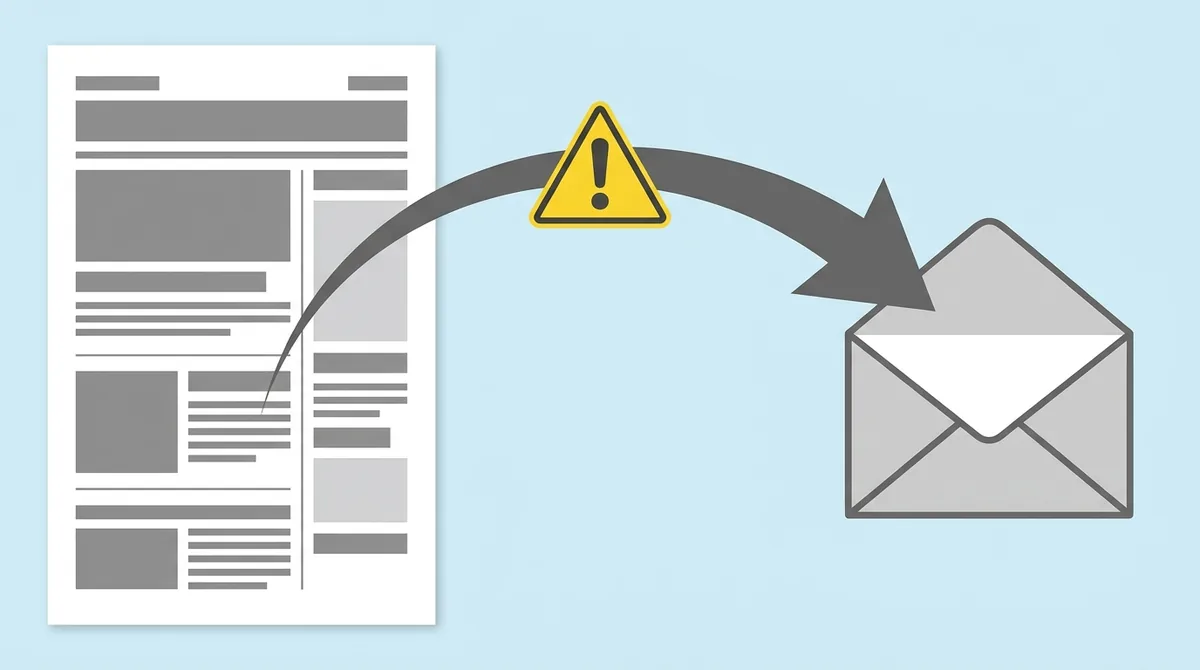
A document template becomes an email in one of four ways, and the cleanest is to rebuild it in an email editor, because Microsoft says Outlook (Classic) “uses a Word-based HTML processing engine that has limited support for standard CSS margins and padding” (Microsoft Learn: Troubleshoot email rendering). Every inbox app reads email code differently, and none of them reads a .docx file.
Route 1: Google Docs email drafts
Google Docs has a built-in email route. On a computer, click Insert, then Building blocks, then Email draft, or type “@email” and press Enter. You add recipients, a subject and the body in the document, then click Preview in Gmail and Send (Google Docs Editors Help: Use Google Docs to draft emails). Google notes that previewing in Gmail requires your Google Account language to be English. Google describes it as a draft where you write and format text, which suits a short update to a small group. It is not a way to carry a multi-column page layout into an email.
Route 2: Word’s Send to Mail Recipient and mail merge
Word can put a document into the body of an email, but you have to switch it on first. Microsoft says to add the Send to Mail Recipient command to the Quick Access Toolbar, open the file and select it, and “Your file will appear in the body of the message” (Microsoft Support: Email a document from Microsoft Office). It needs Outlook installed as part of Microsoft 365 and set as your default email app.
For a list, Word’s mail merge sends one personalized email per address: Mailings, Start Mail Merge, E-mail Messages, then Finish & Merge. Microsoft lists the limits plainly: “You cannot CC or BCC other recipients. You cannot add attachments” (Microsoft Support: Mail merge to email). The mail format defaults to HTML.
Route 3: Canva Email’s HTML export
Canva Email is the one design route made for inboxes. You can copy the HTML into an email platform’s code editor or download a ZIP with the HTML file and its images, and Canva can open a design straight in a Gmail draft (Canva Help: Test and export your Canva Email). Two warnings from Canva itself: “Gmail strips out media queries,” so the layout “may not stack correctly on smaller screens” (Canva Help: Get started with Canva Email), and banners or text saved as part of an image “will export as a single flat image.”
Route 4: rebuild the layout in an email editor
This is the route that holds up. Keep the template as a sketch: the header, the lead story, the short items, the footer. Then rebuild those blocks, in that order, in your email platform’s editor. Our guide to seven newsletter layouts and the blocks each one needs explains why a template is really a block order, and how to rebuild one in Kit, MailerLite or beehiiv.
What about attaching the PDF? You can, but readers then have to open a file, and nothing shows in the inbox preview. Use the PDF as a printable copy linked from the email, not as the email itself.
Gmail and Outlook Templates: Useful, but Not Newsletter Tools
Gmail and Outlook both save email templates, but they are personal sending tools with daily caps: Google Workspace allows 2,000 messages per user per day, 1,500 for mail merge and 500 for trial accounts (Google Workspace Help: Gmail sending limits). That is enough for a club or a small team update, not a growing newsletter.
Outlook’s two kinds of templates
Does Outlook have newsletter templates? Sort of. Microsoft describes two features. Mail Templates “saves full emails, including recipients, subject, body, formatting, and attachments,” and Microsoft calls it “Ideal for complete, repeatable emails like newsletters or announcements.” The My Templates add-in “only stores short text snippets” (Microsoft Support: Create email templates in Outlook). Both need “a qualifying Microsoft 365 subscription.” Neither comes with designed newsletter layouts; you build the email once and reuse it.
Gmail mail merge and the rules for bulk senders
Gmail’s mail merge lets eligible Workspace accounts send “personalized email campaigns, newsletters, and announcements to a wide audience,” with merge tags such as @firstname (Gmail Help: Send personalized emails with mail merge). Each recipient gets their own copy and can’t see the others.
The ceiling is Gmail’s own rulebook for senders. Its sender guidelines say that above 5,000 messages a day, “your marketing and subscribed messages must support one-click unsubscribe,” and bulk senders need SPF, DKIM and DMARC set up for their domain. They also ask senders to keep spam rates “below 0.10%” (Gmail Help: Email sender guidelines). Email platforms handle unsubscribe links and authentication for you. A personal inbox doesn’t. A step-by-step guide to Gmail and Outlook templates is on our list.
Email Platforms With Free Built-In Templates
If the newsletter goes to an inbox, the most useful free templates are the ones inside an email platform’s free plan: Kit lists up to 10,000 subscribers on Free with its email template library included, MailerLite’s Free plan covers 250 subscribers and 2,500 monthly emails, and beehiiv’s Free plan lists email templates (Kit pricing, MailerLite pricing, beehiiv pricing). These editors are built for email from the start. Why start anywhere else if the list will grow?
We opened all three on October 20, 2026, on no-card trials, and sent test emails only to our own inbox. We did not test their template galleries in depth, so the template rules below come from the pricing pages, and the first-hand notes are limited to what we actually used.
| Platform | Templates on the free plan (pricing page) | What we used in our test |
|---|---|---|
| Kit | Email template library and custom HTML/CSS templates marked on every plan, Free included | The “Text only” email template, and the “Charlotte” form template |
| MailerLite | Newsletter templates marked “Limited” on Free; drag-and-drop and custom HTML editors on every plan | A layout from “Simple emails,” and the “Simple welcome email” automation template |
| beehiiv | “Email templates” listed on Free | The standard post editor and its Send test email step |
What we noticed in each editor
On Kit we wrote a broadcast in the “Text only” template, a plain start with no design to strip out. Before sending, the preview box said: “Send a test email to see how it will look in your email client.” For a writer moving from a Google Doc, that plain start is the closest match. Our walkthrough of Kit’s free plan, from signup form to test send has the full path.
On MailerLite we picked a layout from “Simple emails” and replaced the heading and first paragraph. The test dialog carried a warning worth knowing: “Spam placement is common for test emails and doesn’t reflect your actual campaign health.” The welcome template also shipped with placeholder buttons, and the email step flagged “Add missing URLs to buttons.” Our notes on what a free MailerLite account let us build cover the domain step that blocked going live.
On beehiiv an issue is written as a post in the post editor, and we sent our test from its Review step. The test dialog said: “It only goes to the addresses you choose, not your subscribers.” See our beehiiv free plan and Pro trial notes for the rest.
Other platforms with template galleries
Constant Contact markets “700+ email templates” by category, including newsletters, but it is a paid tool with a free trial (Constant Contact email templates). If you are leaving Mailchimp because of its free limits, our look at three Mailchimp alternatives with free plans compares the options. For a full side-by-side of the three free plans, read our beehiiv vs Kit vs MailerLite comparison.
Template access is only one line on each pricing page, so check the caps that come with it before you commit. The details are in our breakdowns of MailerLite’s Free plan limits and paid plans, what Kit’s free plan includes and beehiiv’s Free, Lite and Pro plans. If you plan to sell products or a paid newsletter alongside it, our guide to email platforms for creators who sell compares the selling features.
Free Templates by Use Case: Schools, Churches, HOAs and Businesses
Most “free classroom newsletter templates” or “free church newsletter templates” searches are already answered inside the big libraries: Adobe Express has separate Classroom, Teacher, Church, Community and Staff newsletter categories, and Canva’s newsletter gallery links to School, Church, Company, Family and Christmas collections (Adobe Express newsletter templates). Search the use case inside the app before you search the web.
Here is where each use case lives in the official libraries we read:
| Use case | Microsoft Word | Canva | Adobe Express | Apple Pages |
|---|---|---|---|---|
| School, classroom, preschool | Classroom, School, Back to school | School | Classroom, School, Teacher, Class | School Newsletter |
| Church, faith groups | Search “church” | Church | Church | Adapt a newsletter template |
| HOA, community | Search “community” | Search “community” | Community | Adapt a newsletter template |
| Business, employee | Corporate | Company | Business, Corporate, Staff | Adapt a newsletter template |
| Family, holiday | Family Christmas | Family, Christmas, Holiday | Christmas, Holiday | Adapt a newsletter template |
What about HOA newsletter templates? None of the official galleries we read had an HOA category by name. Start from a community design and swap in your board updates, meeting dates and dues reminders.
Content matters more than the frame. A preschool newsletter needs dates and reminders up top; a church newsletter needs the service schedule; a company update needs a lead story and short wins. Our guide to seven newsletter layouts walks through the school, company and seasonal layouts block by block, so you can fill any of these templates with the right parts in the right order.
Free Download Sites: What to Check Before You Use One
Before you download a free newsletter template from a site you don’t know, check three things: the license, the file format and whether the text is editable. Canva’s own licensing rules show why the license matters: a purchased element “allows unlimited edits and downloads only in the same design you purchased it for” (Canva Help: Watermarks or Canva logos are on my design). Download sites rarely spell their terms out that clearly.
Use this checklist:
- License. Find a written license page. Look for personal versus commercial use, and whether you may send the design to subscribers or print copies for sale.
- File format. A .docx or Google Docs link is editable. A PDF or a single image usually is not, and you will end up retyping everything.
- Fonts and photos. A template that relies on a paid font or a stock photo may need its own license. Replace both with free ones if you are unsure.
- Download behavior. A real template site gives you the file. Pages that bounce you through redirects, ask for unrelated installs, or repeat the same paragraph over and over are a warning sign, like the spam pages we found in the search results.
- Email readiness. Even a good download is a page design. It still needs one of the four email routes before it can go to subscribers.
Why bother when the app libraries are free? Because a third-party site can add a niche design the big libraries lack. Just apply the same checks you would apply to any file from the internet.
Picking Your Newsletter Template: The Next Step
Pick the app you already know, take a free template from its own library, and decide how the newsletter will reach readers before you design anything. Litmus counted 76.56% of tracked opens in Apple Mail and 16.10% in Gmail in September 2026 (Litmus), so the inbox is where your design has to work.
A short decision list:
- Printing it or sharing a PDF? Word, Google Docs, Pages or Adobe Express are all free and fine.
- Sending to fewer than a few dozen people from your own inbox? A Google Docs email draft or Word’s Send to Mail Recipient will do.
- Want a designed email without code? Build it in Canva Email, then send a test to yourself.
- Building a list that will grow? Use an email platform’s free plan and rebuild your template there.
Still collecting your first readers? Our step-by-step guide to building an email list is the place to start, and a good welcome email series is the first template most newsletters need.
Further Reading
- Newsletter Templates in 2026: 7 Layouts and How to Build Them
- Best Newsletter Platforms 2026: beehiiv vs Kit vs MailerLite
- Is Substack Free? 2026 Guide to Substack Fees and Paid Plans
- Best Email Marketing Platforms for Creators in 2026
References
- Google Docs Editors Help: Use templates
- Google Docs Editors Help: Use Google Docs to draft emails
- Google Docs Editors Help: Work with Office files
- Google Docs Editors Help: Use a Template or change the theme in Google Slides
- Gmail Help: Create branded emails with customized layouts
- Gmail Help: Send personalized emails with mail merge
- Gmail Help: Email sender guidelines
- Google Workspace Help: Gmail sending limits in Google Workspace
- Microsoft Word: Free newsletter templates
- Microsoft Support: Create a document in Word
- Microsoft Support: Email a document from Microsoft Office
- Microsoft Support: Use mail merge in Word to send bulk email messages
- Microsoft Support: Create email templates in Outlook
- Microsoft Support: Microsoft Publisher will no longer be supported after October 2026
- Microsoft Learn: Troubleshoot email rendering
- Canva: Newsletter templates
- Canva: Email newsletter templates
- Canva Help: Premium elements
- Canva Help: Watermarks or Canva logos are on my design
- Canva Help: Get started with Canva Email
- Canva Help: Test and export your Canva Email
- Adobe Express: Newsletter templates
- Adobe Help: Create new documents in InDesign
- Apple Support: Use templates in Pages on Mac
- Affinity
- Constant Contact: Email marketing templates
- Litmus: Email client market share
- Kit: Pricing
- MailerLite: Pricing
- beehiiv: Pricing